Your computer feels slow. Here's what to do.
Most "slow computer" problems aren't the computer at all. This is how to find what's really slowing it down, and fix it for free or close to it, on a Windows PC.


Ask anyone in IT what they hear most and it's some version of the same sentence: my computer is slow, can you look at it? Almost every time, the computer isn't the problem. It's one program crawling, or the internet dragging, or years of clutter piling up, and from the chair it all feels the same. The whole machine feels slow.
So the useful first move is figuring out what's actually slow, before you change a thing. Once you know that, the fix is usually small and free. If you've ever stared at a spinning cursor and started pricing a new laptop, this is for you. You probably don't need one.
Already handy with a PC and just want the steps? Jump straight to the fixes. If you're not sure what's actually slowing things down, the next section sorts that out first, so you fix the right thing instead of guessing.
Step one: what's actually slow?
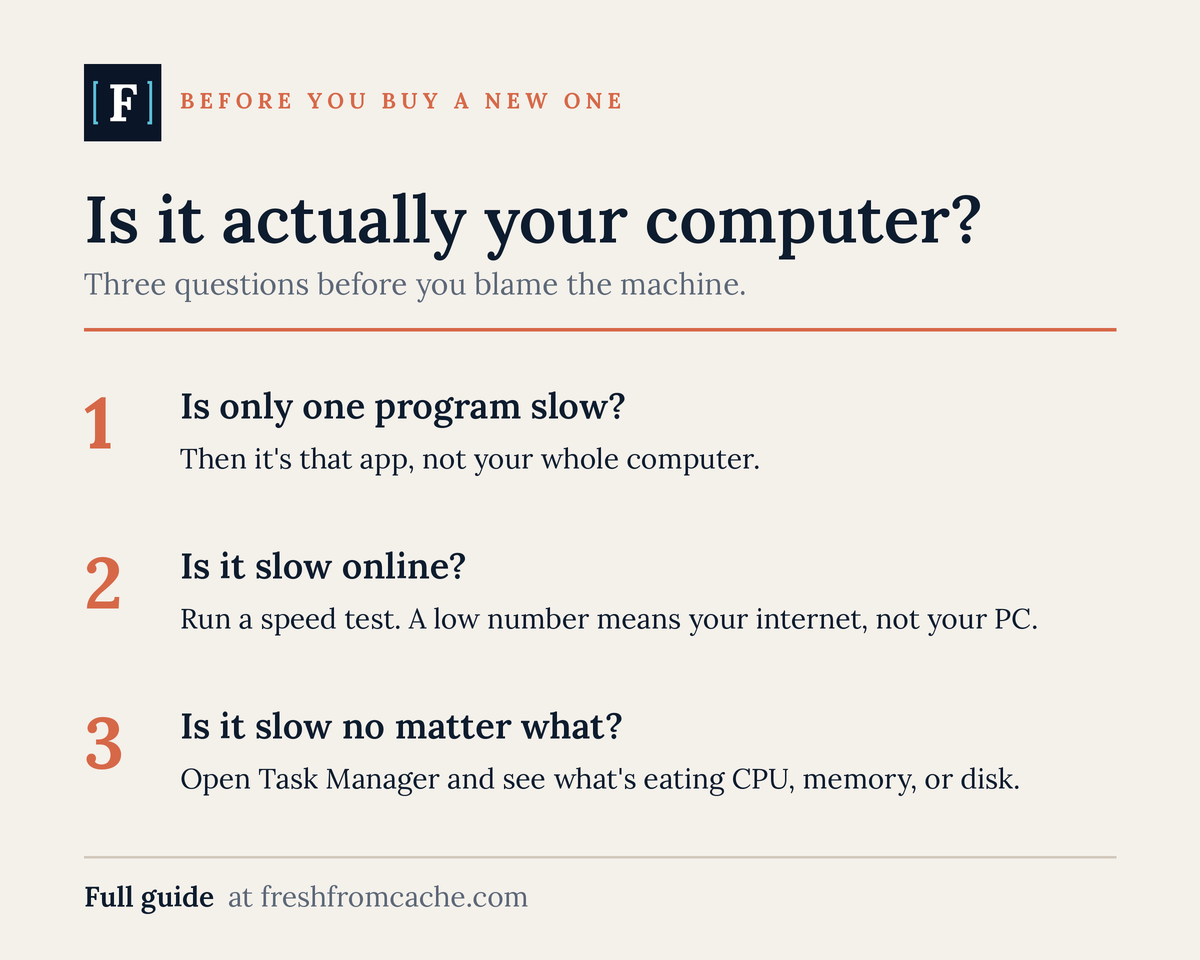
Before you touch a setting, spend a couple of minutes working out where the slowness lives. Three questions get you most of the way.
Is it everything, or just one thing? Start here: what are you doing when it feels slow? If it only happens in one program, that program is the suspect, not the computer. A photo editor that chugs, a game that stutters, one website that takes forever to load. If it's slow no matter what you open, that points back at the machine itself. That one question splits the problem in half.
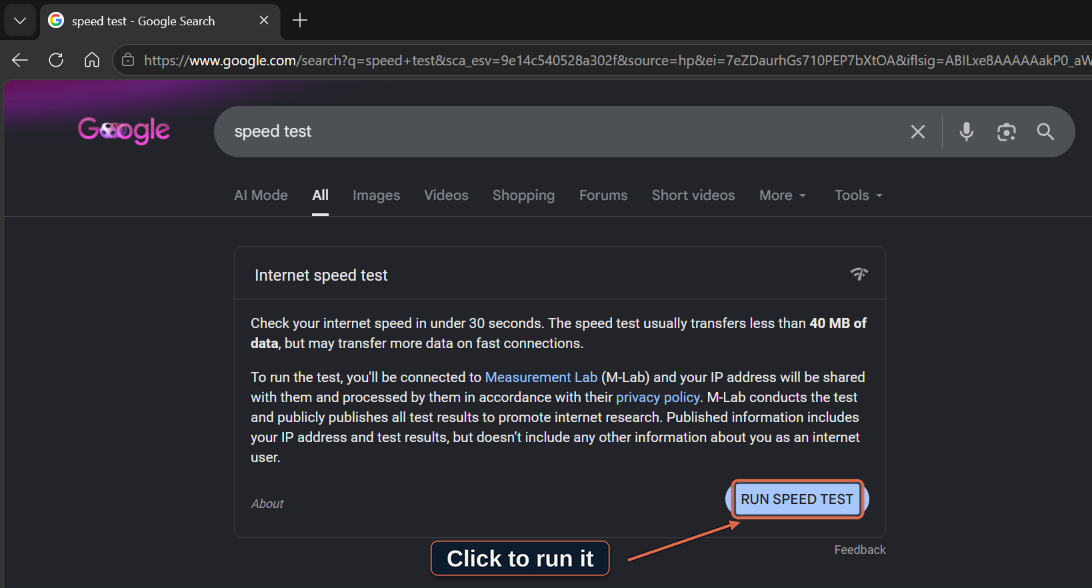
If the slow thing lives online, test your internet. A big share of "slow computer" is slow internet wearing a disguise. A website, a streaming app, email in a browser, anything that lives online leans on your connection as much as on your computer. Two free ways to check:
- Open your browser and search "speed test." Google puts one right at the top of the results, with a button to run it.
- Or go to fast.com, which starts measuring on its own.
Getting to a speed test is about the lightest thing you can ask a computer to do, so it does double duty. If even opening the browser and searching crawls, the machine is dragging, not the connection. If the browser pops right up and the number comes back low, the internet is your problem, and no amount of cleaning up the PC will fix it. For most homes, anything under about 25 Mbps download will feel slow for streaming and video calls. If you're paying for a lot more than you're seeing, the fix is on the internet side: restart the router, get closer to it, or call your provider.
If it's slow no matter what, open Task Manager. This is the one tool to know, and it's where most people freeze up. Go slow.
- Open it the fast way: hold Ctrl, Shift, and Esc at the same time. A lot of people go digging through the menus for it and never learn this shortcut.
- On Windows 11 you'll see a column of icons down the left side. Click the one labeled "Processes." On Windows 10 those are tabs across the top instead, and if you only get a small box, click "More details" first.
- Now you're looking at a list of everything running, with columns across the top for CPU, Memory, and Disk. Those are the three things a program uses up.
- Click the word "CPU" at the top of its column. The list reorders so the heaviest item jumps to the top. Do the same with "Memory" and with "Disk."
- If one program is sitting up there using almost everything, there's your answer. The colors help too: the darker the orange or red, the harder that thing is working.
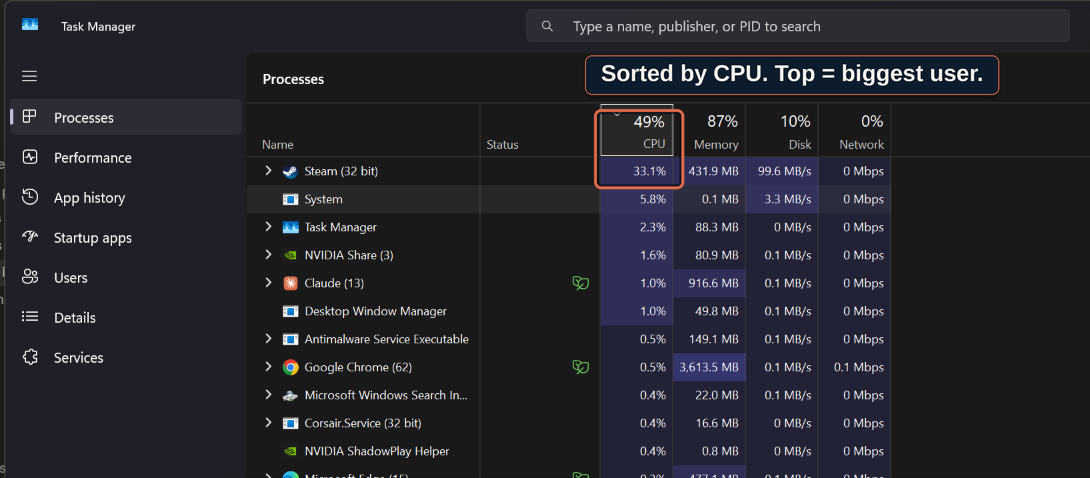
While you're in there, glance down the list for anything you don't recognize that's working hard. A name that means nothing to you and is eating resources is one to look up. Right-click it and choose "Search online," and Windows looks it up for you.
To stop something that's clearly misbehaving, click it once, then click "End task" (top-right corner on Windows 11, bottom-right on Windows 10). One caution: don't end things at random. If you don't know what it is, look it up first, because some of these are pieces of Windows itself.
Watch it while it's actually slow. This last move tells you a lot. Leave Task Manager open and use the computer until it bogs down. If CPU, Memory, or Disk shoots up near 100 percent right as things get sluggish, something on the machine is the bottleneck, and the fixes below will help. If everything stays low and calm while it's crawling, that's a sign the slowness is coming from somewhere else, usually the internet or one particular website.
Then check one thing about the hardware: is it an old hard drive? This is the big one, and most people don't know the answer offhand. Older computers store everything on a spinning hard drive. Newer ones use an SSD, which is many times faster. If yours still has the spinning kind, that by itself can make a perfectly good computer feel broken. To find out:
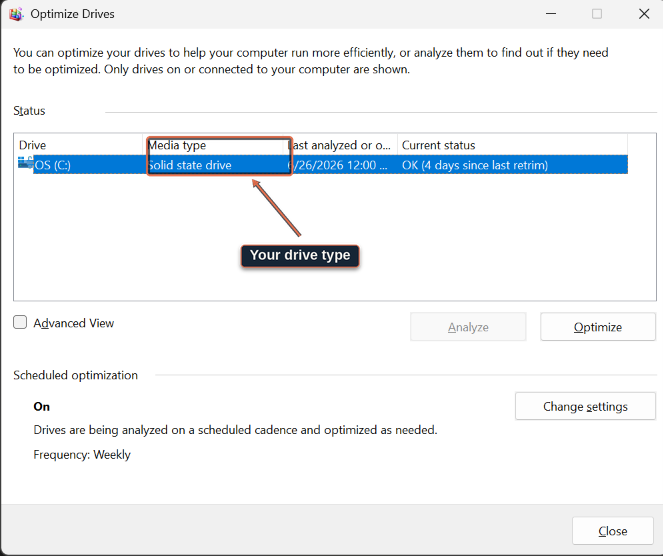
- Click Start and type "Defragment and Optimize Drives." Open it.
- Look at the column called "Media type." Next to your main drive (usually the one marked "C:") it says either "Solid state drive" or "Hard disk drive."
- If it says "Hard disk drive," hold onto that. It's the most useful thing you'll learn here, and there's a cheap fix for it further down.
That's the whole diagnosis. Most of the time it lands on one of two things: clutter you can clear for free, or an old drive you can replace cheaply. Clutter first.
The fixes, easiest first
Trim what starts with the computer. Every program that launches when you turn the PC on is weight it carries before you've done anything, and half of them you never asked to start.
- Open Task Manager again (Ctrl, Shift, Esc).
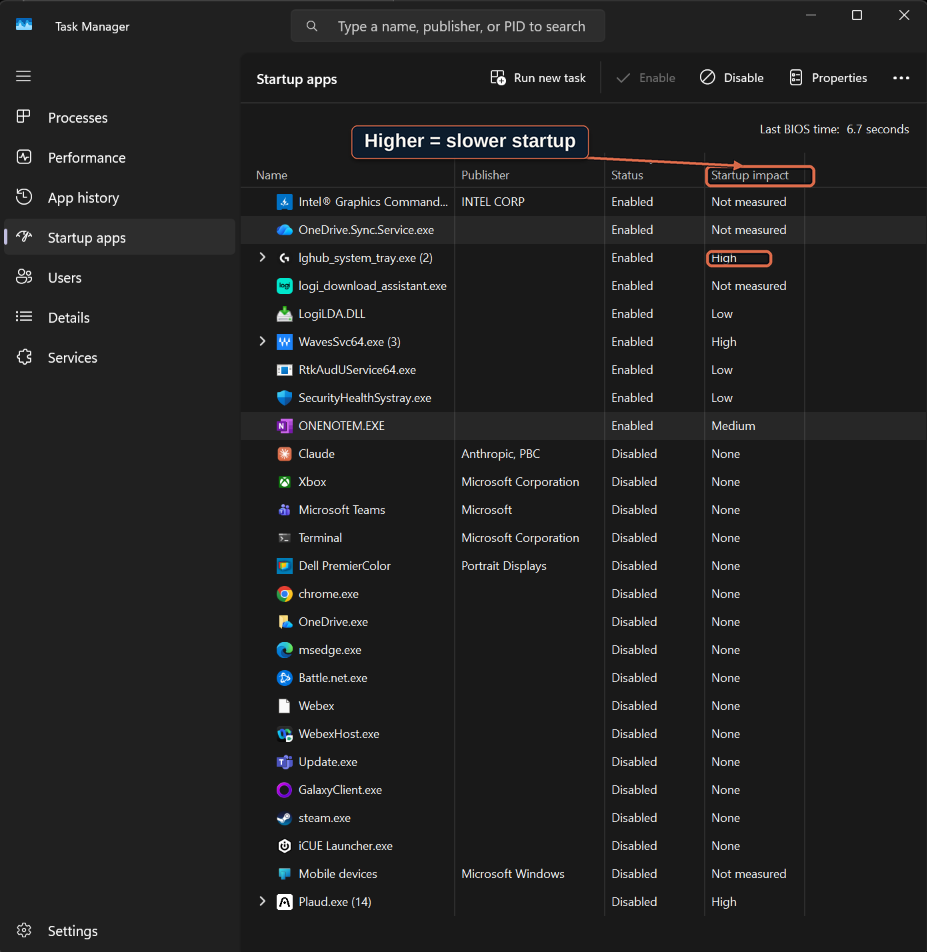
- Find "Startup apps" (it's just "Startup" on Windows 10). On Windows 11 it's one of the icons down the left.
- You'll see a list with a "Startup impact" column. Look for anything rated "High" or "Medium" that you don't need the moment the computer turns on. A music app, a game launcher, the updater for a printer you use twice a year. (If something reads "None" or "Not measured," Windows just hasn't clocked it slowing startup.)
- Right-click it and choose "Disable." This doesn't delete the program. It still opens when you click it. It just stops launching itself at startup.
- Leave your antivirus alone.
Restart it. Actually restart it. This is the most underrated fix there is, and the one nobody does. Closing the lid or letting it sleep is not the same thing. A full restart clears out memory, finishes pending updates, and shuts down whatever was stuck running. If your computer has been on for weeks, this alone can wake it up. Click Start, then the power icon, then "Restart." Pick "Restart" rather than "Shut down," because on Windows a shutdown sometimes only half-counts and leaves the old session in place.
Close some browser tabs, and check your add-ons. If the slow thing is your web browser, this is usually why. Every open tab uses memory whether you're looking at it or not, and one bad add-on can drag the whole browser down.
- Close the tabs you're done with. Bookmark any you're scared to lose.
- Then check your extensions. In Chrome or Edge, click the three-dot menu in the top corner, then "Extensions," then "Manage extensions."
- Turn off or remove anything you don't remember adding. Toolbars, "coupon finders," and anything calling itself a "PC booster" are the usual offenders.
Free up some space. A drive that's nearly full slows the whole computer down. Windows needs breathing room to work, and once you're past about 90 percent full it starts to struggle. Check one thing first. If Settings shows system files eating hundreds of gigabytes, that is a confirmed Windows 11 bug rather than your clutter, and the fix is a Windows update, not a cleanup.
- Open Settings (the gear icon in the Start menu), then "System," then "Storage."
- Turn on "Storage Sense." From then on it clears out temporary files and empties your Recycle Bin on its own.
- To remove programs you don't use, go to Settings, then "Apps," then "Installed apps." You can sort the list by size to find the big ones.
Scan for malware. If the computer slowed down suddenly, or pop-ups started showing up, or your browser's home page changed on its own, something may have gotten in. You already have a scanner built in.
- Click Start, type "Windows Security," and open it.
- Click "Virus & threat protection," then "Quick scan."
- To be thorough, click "Scan options" and choose "Full scan." It runs a while, so start it when you're done for the day.
- For a second opinion, the free version of Malwarebytes is reputable and won't pester you to pay just to see what it found.
Clear out the bloatware. A lot of computers arrive from the factory stuffed with trial antivirus, a "support assistant," and games nobody asked for, all running in the background. Go to Settings, then "Apps," then "Installed apps," and uninstall the trial junk and vendor "helpers" you don't use. Anything you want to keep but don't need running at boot, disable it back in the Startup step.
A few good habits
You don't have to do any of this on a schedule, but a handful of habits keep a computer from sliding back into a crawl:
- Restart it every few days. A real restart, not sleep.
- Keep your startup list short. When you install something new, notice whether it added itself to startup, and disable it there if you don't need it.
- Don't let the drive fill up. Leave yourself some empty room.
- Be picky about what you install, especially anything promising to "speed up" or "clean" your PC. Which is the next thing.
A warning about "speed up your PC" software
Search "why is my computer slow" and most of what comes back is an ad for software promising to fix it in one click. Skip all of it. Registry cleaners, "PC optimizers," and "driver updaters" don't do what they claim, they sometimes break things, and plenty of them arrive bundled with the exact junk they pretend to clean off. The worst are the pop-ups that take over your screen, announce your computer is infected, and hand you a number to call. It's a scam, the same playbook as the fake update pop-ups police took down recently. Don't call, don't pay, just close the browser. Everything you actually need is already built into Windows, free, and it's what we used above. Even Microsoft's own cleanup app mostly just gathers those built-in tools behind one button and keeps nudging you back to its browser, so you can skip that too.
When it's the hardware: the upgrade that pays off
If the diagnosis turned up an old hard drive, this is your fix, and it's the one that makes the biggest difference by a mile. Swapping a spinning hard drive for an SSD replaces the slowest part of the computer with one that's many times faster. An old laptop that took a full minute to start will start in a small fraction of that. Programs open when you click them instead of making you wait. It's the closest thing to a new computer without buying one.
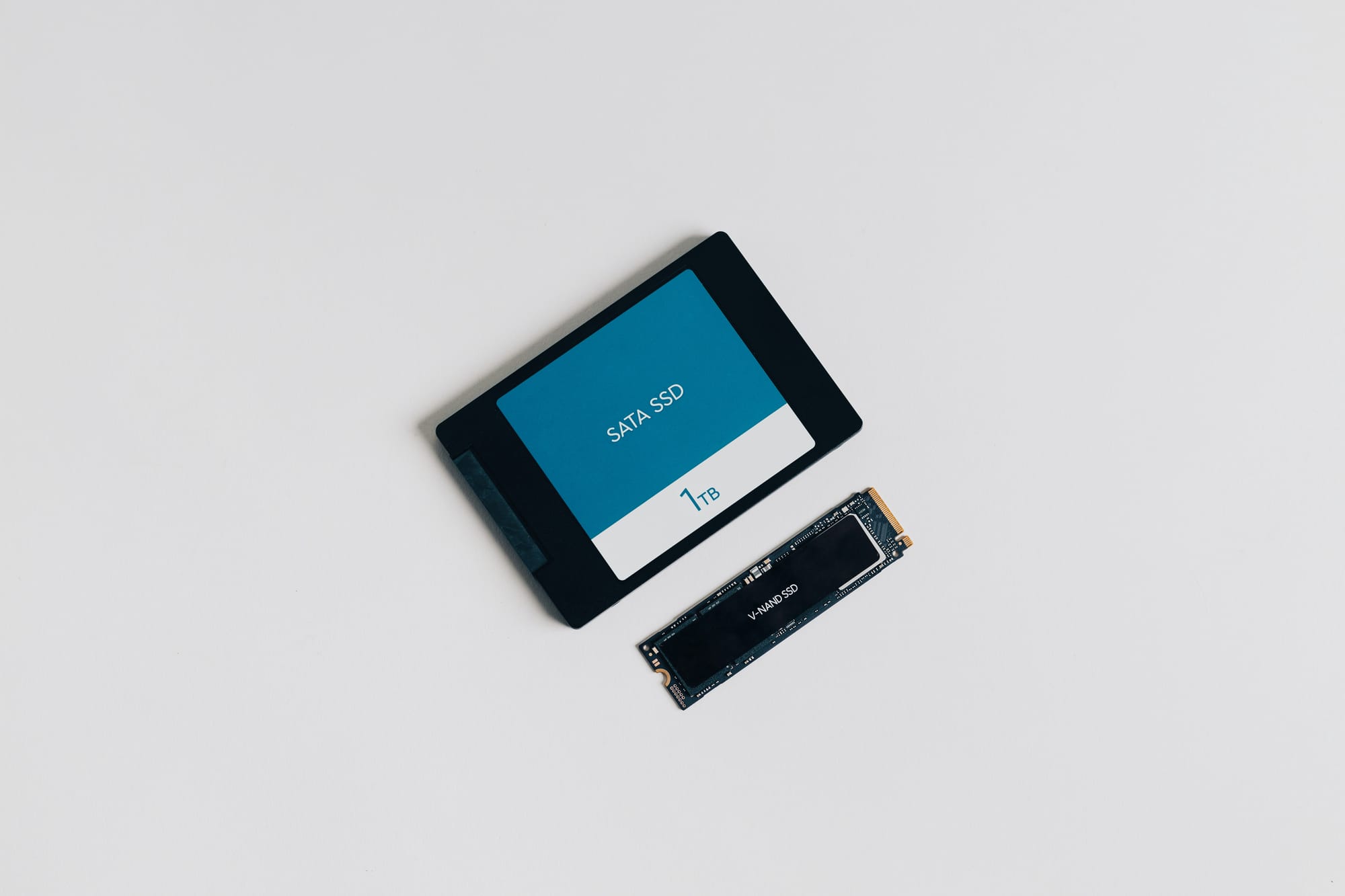
An SSD is a cheap part, often around a hundred dollars or less, and fitting one is a quick job for any repair shop. The fiddly bit is moving your files onto the new drive, which is where most people hand it to a pro rather than do it themselves. Even with someone else's labor, it costs a fraction of a new machine.
One thing that isn't about speed: if your hard drive is making clicking or grinding sounds, or files are disappearing, that's a drive about to fail, not just a slow one. Back up your files today and get it replaced. (We've written about backing up the easy way.)
The other upgrade to consider is memory, called RAM. If your computer chokes when you've got a lot open at once, and Task Manager showed Memory pinned near 100 percent, more RAM helps. If you're not running out of memory, adding more does nothing, so check before you buy. On some thin, modern laptops the memory is sealed in and can't be added to, so this mostly applies to older machines and desktops.
One note on timing. Through 2025 and into 2026 the price of memory and storage parts jumped, driven by demand from AI data centers, and it's expected to stay high for a while. The upgrade still pays off, because new computers got more expensive for the same reason. Just don't be surprised if an SSD costs more than you'd expect, and buy on a sale if you can.
When it's time to replace it
Sometimes the answer really is a new computer. A rough rule: if a repair costs more than about half what a comparable new machine would, replace it instead. A hundred-dollar SSD that buys you a few more years is an easy yes. A four-hundred-dollar repair on a laptop worth six hundred is not.
The other reason to replace, and it has nothing to do with speed, is that the computer can't run a supported, secure version of Windows anymore. Windows 10 stopped getting security updates in October 2025. A Windows 10 machine can still be quick and still turn on fine, but it's no longer being patched, which makes it risky for anything like banking. A lot of those computers can't meet Windows 11's requirements, and that's what finally retires them, not their speed. We wrote a separate guide on what to do if you're stuck on Windows 10, including a free way to keep getting security patches a little longer. Whatever you're running, keep it updated, since an out-of-date computer is the easy target.
The next time your computer feels slow, you don't have to guess, and you don't have to buy a new one on the spot. Open Task Manager and see what's actually working hard. Check whether it's one program or the whole machine, and whether the internet is the real culprit. Most of the time you'll turn up a startup list a mile long, a full drive, or an old hard drive that a cheap part would fix in an afternoon. And when you can't sort it out yourself, you'll at least know what to tell the person who can, instead of just "it's slow." That alone gets it fixed faster.
Got an old Windows PC you'd written off? Run it through the first few steps and tell me what Task Manager shows. Usually it's something simple, and I'm glad to help you spot it.