Why rebooting your router works, and when it won't
Restarting the router clears out clutter and starts every connection fresh. That fixes most home internet hiccups. When a reboot doesn't work, here's what to do.

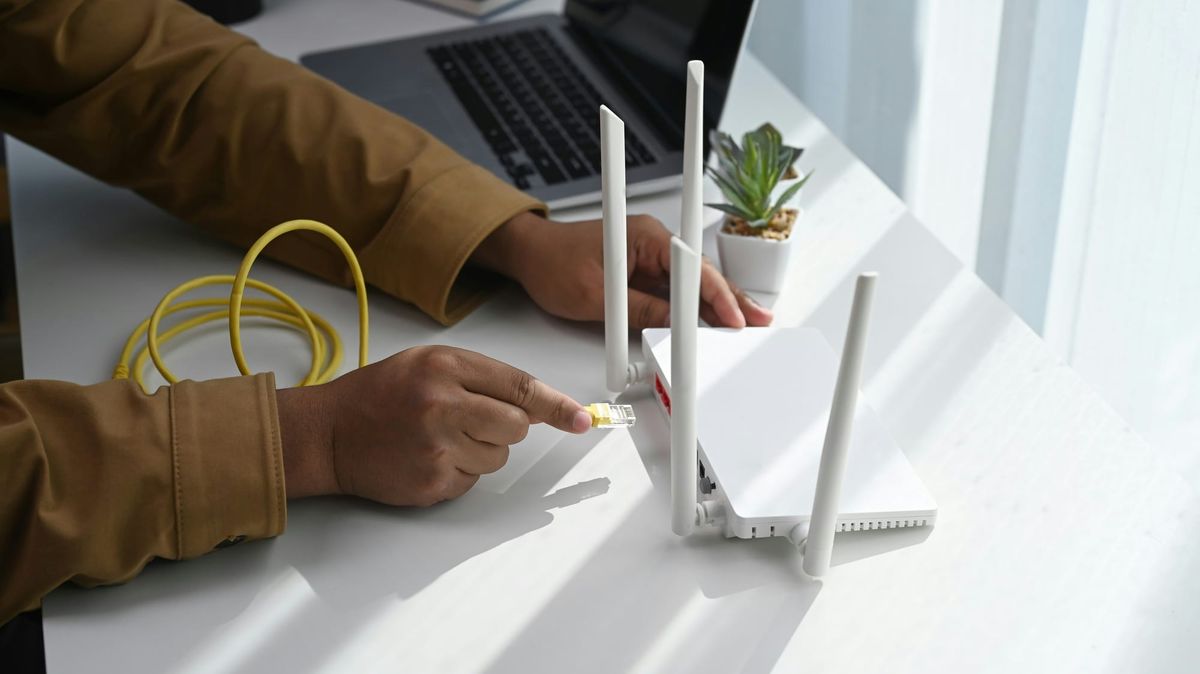
The internet gets flaky. Pages hang. A video call freezes, then drops. So you walk over to your Wi-Fi router, pull the plug, count to ten, and plug it back in. A minute later, everything works again.
We've all done it. It's the oldest trick in home tech, and most of the time it works.
This is what a restart really does, whether you should still be doing it in 2026, and what to do when the router comes back up and the problem is still there.
So why does restarting your router work?
A restart isn't repairing anything. It clears out clutter and forces everything to start over from scratch.
Your router is a small computer. It runs all day, every day, for weeks or months without a break. Like any computer, it keeps logs on what it's doing, and it's supposed to erase the old logs as it goes. But routers don't always erase perfectly, especially cheap ones.
Picture a whiteboard the router uses for quick notes about every conversation your devices are having. Over weeks, the whiteboard fills up. There's no room to write down a new one. So new pages won't load, even though your connection promises it's fine. A restart wipes the whiteboard clean.
There's another version of the same problem, and this one has a name: the connection table. Your router keeps this list of every active connection leaving your house, so it can send each reply back to the right device. The table holds a fixed number of entries. Open enough at once (a big download, a house full of gadgets, someone streaming while someone else games) and it fills up. New connections get turned away while the existing ones keep going. That's the "internet is up but nothing new loads" feeling. A restart empties the table.
Do you even have a modem?
Here's where a lot of people get stuck, and it's understandable. The gear changed and the words didn't keep up.
Two jobs happen where your home meets the outside world. One device pulls the internet in from your provider. The other spreads it around your house over Wi-Fi. For years those were two separate pieces of gear, a modem and a router, and on cable internet they still often are.
Fiber skips the modem entirely. Instead it uses an ONT (an optical network terminal), a small unit that does the same job: it turns the light coming down the fiber line into a signal your router can use. The ONT is often bolted to a wall in a garage, basement, or closet, so you might not even think of it as yours. And plenty of providers now go one step further and combine the modem or ONT and the router into a single gateway. One unit, both jobs, nothing separate to restart.
So it depends on your setup. Cable, which still reaches far more homes than fiber, usually means a separate modem or a gateway. Fiber means an ONT. Fixed wireless and 5G home internet come as a single gateway.
The router is the part almost everyone has, and the part this article is about. But when the internet is fully down, not just Wi-Fi acting up, the thing that reconnects to your provider is the modem, the ONT, or the gateway. Restarting the router alone won't touch that.
When you restart that front-end device, both sides let go and reconnect from scratch. A router restart only reorganizes things inside your house. So if you restart both, start with whatever connects to your provider, wait for its lights to settle, then restart the router.
And you don't need to count to thirty. A few seconds is plenty. The wait mainly gives the old connection time to fully drop, so it comes back to a clean slate instead of a half-dropped one.
Mesh systems (eero, Google, Orbi, and the like) change the picture a little. They self-heal, so if one satellite drops, traffic reroutes around it and you rarely need to touch the units yourself. The exception is the main unit wired to your gateway or modem. If that one goes down, the whole network goes with it. And when a mesh network acts up, the cause is usually the same provider handoff as everything else. So the advice is simpler than it looks: restart the gateway or modem first, then the main mesh unit if you have to. The satellites can mostly take care of themselves.
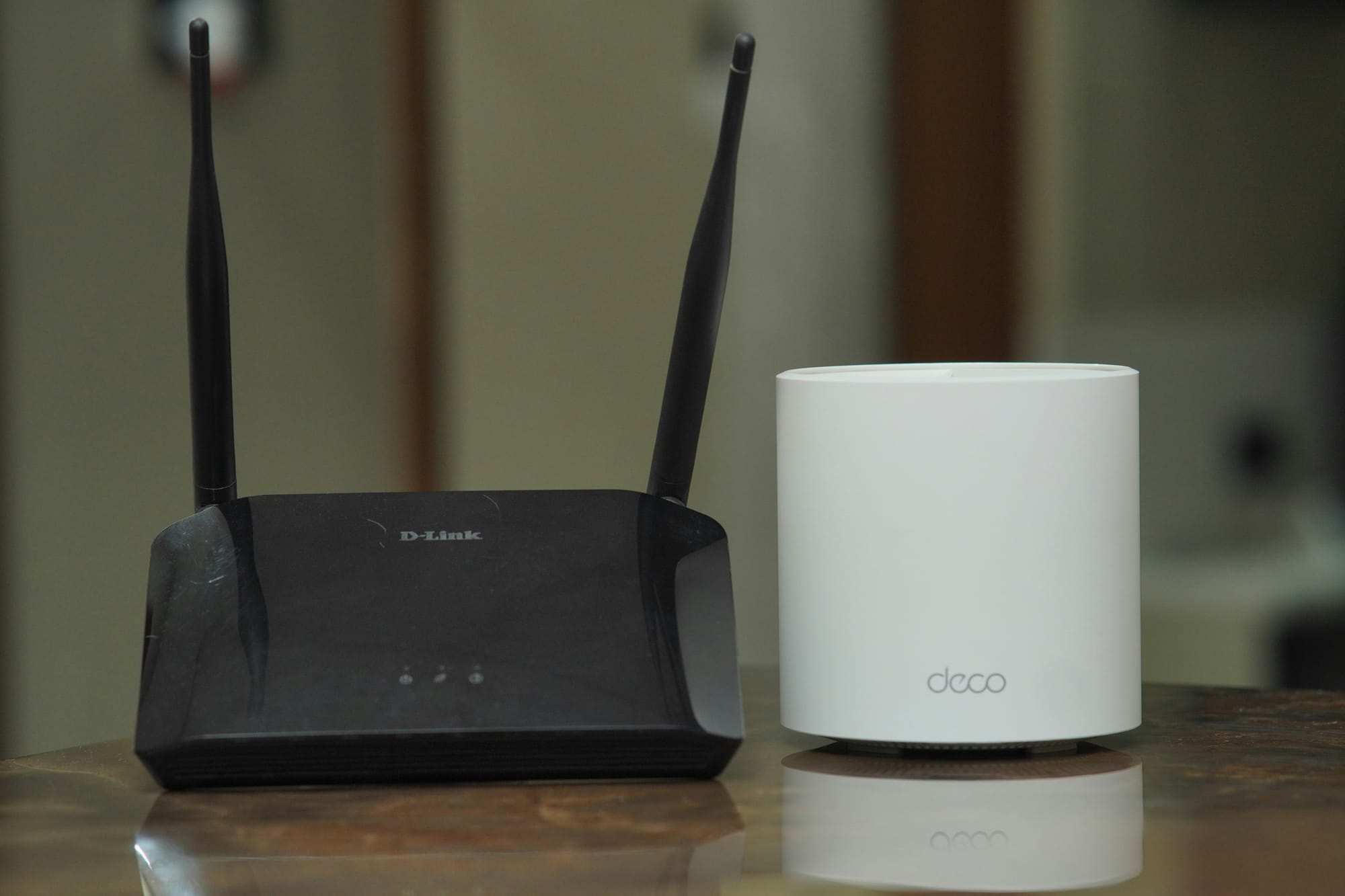
Don't confuse a restart with a reset
A restart and a factory reset sound like the same thing. They do very different jobs.
A restart (also called a reboot, or a power cycle) turns the device off and back on. It keeps all your settings. Your Wi-Fi name and password stay exactly where they were. This is your everyday fix.
A factory reset is the recessed little button you hold down with a paperclip. It wipes the router back to its factory defaults. Wi-Fi name, password, every setting you changed, gone. You'll spend time setting it all back up and reconnecting every device in the house.
So save the reset for a real reason: a forgotten admin password, a setup that's genuinely tangled, or a router you think has been tampered with. For a slow connection on a Tuesday night, a plain restart is all you want.
Should you still be doing this in 2026?
Less than you used to. Newer routers have more memory and better software, and a well-built one can run for months without a hiccup.
A restart every month or so, as light upkeep, is fine. It's one less thing to think about.
Setting your router to restart itself every single night is a different story. A router that needs a nightly restart just to stay online is telling you something is wrong. At that point you're automating a symptom instead of chasing down the root cause.
When the restart doesn't fix it
When a restart clears things up for good, it did its job. When you find yourself back at that router every few days, the restart has turned into a chore that hides a problem underneath.
Something specific is failing. Track down what, and you can stop restarting for good.
The usual culprits:
- Software that leaks memory until the router chokes. A firmware update often fixes it. Some routers leak badly enough to restart themselves every day or two.
- Heat. Routers throttle and reboot themselves when they get too hot. A router shut in a cabinet or stacked on other warm gear is a prime suspect.
- Too many devices for a cheap router to keep up with.
- Old age. Most routers are good for three to five years, and the makers say so themselves: Netgear suggests three, Google and Linksys three to five. After that they start to flake, and no amount of restarting brings them back. Security updates usually stop around the same age, and nobody tells you when.
- A problem on the provider's line. That one's out of your hands, but not out of your power to prove.
Before you buy anything, run a few checks. Each one narrows down where the trouble actually lives.
Wired versus Wi-Fi. Plug a laptop straight into the router with a cable. If the wired connection is solid but Wi-Fi is bad, your internet is fine and your Wi-Fi is the problem: interference, distance, or placement.
One device or all of them. If only one gadget struggles, the gadget is likely the problem. (If that gadget is your computer, that's a different rabbit hole.) If everything struggles, it's the network or the provider.
Close versus far. A strong signal next to the router and a weak one down the hall points to coverage. The connection itself is fine.
Check for an outage. Before you tear into your own gear, look at your provider's status page or an outage tracker. The problem might not be yours at all.
Go around the router. Plug a computer straight into the modem or gateway. If that works, your router is the culprit.
If the checks point back at your own equipment, work in this order:
- Restart the router
- Look for a firmware update
- Fix heat and placement
- Thin out the device load
- Test with a cable
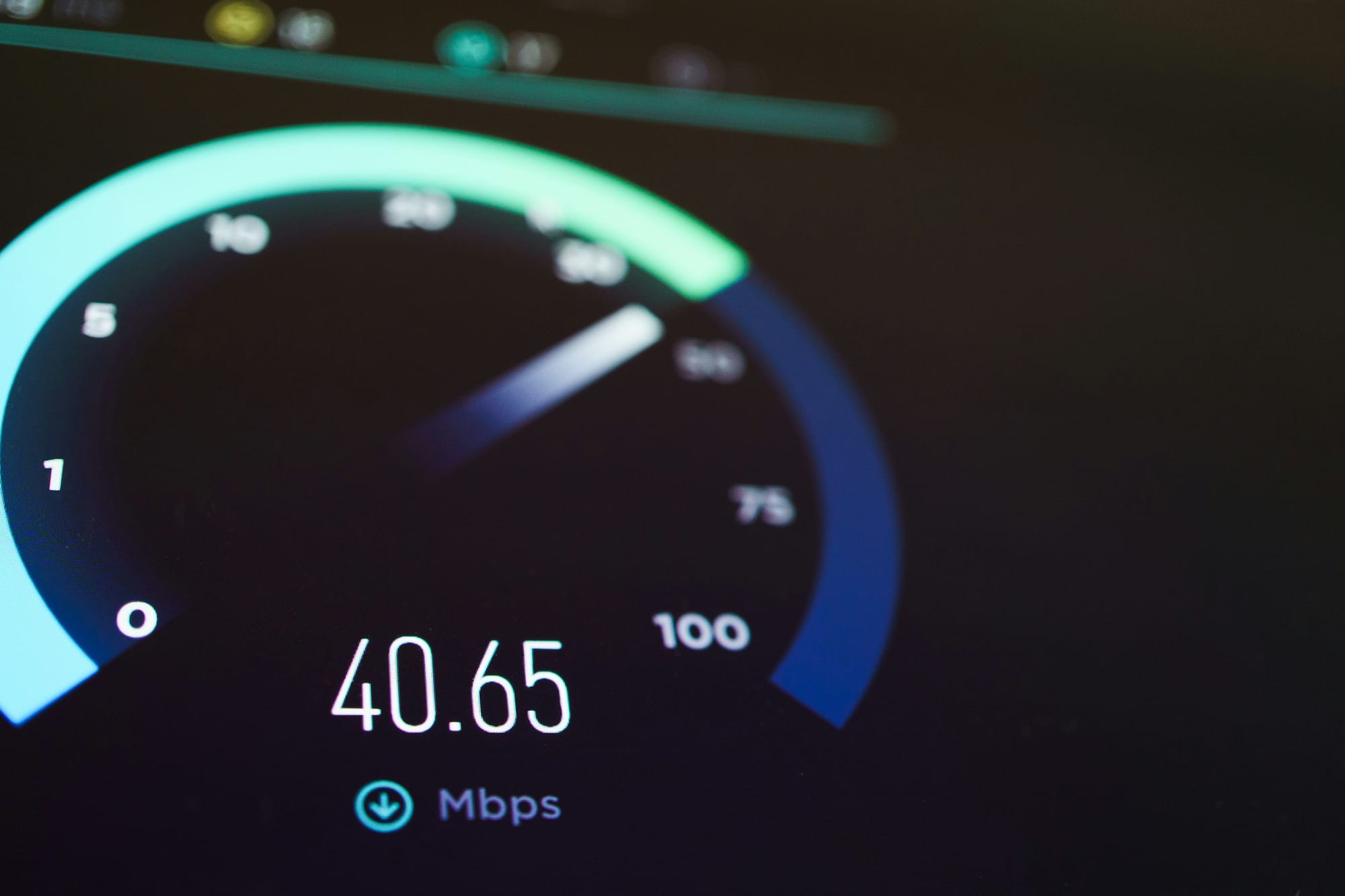
If it still fails and the signs point to the line coming into your house, call your provider with specifics. Tell them when it happens and what your speed tests show. "It's slow" gets you a shrug. Timestamps and numbers get you a service call.
What a restart will never fix
Some problems a restart can't fix, no matter how many times you pull the plug.
If the slowdown is really your provider's line, the distance between you and the router, or one aging device dragging everyone else down, restarting is just theater.
Restarting also won't kick a bad actor off your network. If a device has genuinely been broken into, it phones home no matter how many times you cycle the power. Real security is keeping the firmware updated (the same reason patches matter everywhere else), changing the default admin password, and switching off remote management.
The next time it acts up
Go ahead and restart the router. It'll probably work.
But watch what happens next. If it works and stays working, you're good. If you're back at it in three days doing another reboot, treat that restart as a smoke alarm. Something's running hot, and now you know where to look.
Sources
- Consumer Reports, "How to Tell When It's Time to Replace Your Router" (three-to-five-year replacement window; Netgear, Google, and Linksys guidance). consumerreports.org
- HighSpeedInternet.com, "How Often Should You Reboot Your Router?" (January 2026). highspeedinternet.com
- HighSpeedInternet.com, "Fiber vs. Cable Internet" (FCC availability data; ONT vs modem). highspeedinternet.com
- Google Nest Help, "What is a mesh network?" (self-healing and primary-unit behavior). support.google.com