Microsoft stopped patching Windows 10. Now what?
Your Windows 10 PC didn't break. Microsoft just stopped sending it free security updates. Six plain-English ways to handle it, with real costs and steps.


Update, August 11, 2026: Microsoft added a second year of consumer Extended Security Updates in June. The dates below are corrected: free ESU now runs through October 12, 2027, not October 2026. Everything about how to enroll still holds.
What "end of support" actually means, and the six ways to handle it.
I've been hearing a lot of chatter about Windows 10 being at "end of support". People are seeing a full-screen message about Windows 10 reaching "end of support," and figure it's a warning before the lights go out. It isn't. Your PC will still turn on. It'll still run your email, browser, accounting software. Nothing is broken. That's the confusing part. Everything you see still works fine. What's changing is your security updates.
On October 14, 2025, Microsoft stopped sending free security updates to Windows 10. Those updates are the reason keeping software patched matters in the first place. The computer keeps working. The patches stop coming. Every month, researchers and criminals find fresh holes in Windows. Normally Microsoft patches them within weeks. On Windows 10, those holes stay open now. One unpatched month isn't a crisis. A year of them, on a machine that's online all day, is a slow leak that gets worse the longer you ignore it.
So nothing's broken. The real question is how much longer you want to run a machine nobody's patching, and what to do about it.
You've got more options than the upgrade nag lets on. Six of them. A couple are free, one is a worse deal than it looks, and the right one depends on how you use your machine.
Before trying any of these: back up your files. Every option here carries a small chance of a bad day, even the safe ones. A current backup turns a disaster into a nuisance. Not sure you've got a backup? Start here.
Option 1: Upgrade to Windows 11, free
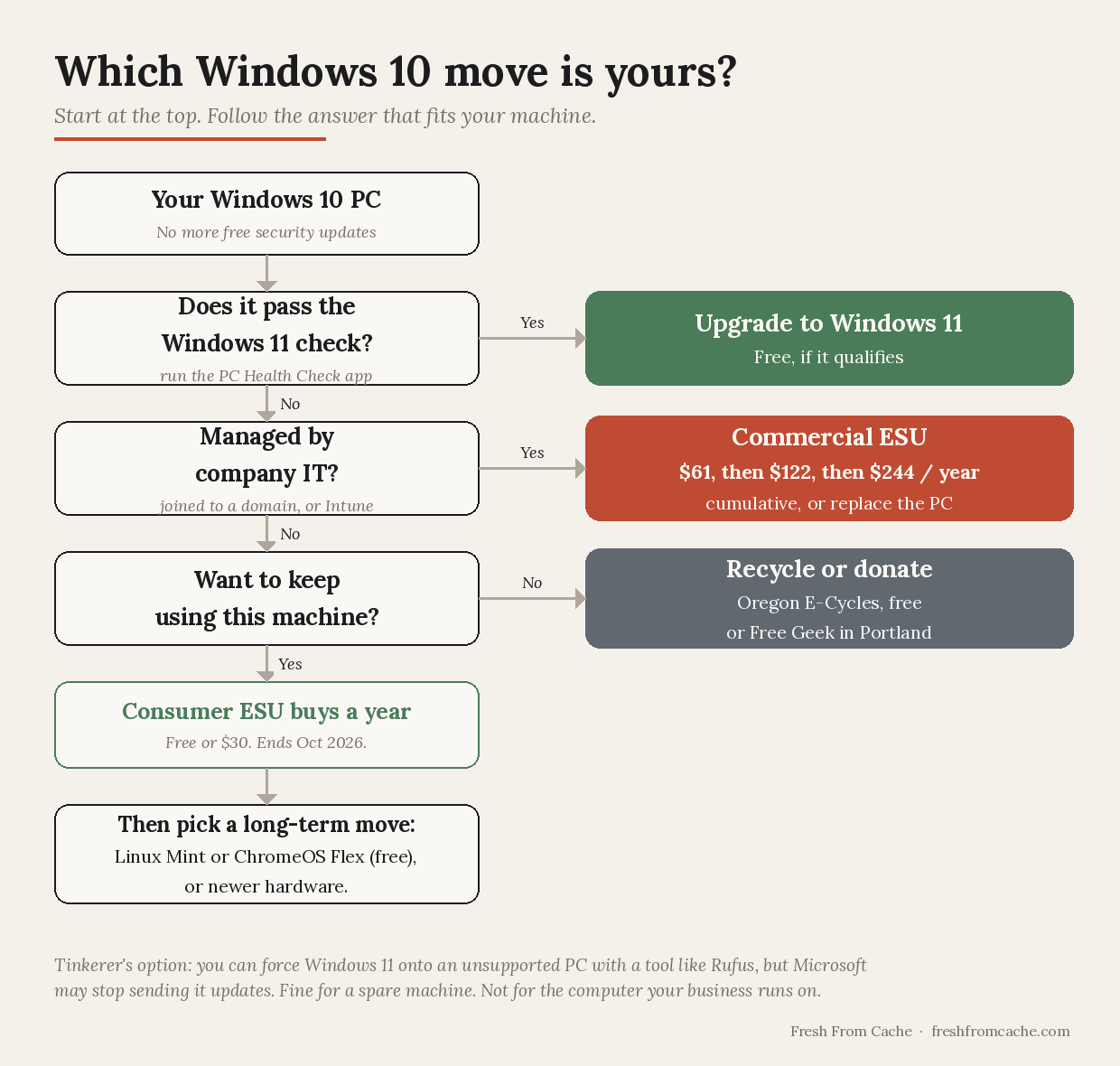
If your PC qualifies, this is the best path forward, even if you hate Windows 11. It's free, but you might hit a hardware wall. Windows 11 needs a security chip called TPM 2.0, a setting called Secure Boot, and a processor from roughly 2018 or later (Intel 8th-generation or newer, AMD Ryzen 2000 or newer), plus 4 GB of memory and 64 GB of storage. A lot of working computers in production don't qualify.
To check yours:
- Open 'Settings', then 'Update & Security', then 'Windows Update'.
- Look for the line telling you whether the PC meets Windows 11 requirements.
Microsoft's free 'PC Health Check' app will give you the same answer, but will also name the requirement that failed.
If your PC is only a few years old and still fails the check, it's usually not missing hardware. More often than not it's the TPM or Secure Boot setting switched off in the firmware. That's fixable, but it means a trip into a BIOS screen. If that's outside of your comfort zone, find a tech-savvy friend or family member for some help. It's easier than it sounds.
Option 2: Stay on Windows 10 two more years for cheap or free
Microsoft's selling an extension called Extended Security Updates, or ESU. For a personal PC it's far cheaper than people expect, and may even be free.
All three deliver the same security patches through October 12, 2027:
- Free, if you turn on Windows Backup and sync your settings to a Microsoft account.
- Free, if you redeem 1,000 Microsoft Rewards points.
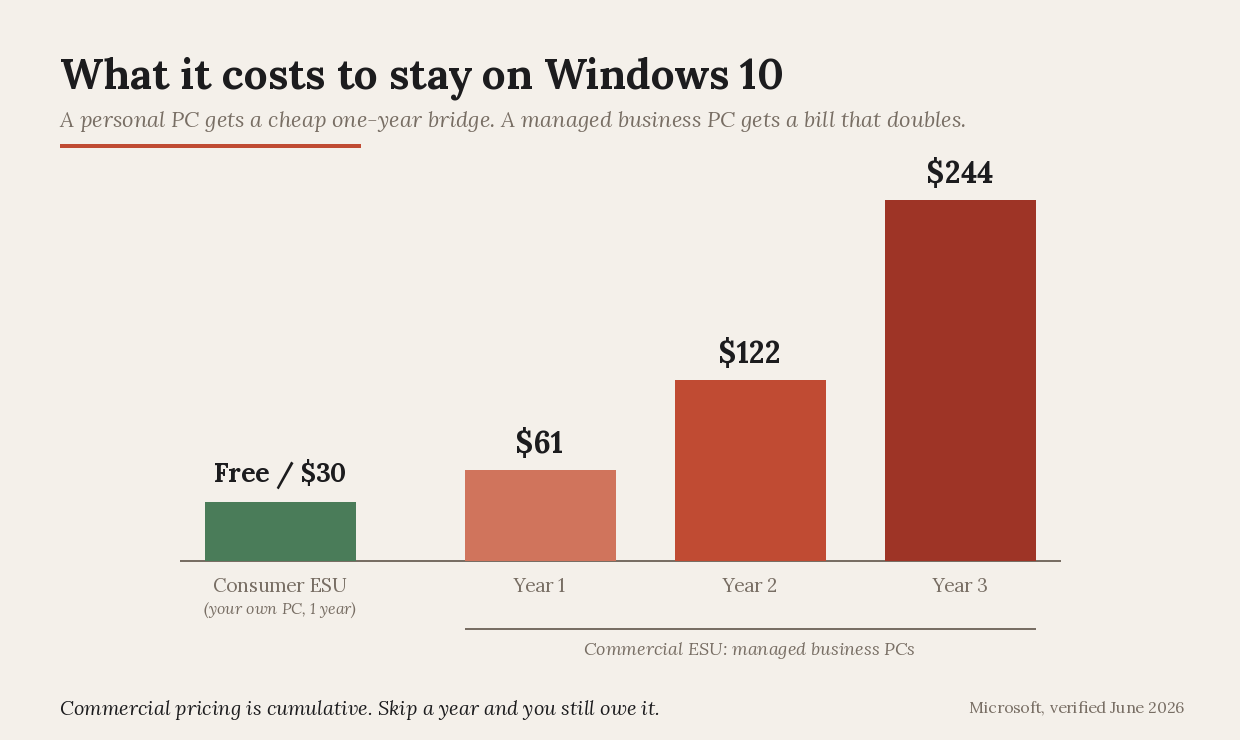
- $30, one time, if you'd rather just pay.
All three now make you sign in with a Microsoft account, the $30 option included. One enrollment covers up to 10 PCs on the same account, so a household or a one-person shop with a couple of machines only pays once. And the PC has to be caught up to Windows 10 version 22H2 before the option will appear.
To enroll:
- Open 'Settings', then 'Update & Security', then 'Windows Update'.
- Look for 'Enroll now' and follow the prompts.
No 'Enroll now' showing? Install all the pending updates first, then check again.
Microsoft added a second year in June 2026, so consumer ESU now runs through October 12, 2027. Treat it as a bridge rather than a reprieve, and use the time to plan a move.
Option 3: Business PCs your IT manages play by different rules
That cheap consumer route doesn't apply to a PC joined to a company domain, managed through something like Microsoft Intune, or locked into kiosk mode. If your business's computers are set up that way, the $30 deal won't be available. You're into commercial ESU, which Microsoft priced to push you off Windows 10 as quickly as possible. The cost is $61 per device the first year, then $122, then $244. It's cumulative too, so waiting until next year to start means paying for the year you skipped.
Good news for most small businesses, though: you might not be running managed PCs. If your computers just sign into regular accounts and aren't tied to a company domain, you most likely qualify for the $30 consumer route, even on Windows 10 Pro. Check before you assume you owe business pricing. And if you do run managed machines, that doubling price is Microsoft telling you to migrate. In this case, it's best to listen.
Option 4: Force Windows 11 onto an "unsupported" PC
You can put Windows 11 on a machine that fails the hardware check, using a free tool like Rufus to build install media that skips the requirement. People do it and often it runs fine.
I won't tell you it's a clean answer, because it isn't. Microsoft doesn't support these installs, which means it can stop sending them updates whenever it likes, security updates included, which is the whole reason you're here. You'd be fixing a patching problem by building a PC that might stop getting patched. If you are a tinkerer with a spare machine and a backup? Have at it. But the computer your business runs on? That's one I wouldn't force.
Option 5: Keep the hardware, swap the operating system
A computer too old for Windows 11 is usually plenty fast for a free operating system that's still supported. Two come up most. Linux Mint looks and acts enough like old Windows that most people find their feet in a day, and it's free. ChromeOS Flex, from Google, turns an old PC into something close to a Chromebook, ideal if your work mostly lives in a browser.
The tradeoff is software. Some Windows programs won't run on either. If your business leans on a Windows-only app (an older QuickBooks Desktop, say, or some industry-specific tool), check for a web or Mac version before you wipe anything. For browser-and-email work, this is the option that costs nothing and keeps a working machine out of a landfill.
Option 6: Retire it. For real.
Sometimes the best answer is the machine's retirement. If you're in Oregon, you've got two good local options, and the garbage can isn't one of them. Tossing a computer in the garbage has been illegal in Oregon since 2010.
Oregon E-Cycles recycles computers, laptops, tablets, monitors, and printers for free. Anyone can drop off seven or fewer items at a participating site at no charge. Households, small businesses, and small nonprofits with 10 or fewer employees can bring more, though call the site ahead of time. To find one near you, use the Locate Now tool on the site or call 1-888-5-ECYCLE. There are over 200 drop-offs around the state, including a lot of Goodwills.
If the machine still works, think about donating it instead. Free Geek, over in southeast Portland, takes working and dead devices alike, wipes them securely, and refurbishes what it can into low-cost computers for people who need one. Their refurbished machines run Linux Mint, which is Option 5 again, just handed to someone else. They take public drop-offs Wednesday through Saturday at 1731 SE 10th Avenue.
Not in Oregon? Search "electronics recycling near me," or run your ZIP through Earth911. It maps free drop-offs by item, so you can check that a place takes laptops or monitors before you load up the car.
Where people go wrong
Doing nothing and hoping just isn't an option anymore. An unpatched PC doesn't fall over on day one, which is why it's easy to leave it for a year and then get burned. We've all let a nagging update sit. Pick an option, even if the option is "buy the $30 bridge and sort it out properly next year." And if you're staying on Windows 10 a while, lock down everything around it, starting with two-factor on your email and bank.
Panic-buying a new computer the week the warning shows up isn't necessary. You've got more time and more room than the full-screen Microsoft nagging suggests. Not one of the six options above is a "drop a thousand dollars today" situation.
None of this is an emergency. Your laptop or PC still works. Pick the option that fits how you use it, and get it done rather than leaving it. ESU buys you until October 2027 to figure out what's next. If it's still humming along by then, even better!
Got an old Windows 10 machine and stuck on which way to go? Reach out to me at joel@freshfromcache.com.
Joel