Why is my Wi-Fi slow?
Buffering at eight, a dead back bedroom, one laptop that crawls. Those are different problems, and the checks that tell them apart cost nothing.

Netflix starts buffering every night around eight. The back bedroom barely gets a signal. You already unplugged the router and counted to ten. You decide you need a new router. The next stop is a review site, and every review site ends the same way, with a mesh system costing around three hundred dollars.

Sometimes that is the right purchase. Often it is overkill aimed at a problem you do not have. "Slow Wi-Fi" is really five different problems that feel identical from the couch, and you can tell them apart with the phone you already own. Name the problem first. After that the buying decision gets easy, and in a lot of houses the answer turns out to be free.
One piece of background first. Every check in this article leans on it.
Wi-Fi is a radio taking turns
Wi-Fi is radio. Your router and every device in the house share a channel, and only one of them transmits at a time. Everything else waits its turn, and most of what your network does, good and bad, follows from that rule.
It explains why one old device can drag down the others. Wi-Fi is half duplex, which means a device either talks or listens, never both, and the channel carries one talker at a time. A ten-year-old smart plug talks slowly, so it needs more airtime, its share of the channel's clock, to say the same thing, and every device on the same band waits behind it. The saving grace is that a modern router runs its bands as separate lanes. The old plug drags its own lane, almost always 2.4 GHz, while a phone on 5 GHz drives right past. More on the bands below.
It also explains the back bedroom. A weak signal does not cut off. The connection slows down instead, switching to a sturdier, more repetitive way of talking that still gets through. Engineers call it rate adaptation, and it is why the far room "works but is slow," and why the signal bars are a poor gauge. Bars show how strong the signal is, not how fast it is.
The speed your laptop reports for Wi-Fi (the link speed, or negotiated rate) is the speed between the laptop and the router. It says nothing about the line from the street, which has its own limit, the one on your bill. No router, at any price, makes that line faster.
One wording note before the checks. Many providers combine the modem and router into a single unit (a gateway), and fiber uses an ONT instead of a modem. The rebooting guide sorts out the gear names. Everything below says router, and it applies either way.
Define the problem
- Your plan is too small. The plan is the speed tier you buy from your provider, the number in the ads. When it is too small, downloads crawl and streams stutter on every device, at every hour. This is rarer than the ads imply, and the arithmetic in the next section shows why.
- The connection chokes under load. Speed tests look fine, but video calls break up and pages hang whenever somebody uploads something. The connection is fast and still unresponsive, a wide road stuck in gridlock. The problem has a name, bufferbloat, and step 5 of the checklist below has the free test for it.
- The house eats the signal. Strong near the router, weak in the back bedroom. Distance and walls are taking the signal before it reaches you. The section on the house covers what does the eating and which of it you can change.
- The neighborhood is crowded. Fine at noon, bad at eight, or bad everywhere in an apartment building. Too many networks and gadgets are sharing the same slice of air, yours and the neighbors' alike.
- One device is the problem. A single phone or laptop struggles while everything else hums along. The network is fine, and the section on devices covers the usual suspects.
Check your internet package
Start with the speed you pay for. Your bill may only show the plan's name, mine says X-FON 2500 and a dollar amount, and that is normal. The dependable spot is the broadband label, a standardized fact sheet providers have been required to post in your online account since late 2024. It lists the exact download and upload speeds you bought, in plain numbers, next to the fees.
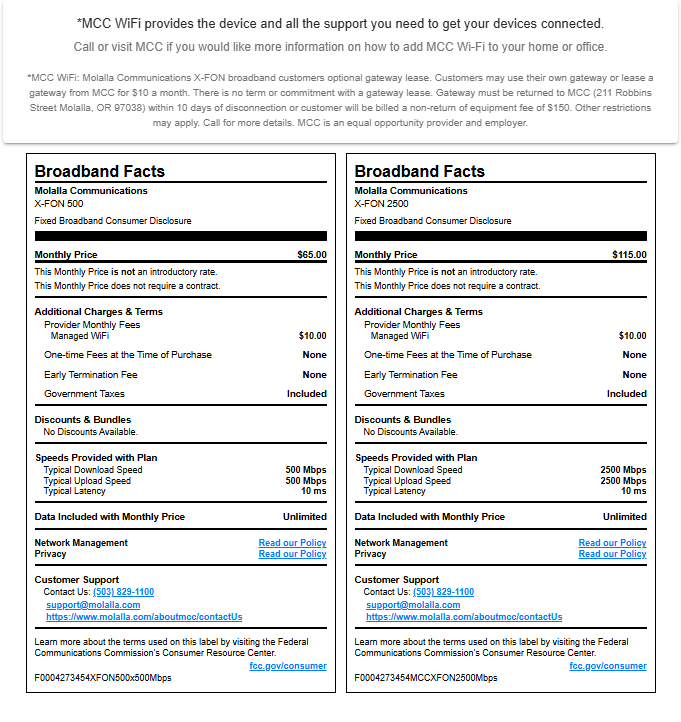
Then ask what you need. Netflix says a 4K stream takes 15 Mbps and a regular HD stream takes 5. Zoom says a group video call takes about 3 to 4 Mbps in each direction. Add two 4K streams, a video call, and a houseful of phones, and you are still under 50. A 300 Mbps plan is not why the movie buffers.
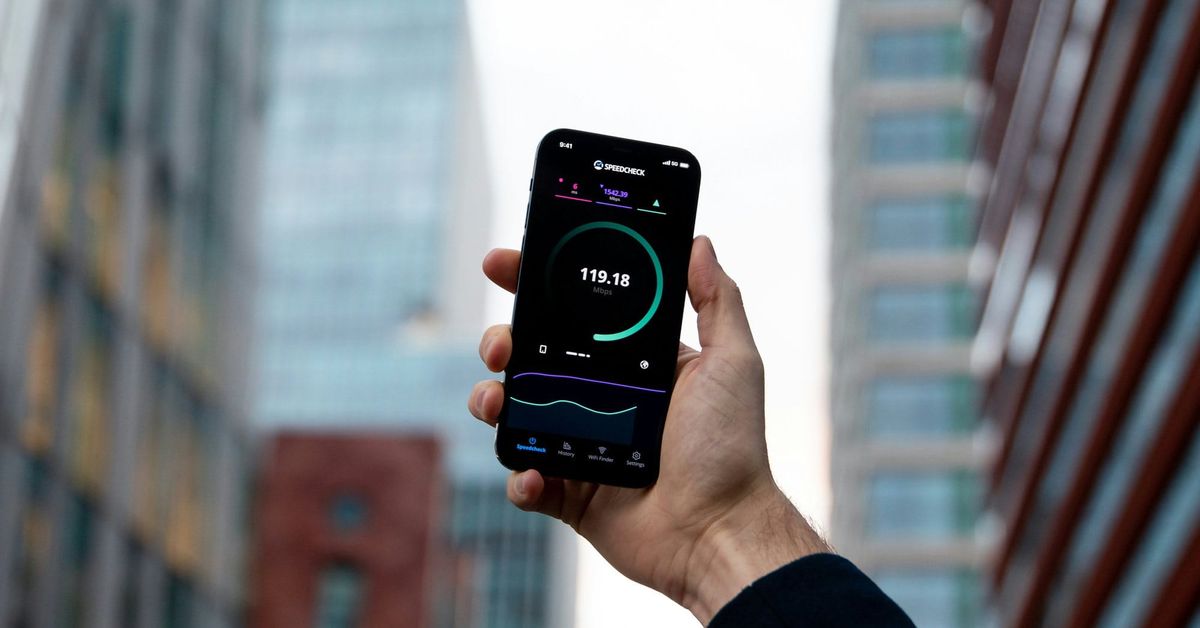
Now test what the line is actually delivering. Stand next to the router with your phone and run a speed test. Fast.com works in any browser, and searching "speed test" on Google runs one right in the results. Plugging a computer straight into the router with an Ethernet cable is the more accurate test, but most laptops lost that port years ago, and the next-to-the-router phone reading is the next best thing. A result close to the label's number means the line is fine and your problem lives inside the house. A result far under it, taken right next to the router, means new Wi-Fi gear will not help. Call your provider with the result in hand.
A quick note. Upload is the smaller side of most cable plans, and video calls, cloud photo backups, and security cameras all use it. And on satellite or cellular home internet, read the fine print. T-Mobile's home internet terms put heavy users behind everyone else after 1.2 terabytes in a month, though only when the local tower is busy. A slowdown at busy hours on those services can be the service working exactly as written.
The house is part of the network
The router usually sits wherever the line happens to enter the house. A front corner, a basement, a closet. That spot was picked by the installer's cable run, not for coverage, and the whole house pays for it.
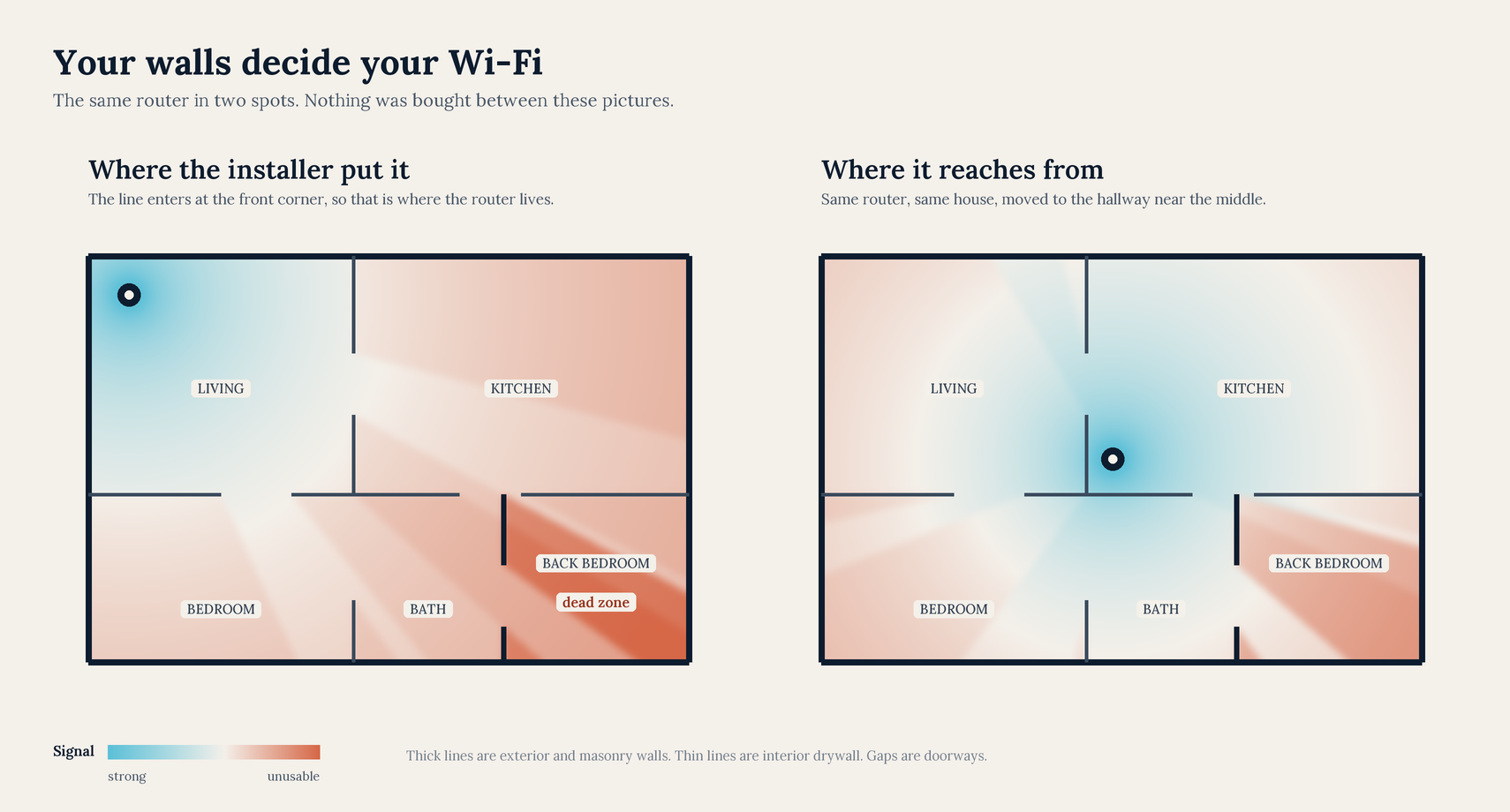
Radio fades with every wall it crosses (attenuation, if you want the term), and all walls are not created equal. Drywall barely registers. Brick, concrete, old plaster over metal lath, foil-backed insulation, and modern coated windows each take a real bite. A big mirror or a full aquarium has the same effect. So the cheapest coverage upgrade is to move the router or clear the area around it. Off the floor, out of the cabinet, away from the TV and the fish tank. Even sliding it along the same cable to a more open spot can change the back bedroom. If there is no good spot on the existing run, the provider can move the jack for a service fee, typically about $100 at the biggest cable company, so ask the price when you book.
The bands play a part too. Put simply, 2.4 GHz reaches the farthest and gets through walls best, and it is also the most crowded lane, shared with the neighbors, the microwave, baby monitors, and a generation of smart gadgets. 5 GHz is faster and fades sooner. 6 GHz, on the newest gear, is the fastest and shortest of all, and federal rules keep indoor equipment at low power, so do not expect it to reach the garage.
Most current routers broadcast all their bands under one network name and steer each device toward the best lane (band steering). Older setups sometimes show two names instead, one per band, and then the pick is yours. Either way, phones are loyal to a fault. Walk across the house and yours may cling to the weak, distant signal it already had. Flip Wi-Fi off and back on, and it reconnects to the best option from where you now stand.
The device in your hand
Before blaming the network, compare devices. Run the same speed test on two of them in the same spot. One slow while the rest are fine means you can stop looking at the router. If the slow one is a computer, that is a different rabbit hole. Update it, and if it runs a VPN, turn the VPN off and test again. A VPN caps speed and adds delay by design, which is part of what a VPN actually does.
You can also check what a device negotiated with the router:
- Windows 11: Settings, then Network & internet, then Wi-Fi, then your network's properties. Network band shows the lane, and link speed is the device-to-router number from earlier.
- Mac: hold the Option key and click the Wi-Fi icon in the menu bar for the same details.
- iPhone: shows none of this. The compare-two-devices test is the measurement.
- Android: varies by maker, with the details usually under the connected network's name in settings.
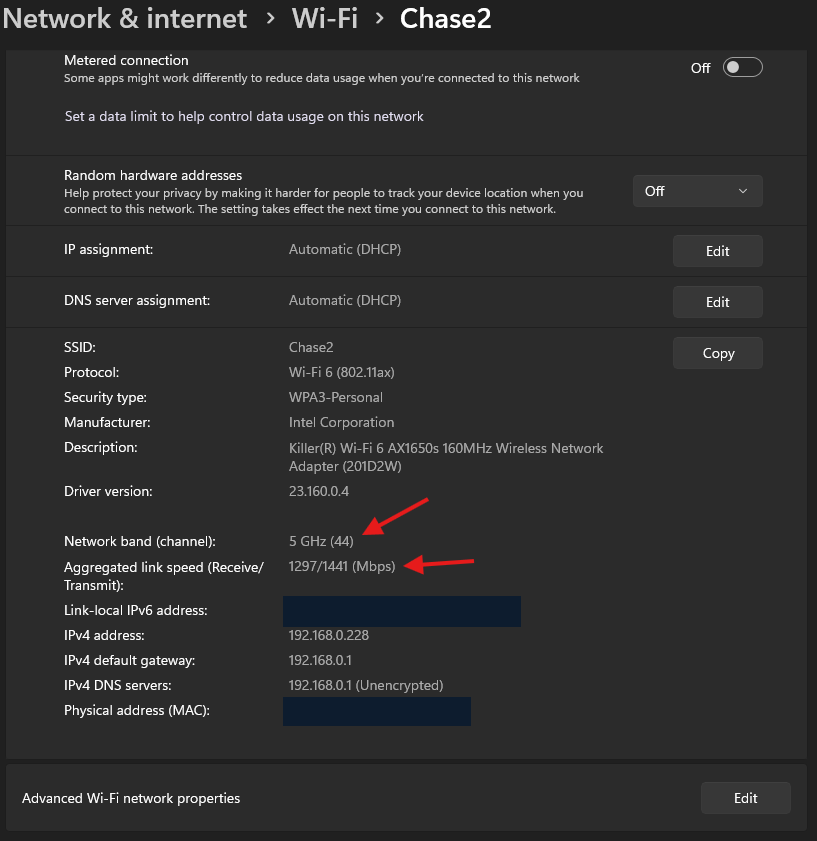
An old laptop is sometimes the whole issue. Its radio was built for the network of its year, and it cannot use the lanes a new router opens. A budget laptop from the mid-2010s often shipped with a one-antenna Wi-Fi 4 radio that tops out at a 72 Mbps link rate, before walls and sharing take their cut, and no router at any price changes what that radio can do. A USB Wi-Fi adapter in the $20 to $40 range gives it a new radio, the cheapest hardware upgrade there is.
The router you rent
If your internet comes from a cable company, look at your bill for an equipment fee. The biggest cable provider charges $15 a month for its gateway as of August 2026. That is $180 a year, every year, for the same aging box. A decent modem and router of your own run roughly $90 to $200 once and pay for themselves inside about a year.
Fiber changes the shape of this. The small unit that terminates the line (the ONT) stays the provider's, but the Wi-Fi router behind it is often your choice. Some fiber providers include one, and some lease it. My own local provider charges $10 a month for its gateway and is happy to let customers bring their own. Cellular home internet includes the box. Read the equipment line on your own bill rather than assuming.
Renting has one real upside. The provider keeps the box updated, and when it dies they hand you another one. Own your router and that job is yours, and a router that stopped getting security updates should be replaced no matter how fast it still feels. That problem is separate from speed, and it has its own guide.
Understanding router speeds
Walk the router aisle and every box wears a number. AX3000, BE9300, and up. That number is every band the router has, added together, at a theoretical ceiling. An AX3000 is a 574 Mbps ceiling on the 2.4 GHz band plus a 2,402 Mbps ceiling on the 5 GHz band, rounded up into one figure. Your phone connects to one band at a time, usually with two antennas, through your walls. It sees a fraction of either ceiling, and the line from the street is smaller than all of it anyway.
That does not make new gear pointless. Each Wi-Fi generation gets better at juggling a full house, splitting each lane between many devices instead of making them take strict turns. The gains show up when a dozen gadgets are talking at once, which is most homes now.
Where money goes wrong is the shape of the gear, not the number on it. A plug-in extender listens and repeats on the same lane it shares with you, so whatever it relays arrives at roughly half speed. A mesh system does the same relay job over a dedicated lane back to the main router (the backhaul), which avoids most of that penalty. A mesh unit or access point fed by an actual wire, Ethernet or coax, skips the relay entirely. If a wire can reach the dead zone, the wire wins.
What to check, in order
Stop at the first step that explains your problem.
- Restart the router once. Why that works, and when it will not, is its own article. If it is still slow, keep going.
- Compare two devices in the same spot. One slow while the rest are fine means the device is the problem. Update it, turn off its VPN, and if it is old, consider the $20 adapter.
- Speed test next to the router, then in the problem room. A big drop in the problem room means coverage. Move or clear around the router and test again. Remember the Wi-Fi off-and-on trick for a phone that clings.
- Compare the next-to-the-router number to your plan. Far under the plan while standing right there means the line or the router itself. Call your provider with your results.
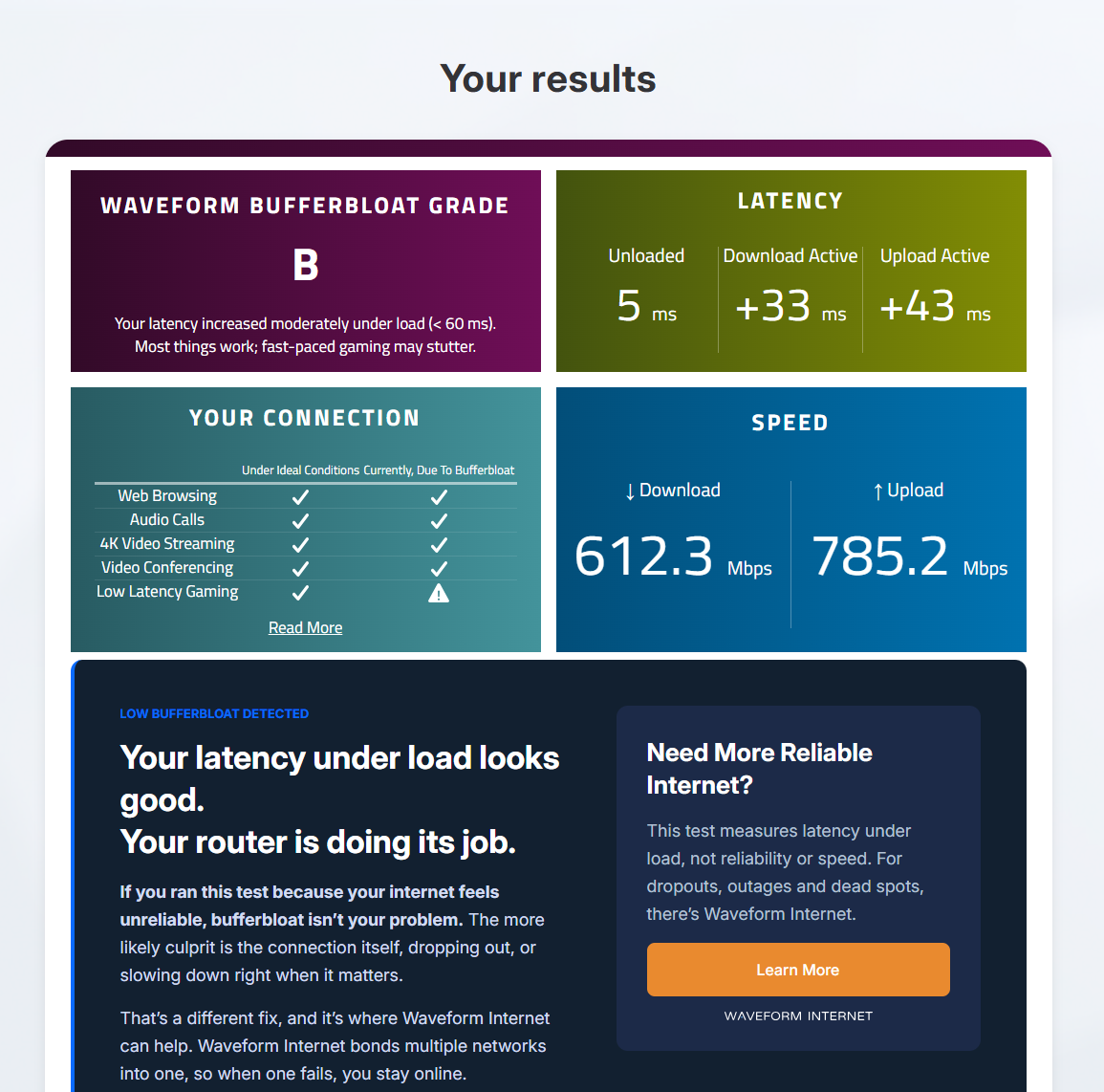
- Run the free bufferbloat test. Search "Waveform bufferbloat." It runs in a browser and hands out a letter grade. A bad grade means the connection chokes when somebody uploads. Pause the big backups first. If the grade stays bad, this is the one problem where a better router genuinely fixes something, and the feature to look for is called smart queue management.
- Notice the clock. Slow only at busy hours, even next to the router, points at congestion on the provider's side or in the neighborhood air. Your gear is not the cause, and your gear cannot be the cure.
When spending money is the right call
- The dead zone survives every free change, and a wire can reach it. A wired access point, or a mesh node fed by Ethernet or coax, is the strongest coverage money can buy.
- The house is large or the walls are brick and plaster, and wiring is off the table. Mesh with a dedicated backhaul lane, starting with one extra node, not three.
- The bufferbloat grade stays bad, or the router stopped getting security updates. Replace the router, and read the support-lifespan guide first.
- You are renting a $15 gateway from a cable company. Buy your own and stop the meter.
- The next-to-the-router test matches your plan and the household arithmetic still comes up short. That, and only that, is the case for a faster plan.
And one answer for the rural readers. If only a single provider reaches your address and the next-to-the-router test already matches your plan, that is the ceiling. A mesh system cannot add speed the line does not carry. What changes the answer is a second provider reaching the address, fixed wireless, or satellite. Until then, the three hundred dollars can stay in your wallet.
The checks are free. The mesh system will still be there if you need it.
Sources
- Netflix Help Center, Netflix-recommended internet speeds
- Zoom, Zoom system requirements and bandwidth
- Microsoft Support, Faster and more secure Wi-Fi in Windows
- Apple, Use the Wi-Fi status menu on Mac
- Federal Communications Commission, Broadband Consumer Labels
- Waveform, Bufferbloat and Internet Speed Test
- Bufferbloat.net, Tests for Bufferbloat
- T-Mobile, Network traffic prioritization and management
- ASUS, RT-AX3000 specifications