The apps I'd recommend aren't the ones I use most
My most-used apps are mostly work, not what I'd recommend. This is the short list for a normal person's phone, and the ones worth deleting.

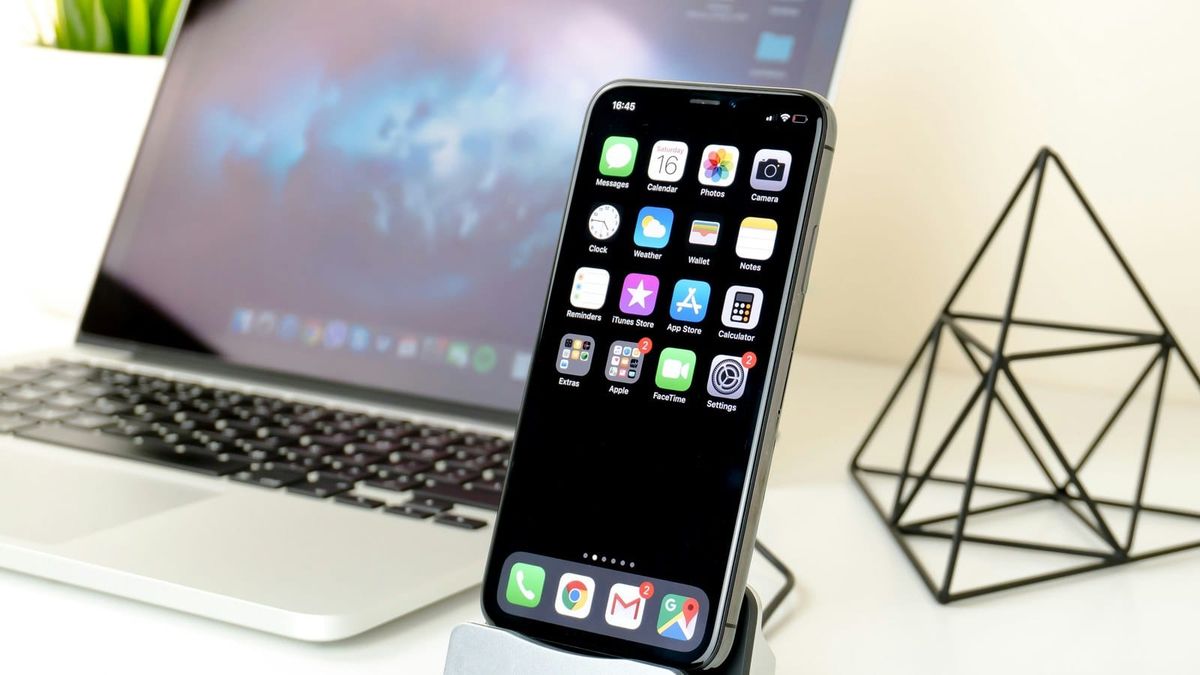
A lot of sites run a "recommended apps" post, usually the writer's own daily drivers. I figured I'd do one for FFC. Then I looked at what I actually open all day: Teams, Outlook, Copilot. Work, mostly. Not much use to anyone who doesn't do my job.
So here's a different list. Not power-user tools, and not my daily drivers. The handful that earn a place on a normal person's phone, the ones you set up once and stop thinking about.
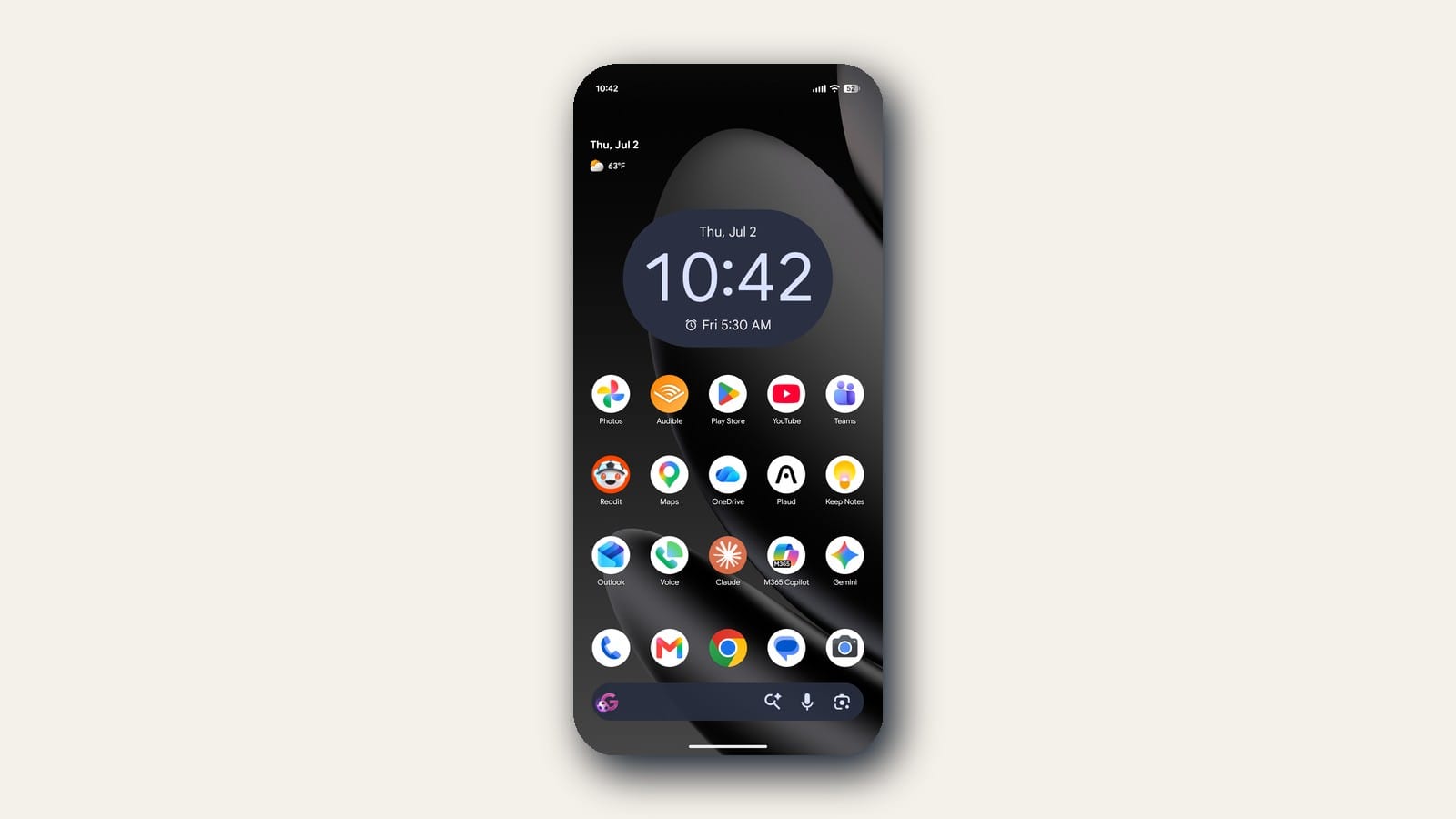
This list is a bit different
I approached this as less of a list of apps and more of a list of functions. You don't need the best photo app, you just need your photos backed up somewhere safe and automatic. Figure out the function first. Once you know it, the right app is usually one already built into your phone.
Start with what's already there. Reach past it only when the built-in tool falls short of your needs.
The list is short by design. Most people don't need forty apps. Eight or nine that pull their weight is plenty.
The List
Keep your passwords straight
The job is simple. Stop reusing the same password everywhere, and stop trying to remember them. A password manager does both.
Best place to start is the one already on your phone. Google Password Manager on Android, iCloud Keychain on iPhone. Both free, both built in, and for most people that's the end of the decision. Bonus points if you use the matching browser, because your passwords follow you.
Google's fill into Chrome on any device you sign into. Apple's fill into Safari, and into Chrome or Edge on a Windows PC once you turn on the iCloud Passwords extension. It's the main reason I lean on Google. In Chrome I can generate a strong password and let it sync everywhere.
Try first: let it save one login, then fill it back in. Once you watch it work, you'll trust it with the rest.
When it falls short: you live across an iPhone, a Windows PC, and an Android tablet, and want one set of passwords everywhere. That's when a dedicated manager earns its place. Bitwarden is the usual pick. The free tier still covers unlimited passwords on unlimited devices.
Never lose your photos
If your phone falls in a lake tomorrow, your photos should still exist. That's it.
Android is Google Photos, iPhone is iCloud Photos. Turn on backup and forget about it. Both give you a little free storage to start (15 GB with Google, 5 GB with Apple), which fills up fast. When it does, backup stops without telling you. The cheap paid tier runs a couple of dollars a month. That's the one you want if you start hitting limits.
Try first: open the app, turn on backup over Wi-Fi, let it run overnight on the charger. Check in the morning that it says complete.
When it falls short: if you want Google or Apple out of your photo library, that's a privacy call, and paid services exist for it.
Watch the storage plans. Google has tangled its tiers up with AI bundles. The 2 TB plan's cheap first-year price can double on renewal. Buy the tier you think will fit your needs best.
Carry your files with you
A cloud drive is only half an app. The value presents itself when you sync it with your computer.
Put your files in OneDrive or Google Drive on your PC, and the same files are in your pocket on your phone. If you've left the laptop at home and you need that document at the doctor's office, it's right there. On Apple, iCloud Drive does the same job, and it's already there on a Mac. The PC-to-phone trick is smoothest with OneDrive or Google Drive, though.
Try first: install it on your PC, sign in with the same account on your phone, drop one file in the folder, watch it show up on the other device.
When it falls short: if you rarely use a computer, I wouldn't bother. The real value to these applications is having the option to retrieve files in multiple places.
Find your way
Maps you already know. Google Maps on Android, Apple Maps on iPhone, both good now. No notes.
When you might switch: Waze, owned by Google, leans harder into live traffic and the alerts drivers call in to each other. If your commute is a fight, it's worth a look.
Books for the drive
If you're like me and spend a lot of time in the car, an audiobook app can change the drive. Audible is the big one, and my personal favorite. It lets me enjoy books while distracting me from the monotony of the drive. It costs money, though. You don't need the monthly subscription, you can buy a book on its own and it's yours to keep. Or pay monthly for a credit and the member catalog if you listen a lot. Either way it isn't free, so it's not for everyone.
Before you pay, try Libby. It's free. Sign in with your library card and borrow audiobooks and ebooks like you'd borrow a paper book. It plays through CarPlay or Android Auto. The catch is the same as a physical library. Popular titles have a wait.
Try first: Libby, with your library card. If the waits drive you nuts and you listen constantly, then pay for Audible.
YouTube, but as a tool
Everyone has YouTube. Most of us use it to fall down a rabbit hole at midnight. Fair. It's also one of the most useful tools on the phone if you point it at a task.
Daily I use YouTube in a couple of normal ways, something to fall asleep to, a run on the treadmill, background noise. But its real utility comes from using it to complete a task you're unsure of. A how-to for anything I need to see done rather than read can usually be found. Faucet's dripping, dishwasher's throwing an error code, there's a video that shows you how to fix it.
Messaging
There's no single best messaging app, and anyone who tells you otherwise is probably selling something. Regular text messages for some folks, Facebook Messenger for others, WhatsApp for the ones overseas (mostly). That's normal. You don't need to consolidate, because they are often used for different contexts. Work, school, personal, etc.
The one addition to make is for anything you'd rather keep private. Signal is the standard at the moment. Free, run by a nonprofit that hasn't been bought by a big tech company, built so that even Signal can't read your messages. If a conversation is sensitive, health, money, family, you can try Signal.
Try first: get one person you talk to a lot onto Signal. Then you can determine if you'd get value from using it.
When it falls short: it needs the other person to have it too. An encrypted app nobody you know uses is just a lonely app.
Banking
Your bank has an app. Use that one. Not a third-party app that offers to pull all your accounts into one tidy dashboard.
Those aggregator apps want the keys to every account you own, in one place, held by a company that isn't your bank. If you can avoid it, be wary of aggregators.
Try first: download your bank's official app from the store. Check the developer name matches the bank before you install. Fakes do exist.
When it falls short: you're out of luck, and that's the honest answer. If your bank's official app is genuinely terrible, the answer isn't a third-party aggregator. It's a better bank.
Lock down the accounts that matter
An authenticator app.
When an account offers two-factor login, sometimes called 2FA, it wants a second proof it's really you. A code by text works, but a code from an authenticator app is harder to steal. Google Authenticator is the familiar one, and free. Your password manager may have this built in too.
Try first: turn on two-factor for your email first. Email is the account that resets all your other accounts, so it's the one to lock down hardest.
A word on all the Google and Apple
You might have noticed this list leans hard on Google and Apple. Photos, maps, passwords, storage, all pointing back at the two biggest companies in your pocket. That's fair to notice.
For most people, the built-in option is the right call. It's free, reliable, already there, and the alternative is doing nothing at all. A backup you actually turn on beats a perfect private setup you never finish.
It's not that these companies have earned blind trust. It's that convenience is what gets a normal person protected, and these tools are the convenient ones.
There's a line, though. If you specifically want Big Tech out of your data, there are good choices. Signal instead of regular texts. Proton instead of Google for mail and files. A dedicated password manager like Bitwarden instead of the built-in one. Those take more effort, and for the person who wants them, they're worth it. For everyone else, the defaults are fine, and that's not a cop-out. It's just the reality.
Delete these
The flip side of a good list is knowing what to remove. These are the apps that promise to help and mostly don't. Some will make things worse.
Phone cleaners and speed boosters. The ones that promise to free up memory and make an old phone fast again. Just don't. Your phone manages its own memory, and better than any add-on. When a booster force-closes your apps, they restart a few seconds later, and that restart burns more battery than leaving them alone. You press the button, watch the little animation, feel better, but nothing good happened.
Battery savers. Same story. Your phone has a battery-saver mode built in, and it beats the third-party version. A separate app claiming to watch your battery is one more thing running, using the battery it says it's saving.
Phone antivirus. If you stick to the official store, the protection built into your phone covers you. Most free antivirus apps make their money the ugly way. They scan your phone, tell you it's infected with something it isn't, and charge you to clean up a mess that isn't there. The app selling you safety is running a scam.
The free VPN from an ad. A VPN has real uses, hiding your traffic on hotel Wi-Fi, for one. But the free one advertised before a YouTube video is a bad trade. Running a VPN costs money, so a free one pays its bills another way, usually by logging what you do and selling it. Studies keep finding free VPN apps stuffed with trackers, some with no real encryption at all. A free VPN can be worse than no VPN. At least with none, you know who's watching.
More often than not, the app promising to protect your phone or speed it up is the one you should avoid.
A phone should be a tool, not a chore. Set these up once and they fade into the background, which is the whole point.
So that's my list. Yours is a little different, and I want to hear it. What's the one app you'd tell a friend to install? Reply and tell me. I read every one.
Joel · joel@freshfromcache.com