Start using a password manager
One password used everywhere is one key to every lock. A password manager fixes that, and starting is easier than you think.

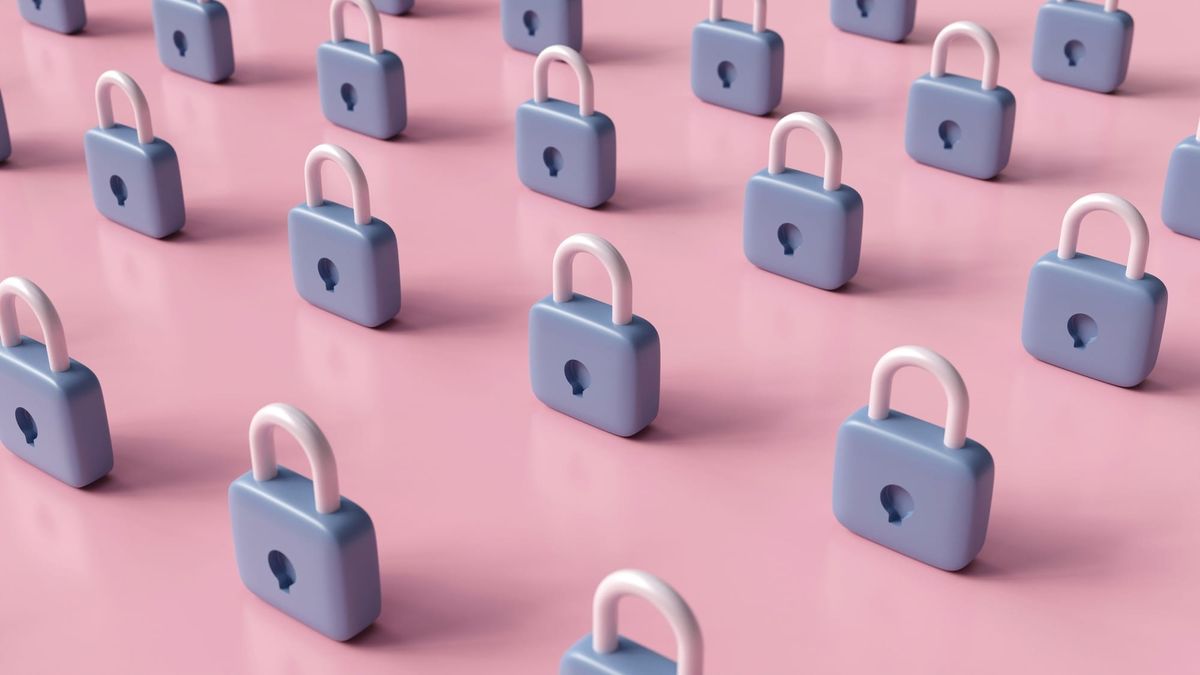
As the person friends and family ask about this kind of thing, I hear the same setup over and over, usually described a little sheepishly. One good password. Maybe a second one for the important stuff. The same word on everything, with a number on the end that climbs by one each time a site forces a change. We have all run some version of it. It is easy, it is convenient, and it works right up until it doesn't.
The problem isn't that the password is weak. You can make it sixteen characters of gibberish and it changes nothing. A password you reuse is a single key, and you have handed a copy to every website you ever signed up for. Some of those sites are run well. Some were abandoned a decade ago. When any one of them gets breached, your email and password land on a list, and the people who buy that list do all manner of things. They try the same pair on your bank, your email, everything. One key, every lock.
A password manager ends that. It invents a different, random password for every account, keeps them all in one encrypted vault, and fills them in when you need them. You remember one password, the one that opens the vault. It handles the other two hundred, including the ones you forgot you had.
What changes
Three things, in order of importance.
Reuse ends. Every account gets its own password, so one breached website stays one problem instead of spreading into all of them.
Strong passwords stop being work. The manager invents something no person would think up or remember, and you never type it. The length that used to be a chore becomes the default you never see.
And third, it catches phishing for you. A password manager only fills in a login on the exact web address where you saved it. So when a convincing email drops you onto a page that looks like your bank but lives at the wrong address, the manager does nothing. No autofill. That empty box is the most useful warning you can get. The password manager will tell you the site is fake by refusing to recognize it. Turning convenience into security.
Picking one
You do not need to research this for a week. Any reputable manager beats what you are doing now. The best one is the one you actually use, so keep that in mind before you go shopping for the perfect app.
You may already have one, switched on by default. Apple's built-in Passwords app covers an iPhone-and-Mac life. Google's built-in manager covers Chrome and Android. People actually use these, because they are right there at the moment you log in, and a manager you use beats a better one you never open. If that is you, you are most of the way there already.
There are two good reasons to move up to a standalone manager. The first is that it travels. Apple's and Google's tools turn clumsy the moment you cross into a different phone or browser, and most of us live across at least two. A standalone works the same everywhere, on your iPhone, your work Windows laptop, an Android tablet, any browser.
The second reason is the one people miss. A standalone manager becomes the single locked drawer for everything that isn't a password but needs the same protection. Your card numbers. A photo of your passport. The garage code. Software licenses. The recovery codes for your two-factor logins. All of it sits in one encrypted vault, filled in or copied when you need it, instead of scattered across notes apps and email.
For the standalone, I recommend two names.
- Bitwarden is where most people should start. It is free, the free version covers what most people need, it is open-source with published security audits, and it runs everywhere.
- 1Password is excellent if you would rather pay a few dollars a month for the most polished version. It is the easiest way to get a whole household onto the same system.
But don't these get hacked?
It is a fair worry, and it may be the reason you have not started. You have seen the headlines. LastPass, one of the biggest names in the business for years, got breached in 2022, and again in 2026. Why hand every password you own to a company that gets hacked?
Because a good manager is built so the company cannot read your vault, even if it wanted to. Your passwords are scrambled on your own device, with a key only you hold, before they ever reach the company's servers. When those servers get breached, the attacker walks off with a block of gibberish that means nothing without your master password.
That is what saved most people at LastPass. In 2022 the attackers did steal the encrypted vaults. The only ones they managed to crack open belonged to people who had chosen a weak, guessable master password. Everyone with a strong one stayed safe. The 2026 breach never reached a single vault; it exposed names and email addresses from a support system.
So the fear points you at the right two moves. Pick a manager that encrypts this way (Bitwarden, 1Password, Apple, and Proton all do), and give it a strong master password. Do that, and a breach at the company stays the company's problem.
Start easy
The mistake that stops people is treating this as a project, picturing one grim afternoon of typing in two hundred logins. Do not. Here is the painless way.
Install the manager and its browser extension. Set your one master password as a passphrase you can actually remember, four or five unrelated words in a row.
The manager cannot recover that master password for you, so handle the "what if I forget it" fear on day one. Write the passphrase on paper and keep it where you keep the documents that matter, the birth certificate, the car title, not on a sticky note stuck to the monitor. That paper is your safety net, and it is enough. The paid managers add a second one on top. 1Password gives you an Emergency Kit, a one-page PDF you print and file. Bitwarden's paid tier lets you name a trusted person who can request access after a waiting period you set.
Then just live your life. Every time you log into something, the manager offers to save it. Say yes. Within two weeks of normal use, the accounts you actually touch are all in the vault, no dedicated session required.
After that, give twenty minutes to the accounts that matter most. Email first, because email is the master key that resets everything else. Then your bank and anything holding your money or your identity.
Open each one, change the password, and let the manager generate the new one. Five accounts is plenty for a first pass. While you are in those settings, switch on two-factor authentication if it is not already on. I have written separately about why that second factor beats the small hassle, and about passkeys, the login method slowly coming to replace passwords altogether.
For a small business or a nonprofit
If you run a small business or a nonprofit, you know a second version of this problem. The password taped to the monitor. The one login everyone on staff shares over text and nobody has changed since the last person left. A shared vault fixes it. Bitwarden's team plan runs about four dollars per user a month and gives each person their own login plus the shared ones they need. 1Password offers around half off for registered nonprofits. Same idea as the personal version, one lock, access handed out per person, and no more password living on a sticky note.
What to skip
If you go with a standalone manager, turn off your browser's own offer to save passwords once the real one is running, so you have one vault and not three half-full ones.
Resist keeping a few favorite passwords only in your head as backup. It's a bad habit that is easy to slip back into.
Ignore any manager you have never heard of that is advertising hard. Stick to the names that have done this for years and have published security audits.
You will hear one more fair objection: is this not putting every egg in one basket? It is. But that basket is guarded by encryption the company itself cannot read. Your current setup scatters the same eggs across a hundred sites you do not control and cannot vouch for. Concentrated and protected beats scattered and exposed.
If you set one up this week and hit a snag, email me at joel@freshfromcache.com and tell me where you got stuck. The sticking points are usually the same three or four, and I can walk you through any of them.
Sources
- LastPass, Notice of Recent Security Incident (the 2022 breach).
- LastPass, Klue Supply Chain Incident and LastPass Response (the 2026 breach).
- Bitwarden, Is Bitwarden audited? (open source, third-party audits, zero-knowledge encryption).
- 1Password, About the 1Password security model (account password plus Secret Key).
- Apple, iCloud Keychain security overview (end-to-end encryption).