Your phone says storage is almost full. Don't delete anything yet.
The standard advice is to delete some photos. On the wrong phone, that advice destroys the only copy. Answer one question first.

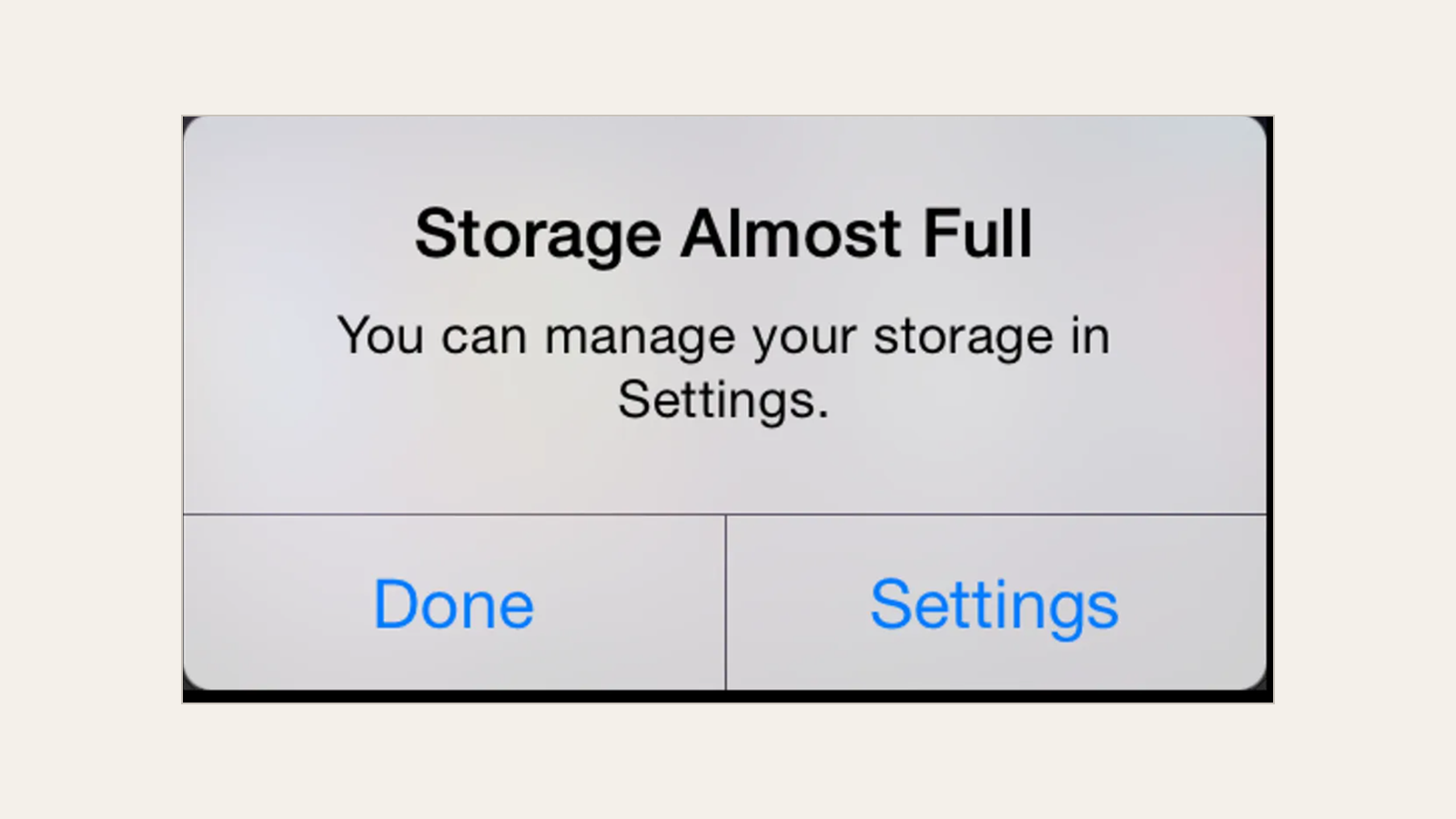
"Storage Almost Full." You've probably seen the notification. You tapped "Not Now," and a week later it came back, and then you tapped it again. Most of us have seen it. We do the dismiss dance until we finally find the time.
The standard advice is to delete some photos. It is good advice. But on the wrong phone, that advice destroys the only copies you have. Whether deleting a photo is harmless or permanent depends on a setting that can be easy to miss. So before you delete anything, answer one question: does this photo exist anywhere except in your phone?
Find out where your photos actually live
There are three possibilities.
- Your photos are safely in the cloud.
- They live only on your phone.
- Your backup was on, but it stopped without telling you.
The third case is most dangerous, and it is common. Without any warning, an account that has reached its limit will simply stop automatic backups.
Here is how to check yours.
On an iPhone:
- Open "Settings" and tap your name at the top.
- Tap "iCloud," then tap "Photos."
- Look at "Sync this device."
If it is on, your photos are in iCloud, and you can see upload progress in the Photos app (tap "Collections," then the profile button). If it is off, the photos exist on this phone and nowhere else. Unless you copied them to a computer yourself, they are the only copy.
On an Android phone:
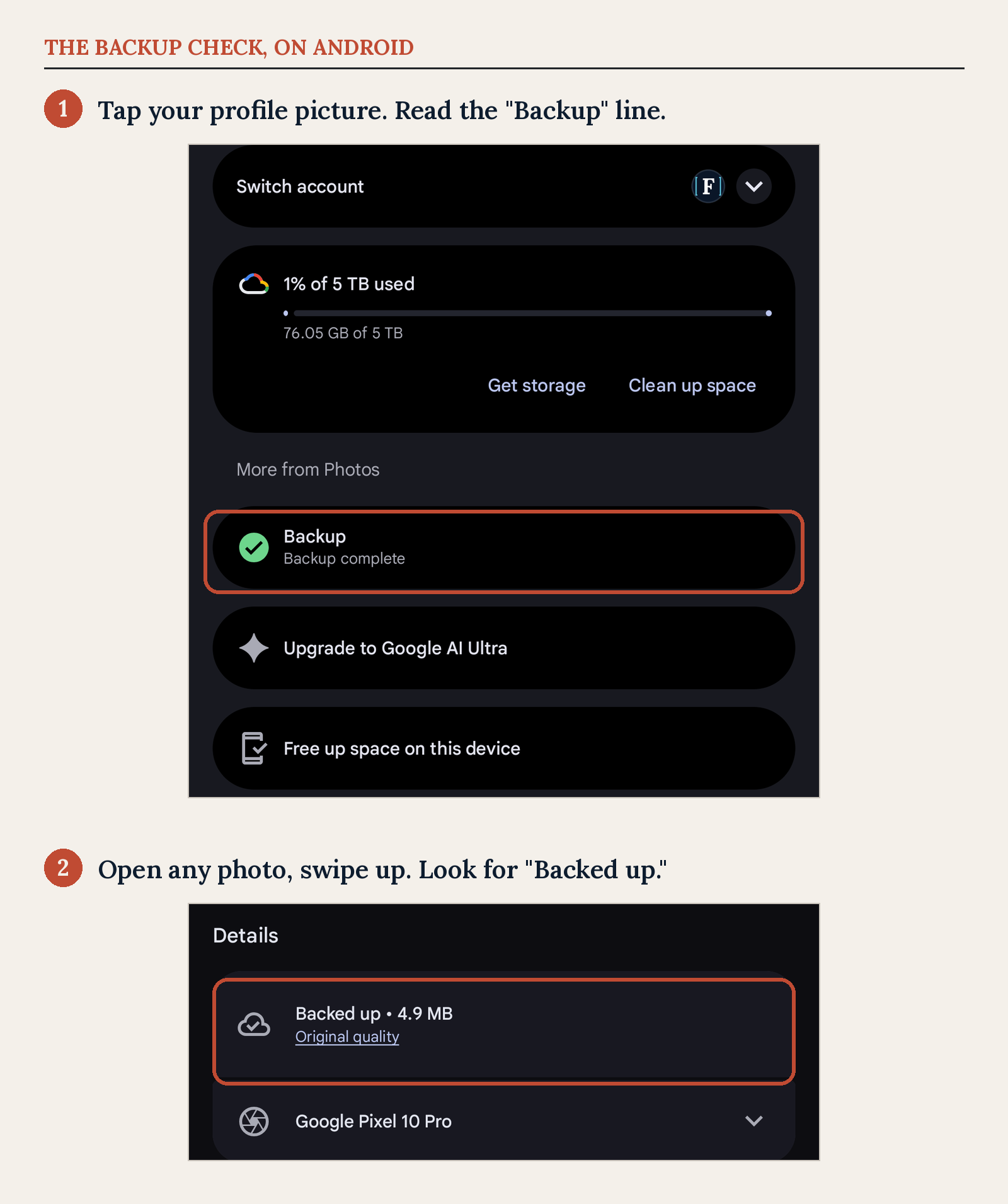
- Open the Google Photos app.
- Tap your profile picture or initial in the top right corner.
The screen tells you plainly, "Backup complete," or "Backing up" with a count of items left. It might also say "Backup stopped." You can also check an individual photo. A backed-up photo carries a "Backed up" label in its details; a photo without that label lives only on the phone.
If the screen says anything other than "Backup complete," stop here. Don't delete anything until you know which photos made it to the cloud and which did not.
An easy pitfall
If backup is on, your phone and the cloud are one library.
Apple says it directly: when you delete photos on one device, "they're deleted everywhere that you use iCloud Photos."
Google's warning is the same: deleting from the Google Photos app deletes from your device, and if the item is backed up, from every device with backup on.
Deleting a photo from your phone is deleting the photo, everywhere it lives.
There is an undo window. Apple keeps deleted photos in "Recently Deleted" for 30 days. Google keeps backed-up deletions in Trash for 60 days, and photos that were never backed up for 30.
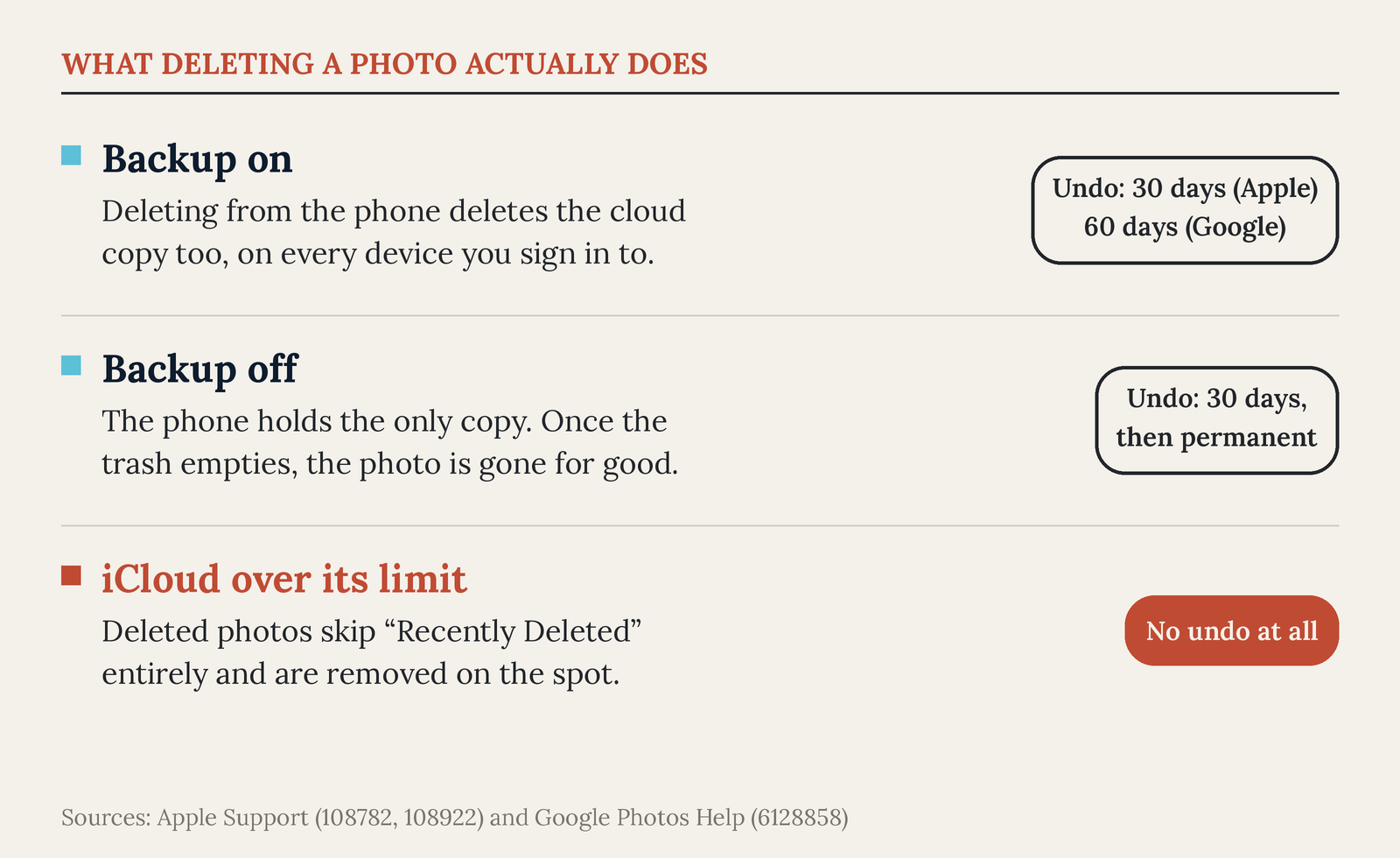
If backup is off, it is a lot more straightforward. The phone holds the only copy, and once the undo window passes, the photo is gone for good. I lost ten years of photos that way once. Get a copy somewhere else before you clear space on your phone.
The fastest route is turning on the backup service and letting it finish (here is how backups fit together generally). Once your library is safely in the cloud, a storage-saver setting can clear older photos from the phone itself, which is covered in the cleanup steps below. You do have the option of plugging the phone into a computer and importing everything as well.
Additional storage
Both services give you a free amount of storage before anything costs money. Apple gives every account 5GB of iCloud for free. In practice that holds one phone backup and little else. Google gives every account 15GB, but it is shared with Gmail and Google Drive, so a full inbox eats into your photo space. If your library filled the free tier years ago, that is the warning you have been dismissing.
Purchasing additional storage can sometimes be the right choice before beginning any cleanup steps. iCloud+ starts at $0.99 a month for 50GB. Google One starts at $1.99 a month for 100GB. (Prices checked August 2026; the upgrade screen on your phone will always show the current price.)
Subscription fatigue is real. But paying for a month of storage is the safest route for a phone carrying years of family photos. It makes the backup problem go away without deleting anything. If you were unsure about your backup status, try paying for the small tier. Then let the backup finish, confirm it says complete, and continue the cleanup process at your leisure with a safety net.
One more thing the warning is telling you. Phone storage cannot be added after you buy the phone, so remember this evening when you shop for the next one.
See what is actually using the space
We just assumed photos are taking up all the space. Check the math before you start deleting.
Similar to what we did for a slow computer, it's best to find the real problem before touching anything.
On an iPhone, open "Settings," tap "General," then "iPhone Storage." Give the colored bar a few seconds to settle; it loads in stages.
On most Android phones it is "Settings," then "Storage." On a Samsung phone it is tucked under "Settings," then "Battery and device care," then "Storage." (On an older Samsung it may be called "Device care" or "Device maintenance.")
The usual suspects, roughly in order:
- Video. Video is the heavyweight. By Apple's own estimate, one minute of 4K video at 60 frames per second takes around 400MB. A few birthday videos can outweigh a thousand photos. Your camera's recording setting lives at "Settings" > "Camera" > "Record Video."
- Message attachments. iPhones keep every text, photo, GIF, and video you have ever sent or received, forever, by default. Years of group chats add up to real gigabytes.
- Downloaded shows, music, and podcasts. Netflix downloads, offline playlists, and podcast apps that grab every episode automatically.
- "System Data." A catch-all for the phone. It is caches, logs, and temporary files, and you cannot empty it directly. The phone trims it on its own when space gets tight. A reboot of the phone can help a little. The Android equivalent is the "System" category, and Samsung says the same thing about it: you cannot clear it.
The cleanup, safest first
If you are ready to tackle that persistent storage warning and begin clearing space, follow these steps in order.
1. Move the photo library off the phone without deleting it. This is the biggest win, and it only works if your backup check said complete. Both platforms will keep your full library in the cloud and hold only small preview copies on the phone. On an iPhone, open "Settings," tap your name, tap "iCloud," then "Photos," and choose "Optimize iPhone Storage." Full-resolution photos stay in iCloud, the phone keeps lighter copies, and it downloads the original when you open one. In Google Photos, tap your profile picture and tap "Free up space." Google is careful with this control. It removes only the local copies of photos that are already backed up, and the cloud copies stay put. Nothing is deleted from your library either way, which is why this step comes before any actual deleting. If your problem is years of photos on a small phone, this step plus a backup plan may be the whole fix, and you never delete a single picture.
2. Offload apps you do not use (iPhone). Open "Settings" > "General" > "iPhone Storage," tap a big app you have not opened in months, and tap "Offload App." This removes the app but, in Apple's words, keeps its documents and data. The icon stays on your home screen with a little cloud next to it. If you tap it, the app reinstalls with everything where you left it. Android has no exact equivalent. The closest move is uninstalling big apps you do not use, especially when your account and its data live on the app maker's servers, so reinstalling brings most things back.
3. Clear app caches (Android only). Open "Settings" > "Apps," pick a large app, tap "Storage," then "Clear cache." That is safe; it keeps your logins and content. Do not tap "Clear data" (on some phones, "Clear storage") unless you mean it. That resets the app completely. iPhones have no per-app cache button, which is part of why "System Data" grows.
4. Stop keeping every text forever (iPhone). Open "Settings" > "Apps" > "Messages," scroll to "Keep Messages" under Message History, and choose "1 Year" or "30 Days." Read the tradeoff before you tap. The phone immediately and permanently deletes every conversation older than the time window you pick, attachments included. If you use Messages in iCloud, the deletion happens on your other Apple devices too. If there are texts in there you would grieve, save them first.
5. Delete downloaded media. In Netflix, your downloads live under "My Netflix." In Spotify and Apple Music, downloaded albums and playlists have a toggle you can turn off. In Apple's Podcasts app, swipe to remove downloaded episodes. You can always re-download them later.
6. Let the phone point at the junk. Both photo apps will flag the easy deletions for you. Google Photos collects blurry shots, screenshots, and oversized videos under its storage suggestions, and the iPhone Photos app gathers exact duplicates ("Collections," then "Utilities," then "Duplicates"). Once your backup is confirmed, these are the easiest files to cut.
7. Empty the trash, last. Once you have confirmed your photos exist somewhere else, you can empty the trash. On an iPhone, open Photos, tap "Collections," then "Utilities," then "Recently Deleted." On Android, open Google Photos, tap "Collections," then "Trash." Emptying these frees the space the deleted photos were still holding, and it also ends your undo window, which is why it comes last. Be clear on what this does. If backup is on, the trash is synced too, so emptying it removes those deleted photos from the cloud as well, not just the phone.
Your phone will also volunteer suggestions of its own. On an iPhone they sit under "Recommendations" at the top of the "iPhone Storage" screen. Samsung phones offer "Optimize now" in Device care, which only clears temporary files and closed background apps, and is safe. Read each suggestion before accepting it. Most are harmless shortcuts to the steps above. One is not. "Auto Delete Old Conversations" is the Messages setting from step 4 wearing a different name, and it is permanent.
Avoid "cleaner" apps altogether. Your phone already includes every tool this guide uses. An app promising to free up space or speed up your phone duplicates those built-in tools at best. At worst, the app is the problem, filling your screen with ads or worse while it pretends to help.
What happens if you do nothing
The warning is about more than running out of room for new photos.
A full cloud account stops backing up. With Apple, if you run out of iCloud storage, your device stops backing up to iCloud. That means new photos stop uploading and you cannot send or receive email at your iCloud address. With Google, photos and videos stop backing up, and even Gmail can be affected. The longer the warning has been ignored, the older the last good backup is.
Full storage on your phone comes with its own costs. The phone needs free space to download system updates, so a full phone eventually stops getting security fixes. That is more than an inconvenience. If your phone becomes too full the camera itself will give up and say "Cannot Take Photo," meaning the phone has no working room left.
The warning box is annoying, but it's an important one. Ignoring it is what turns a two dollar problem into a lost decade of photos. The next time "Storage Almost Full" shows up, you can handle it.
Sources
- Apple Support: Set up and use iCloud Photos
- Apple Support: Manage your iCloud storage on your Apple device
- Apple Support: How to check the storage on your iPhone and iPad
- Apple Support: Delete messages and attachments in Messages on iPhone
- Apple Support: If your iPhone or iPad won't update
- Apple Support: iCloud+ plans and pricing
- Google Photos Help: Delete photos and videos
- Google Photos Help: Free up space on your device
- Google Photos Help: Check your backup
- Google One Help: How your Google storage works
- Samsung: What is Device Care and how do I use it?