The school laptop is a work computer. Here's what it does and doesn't monitor.
Every adult knows how to behave on a work laptop. Your child was handed one at school and nobody explained the distinction. Here is what the school district can see, and what to check before you sign the packet.

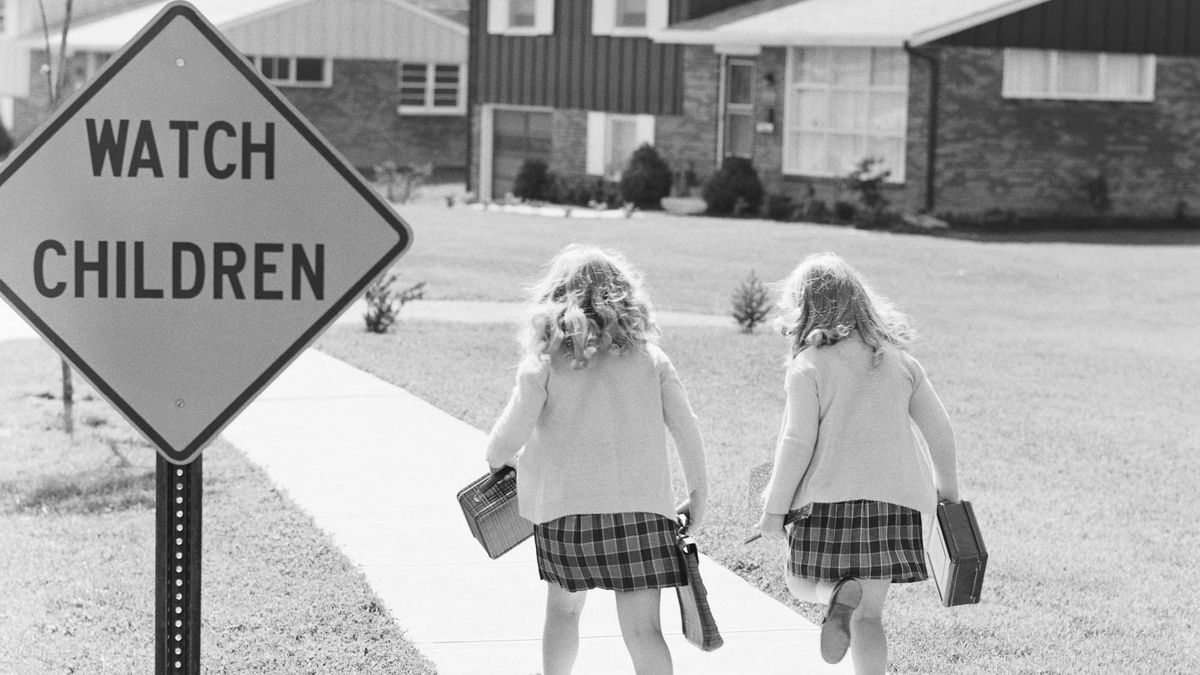
The school laptop comes home in a padded sleeve with a district asset tag on the lid. It goes in the backpack next to the pencil case, gets left on the kitchen table, and ends up open in a bedroom at ten at night. Most parents signed for it during the first week of school and never thought about it again.
There is a simple way to think about that machine. Your child has been issued a work computer.
If you work in an office, you already know the unwritten rules. You assume the company can see your screen. You do not look up your medical symptoms or bank account on a work device. You just figure those rules out somewhere along the way, and keep your personal life on your personal devices.
Your child just got handed a work computer, and nobody told them how it works. You should still take the laptop. For a lot of families, it is the only computer in the house. But you need to know how the software actually operates before they open the lid. Here is what the school district can see, how to explain the rules to your child, and the handful of questions you need to ask. The camera is not part of it, and I will get to that.
What the district can actually see
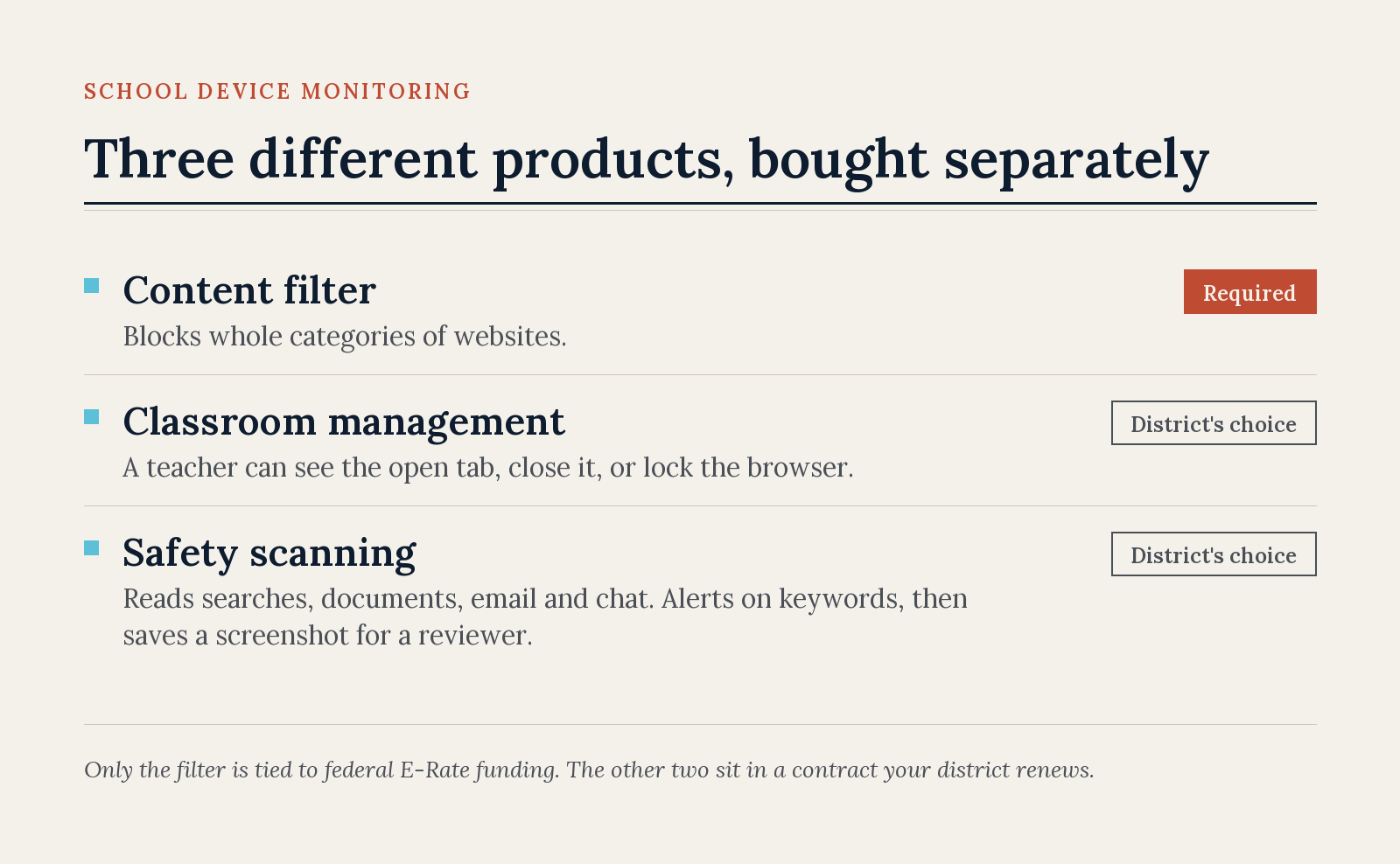
"Monitoring" is one word describing three separate products, and school districts buy them separately.
A content filter blocks categories of websites. Your district almost certainly runs one. This one is simple and straightforward. I think most of us are used to working with a content filter at this point.
Classroom management is what the teacher uses during class. A teacher can see a live thumbnail of whatever tab is open, close that tab, or lock the browser. GoGuardian Teacher, one of the common ones, spells all of that out in its own help pages.
Safety scanning is the one that worries parents. It reads searches, browsing, documents, email, and chat inside the school's Google or Microsoft account, and it alerts on anything that reads like self-harm, violence, drugs, or bullying. Gaggle, one of the bigger vendors, sifts through everything attached to a district's Google Workspace. When something trips an alert, the software saves a screenshot of whatever set it off.
Nearly every school district runs some of this. In a 2025 report by the Center for Democracy and Technology, 88 percent of teachers said their school uses activity monitoring software. Only 45 percent of parents knew their child's school was doing it.
It also does not stop at the school parking lot. The scanning follows the school account rather than the school building. Fulton County Schools in Georgia states it on its own website: the tool it uses runs on school-issued devices 24 hours a day, 7 days a week. That is a district describing its own setup in public, and it's fairly standard.
Two things to keep in mind. If your child signs into their school Google account on the family desktop, that browsing surveillance comes along with it. The rest of the devices on your home Wi-Fi do not. The software follows the account and the machine. It does not monitor the rest of your home network.
So "just be careful on it" is not advice anybody can really act on. There is no private corner of that laptop to be careful in.
Can it turn on the camera?
No. That is the fear that comes up first and it is one that is not happening.
Linewize, one of the vendors, says its monitoring cannot reach a device's camera or microphone. Fulton County repeats it in the notice it sends parents.
The story people are half-remembering is real, though. In 2010, Lower Merion School District outside Philadelphia used anti-theft software to take tens of thousands of webcam pictures and screenshots of students, including one boy photographed asleep in his own bedroom. It cost the district $610,000 to settle. Different software, different purpose, sixteen years ago, but the fear has lingered.
I couldn't confirm keystroke logging. The safety products describe reading what gets typed into the school account, which covers most of the same ground, but no vendor documents a raw keylogger as a standard feature. If your district tells you otherwise, get it in writing.
So the basic truth to tell your child is simple. What they type and where they go is on the record, but nobody is watching their room. It is still a good habit to keep your webcams covered or unplugged.
Is any of this required?
There are two reasons the software is on that laptop. One is required, and one is something your district chose to buy. Knowing which is which tells you whether a complaint has anywhere to go.
The first is federal funding. The Children's Internet Protection Act (CIPA) ties E-Rate discounts to running a filter, and E-Rate is the program that pays for a large share of school internet. To take the money, you have to run a filter. It has to block pictures that are obscene, that are child sexual abuse material, or that are harmful to minors. The school district also has to certify that its internet policy includes monitoring minors online. None of that can be up for debate at a board meeting. It is the condition that must be met to receive the check.
The second is a purchase. The FCC's own guidance says CIPA "does not require the tracking of Internet use by minors or adults." Nothing federal forces a school district to scan documents and email. That product is something your district went out and bought, which means it sits behind a contract, and contracts get renewed in public meetings.
School districts have reasons for buying it. A district that has been through a student crisis is not going to stop running the software that might catch the next one, and there is no staff on earth that can read a few thousand children's documents by hand. A school counselor in Vancouver, Washington told Seattle Times and Associated Press reporters that they get three or four alerts a month, and that in about half of them the district calls the parents right away. Usually about a child the parents had no idea was struggling. "We open that door for that help," the counselor said.
That is a real use case, and it is the strongest argument anyone can have for these systems.
Where it goes wrong
The alerting is crude, and the failures run worse than you would expect.
The Electronic Frontier Foundation pulled real alert data out of ten districts through public records requests in 2022 and 2023. College application sites got flagged. So did counseling and therapy sites, sexual health pages, LGBTQ resources, gun violence research, and history. Bible.com got flagged because Genesis 3 contains the word "naked." So did Romeo and Juliet. So did somebody searching for Moby Dick.
One student used a crossword solver looking for a synonym for "Western necktie." The site offered "bola" and "noose." The safety product reported him for actively planning suicide.
In the screenshots Vancouver Public Schools released, at least six students were potentially outed to school staff after writing about being gay, transgender, or struggling with gender dysphoria. Durham Public Schools in North Carolina dropped Gaggle after an alert outed a student to their own family. The board decided the software was costing more trust than it was buying safety. It is much the same situation as the teen safety controls that turned out not to work, where the feature exists and gets advertised, but nobody checks it against reality.
Those Vancouver screenshots came out with no password on them, incidentally. Reporters who asked what kind of content was getting flagged were handed roughly 3,500 unredacted student documents. These documents included children writing about their own suicide attempts. Gaggle has since made those links expire after 72 hours.
And the promise the whole system rests on has never been demonstrated. A 2023 RAND study found "scant evidence" in either direction and concluded that no research has comprehensively examined whether these programs affect youth suicide prevention. One of the authors, Benjamin Boudreaux, said it about as plainly as it can be said: if a school district does not have enough counselors, issuing more alerts will not prevent more suicides.
The children disproportionately subjected to these controls are children without access to a second device. If a family can afford a personal laptop, the child has somewhere private to think. If they cannot afford one, the school laptop is the only machine that child has.
What happens when there is an after-hours alert
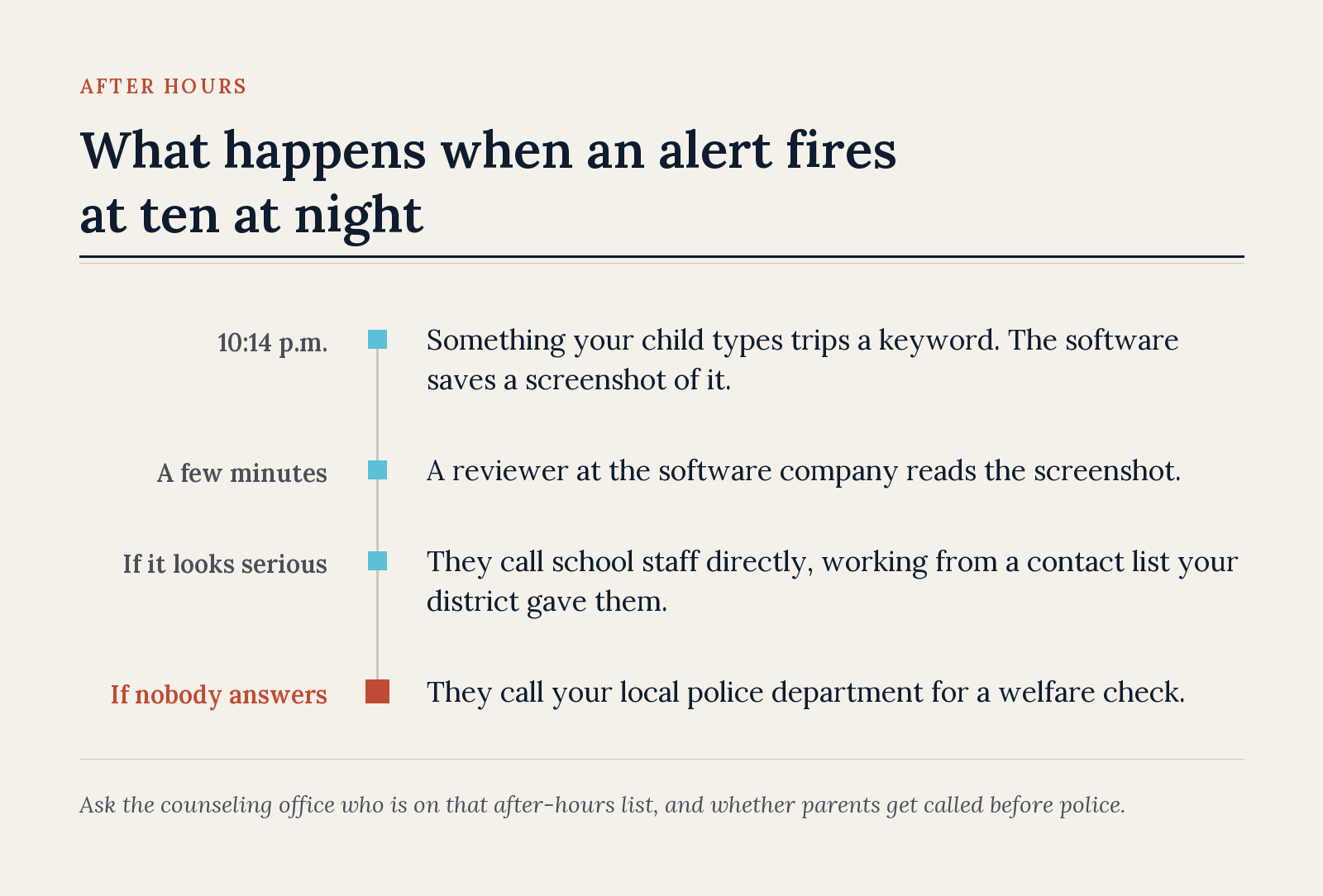
The software alerts on something and saves a screenshot. A human reviewer at the vendor reads it. If they think it might be serious, they notify the school. If they think somebody is in immediate danger, they call school staff directly, working off a contact list the district gave them. In rare cases, when nobody picks up, they call the police for a welfare check.
That last sentence is more important than it seems at first glance. If there is an alert on a Saturday in July and nobody at the district answers the phone, the next call goes to your local police department. A counselor calling your house is vastly preferred over a patrol car in the driveway. So the question to ask your school district is whether the after-hours list reaches an actual person, and whether parents get called before police do.
Review before you sign the packet
Find out which product you have. The larger names to look for are:
- GoGuardian
- Gaggle
- Securly
- Lightspeed
- Linewize
- ManagedMethods
- Bark
Start with the district technology page and the acceptable use policy, where it is usually named outright. If the technology page is thin, check the student data privacy notice. Once you have the name you can read what it actually does instead of guessing.
Reread the device agreement. The sentence to hunt for is the one about whether monitoring continues off campus. That tells you whether summer time is also monitored.
Ask two people two questions. Your district technology director gets: which products do we run, and how long is the data kept. The second answer tells you whether a child having a bad week in October is still on file next May. The counseling office gets the after-hours question above, and that answer tells you whether to expect a phone call or a police response.
Turn on the parent app, if there is one. GoGuardian Parent shows a guardian the top five sites and school files, the last 30 days of browsing, and a count of how many times a teacher closed a tab or locked the browser. When a school district turns on 'At Home Mode', you can also block sites and pause the internet outside school hours. It will not show you the safety alerts. The school district also has to enable it, so you have to ask.
Get a second device for anything private. A hand-me-down phone works. So does an old tablet. It does not have to be new and it does not have to be much. Schoolwork on the school machine, everything else on the other one. If you are setting up fresh accounts anyway, that is a good moment to start using a password manager.
Explain it to your child in one sentence. For a little one: the school laptop is a classroom, not a bedroom. For a middle schooler: it keeps a record of what you type, even at home, so private things go on the other device. For a teenager: treat it like a work computer, a machine with no sense of context is reading it, and if something is really wrong, tell a person instead of typing it.
Do not help your child get around it
The impulse is understandable. Handing a teenager back some privacy feels like a loving move.
But the counselor in Vancouver told reporters that students find a workaround as soon as they learn they are being alerted on. A child who has beaten the software is a child whose worst week never reaches an adult at school.
The same crude system that alerts on a book report is the one that alerts on a child typing that they want to hurt themselves. Beating it does not give your teenager privacy, it only takes them off the list somebody is actually reading. Privacy comes from the second machine.
Take the laptop
Sign the form and take the laptop. For some families, it is the only computer in the house, and your child needs it for class.
Just treat it exactly like the corporate machine sitting on your own kitchen table. Go find a cheap, used tablet or a hand-me-down phone, and configure it for them. Tell them the school laptop is a classroom, and the old phone is their bedroom. The school district can see what they type and where they go on the school machine, so anything private goes on the second one. Keep the two separate, and they will be fine.
Sources
- Federal Communications Commission, Children's Internet Protection Act
- Center for Democracy and Technology, research on technology use in K-12 schools (January 2025)
- The Seattle Times and The Associated Press, investigation into AI-powered school surveillance (March 2025)
- Electronic Frontier Foundation, Red Flag Machine
- Ayer, Boudreaux et al., AI-Based Student Activity Monitoring for Suicide Risk, RAND
- Fulton County Schools, Linewize Monitoring
- Linewize, Debunking 9 Student Privacy Concerns Around Online Monitoring Systems