What laptop specs actually matter in 2026?
A laptop price tag is covered in letters and numbers that were put there to sell you. Four of them decide whether you still like the machine in five years, and the one that matters most is often not printed at all.


Stand in front of the laptops at any Best Buy and read the card under one of the machines between four hundred and nine hundred dollars. You will find a processor name, a Copilot+ badge, a TOPS figure, a refresh rate, a Wi-Fi standard, and a screen size. Most of that is there to sell you.
Four things on that card decide whether the machine is still pleasant to use in five years. Memory, storage, the processor, and the screen. Two of the four have a trap hiding inside them that the card will not mention.
We already covered why everything with a screen got more expensive this year. Knowing that does not help you at the shelf. Knowing what to look for does.
Memory: 8 gigabytes is the floor, 16 is the goal
Memory (you will see it written as RAM) is your desk. It is how much work the computer can have spread out in front of it at once. Storage is the filing cabinet. People mix these up constantly, but if you think of it that way, it's easier to remember.
When the desk fills up, the computer starts shuffling things to the filing cabinet and back. That is the stutter you feel when you switch between windows and it takes a beat to catch up.
In August we said that if a laptop is in your budget at all, get at least 8GB. That still holds, and it is the line below which a new Windows laptop is unhappy on day one. But 8GB and 16GB answer two different questions. Eight is "will this be miserable right away." Sixteen is "how long do I get to keep it."
A browser with twenty tabs open, a document, and a Zoom call is not an unusual Tuesday. That is the load where 8GB starts shuffling and 16GB does not. If you are keeping this machine for five years, 16GB is the number you want.
The Apple exception. Apple released the MacBook Neo in March at $599, and after June's price increase it starts at $699. It has 8GB of memory soldered in, which set off a small war in the comments of every review. Then people tested it. Tom's Guide ran the same set of tasks on a Neo and on a Windows laptop and measured the Windows machine using several times more memory for the same work. That test was not a fair fight, because the Windows laptop had far more memory available to spend and a machine with room to spare will use it. But every other test of the Neo has pointed the same way. The Verge found it outrunning the old M1 MacBook Air and most Windows laptops on the light work it is built for.
macOS is simply thriftier with memory than Windows 11 is. So 8GB means one thing on an Apple laptop and something different on a Windows laptop. Same RAM, different operating system.
Memory used to be the easy thing to fix later, and that has changed. On most thin laptops and every MacBook it is soldered to the board, so whatever you buy on day one is what you have on the last day. On many 15-inch Windows laptops and most business-class machines you can still add a stick yourself, but look at what a stick costs now. Tom's Hardware's price tracking puts 16GB of DDR5 north of $200 in August 2026, which is double the price for half the capacity you could buy a year ago. A 32GB kit that ran about $95 before the shortage is $380 to $589.
So the upgrade path still exists on some machines, and it is no longer the cheap escape hatch it used to be. Buy the memory you want in the box. If you cannot tell which kind of machine you are looking at, "LPDDR" on the spec sheet usually means soldered.
Storage: the number matters but the type matters more
Everyone knows to check how many gigabytes. Fewer people know to check what kind, and that is where the cheap machines get you.
Start with the amount. Windows 11 itself takes roughly 25 to 30 gigabytes before you install anything. Add the recovery partition, the manufacturer's preinstalled software, and the cache Windows keeps for updates, and a 128GB machine is most of the way full at first boot.
The consequence goes past inconvenience. Windows needs roughly 20 gigabytes free to install one of the big yearly updates, and when it cannot find the room, the update does not install. Windows does tell you. It puts up a low disk space warning, and the update shows as failed in Settings with a button offering to fix it. But that warning looks exactly like every other notification a computer throws at you, and it is easy to dismiss for months without connecting it to anything. Do that long enough and the machine ends up stuck on a version of Windows that has stopped being supported.
Get 512GB if you can. 256GB works if you keep your photos in the cloud and do not install much.
Now the type. There are three kinds of storage in this price range and the listings call all of them "flash storage" or nothing at all:
- eMMC is the slow one. Roughly 150 to 400 megabytes per second, soldered down, no upgrade ever. Common under $300 and on cheap Chromebooks.
- UFS is soldered too, but genuinely fast. It shows up in some name-brand thin laptops now and performs close to a real SSD.
- NVMe SSD is what you want. Several gigabytes per second, and on many laptops you can swap it later.
The gap between eMMC and an SSD is something you will feel every single day. The gap between one SSD and another is not. So the question to ask about storage speed is simply whether it is an SSD at all.
The rule that works: if the listing gives you a storage number but never says what type it is, assume eMMC until the manufacturer's own spec page proves otherwise. Retailers who put a real SSD in a machine tend to say so, because it is a selling point. Silence is a tell.
And remember what section one said about the desk and the filing cabinet. A machine that runs out of memory falls back on its storage. Pair 4GB of memory with eMMC storage and you have built a computer that is slow in two ways at once.
The processor: the tier is easy, the year is the deciding factor
The tier map is not complicated. The numbers are a ranking, and a bigger number means a faster chip. An i7 sits above an i5, which sits above an i3. Ryzen 7 above Ryzen 5 above Ryzen 3. Both companies have worked that way for years.
Intel: Core i3, i5, i7 in the older naming, now Core 3, 5, 7, with Core Ultra 5, 7, 9 sitting above them. Celeron and Pentium are retired; the bottom of the range is now "Intel Processor N" something, like the N100 and N150.
AMD: Ryzen 3, 5, 7, with the newer Ryzen AI line on top.
Apple: the M-series (M4, M5) in the Air and Pro, and the A18 Pro in the Neo.
For email, documents, tabs and video calls, a current Core 5 or Ryzen 5 is comfortable and a Core Ultra 9 is money set on fire. You are not going to work that chip hard enough to notice.
The bottom tier deserves a fairer hearing than it usually gets. A modern N150 is a decent little chip, and in a Chromebook or a light Windows machine it does the job. It has nothing in common with the wheezing Celeron in a 2019 clearance laptop except a spot at the bottom of a chart. What actually goes wrong is an N-series chip paired with 4GB of memory and eMMC storage, which is exactly the combination sitting under $300 right now. The chip is carrying the blame for the company it keeps.
The year. The tier tells you the class of chip. It does not tell you what year the chip is from, and that is the number a clearance laptop is counting on you not to check.
Two chips can both be called "Ryzen 5," both start with 7, and be years apart. A Ryzen 5 7520U is from September 2022. A Ryzen 5 7640U is from 2023 and is roughly twice as fast. Nothing on the price tag says so.
There is a decoder ring for this. Every manufacturer has a different one, and you should not spend an evening learning any of them. Search the chip instead:
Write down the full processor model from the tag and search it. Look at two things: when it came out, and how many cores it has. An old chip at a full-price machine is a clearance machine. A four-core chip wearing a mid-range name is a budget chip wearing a borrowed one.
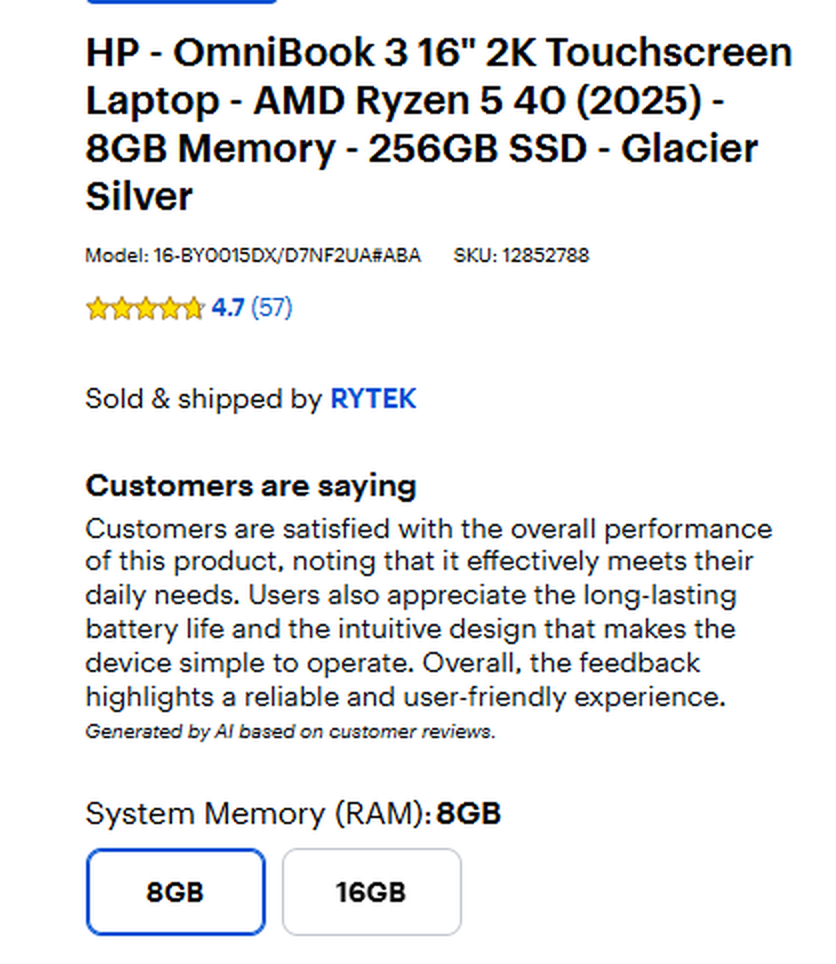
The core count matters because the release date alone can be told to lie to you. There is an HP on the shelf right now badged "AMD Ryzen 5 40 (2025)," and that year is not a lie. The chip did come out in September 2025. But it has four cores where a Ryzen 5 normally has six, and the design inside it is the same one AMD shipped in the Ryzen 5 7520U, which goes back to 2019. New number, old engine.

That one habit will save more people from a bad laptop than anything else in this article.
The screen: the spec you will actually resent
Most people don't return a laptop over the processor tier. They return it, or leave it closed on the shelf, because looking at it all day is unpleasant.
Resolution. You want 1920 by 1080, which you will see written as FHD, Full HD or 1080p. Watch out for a listing that just says "HD," because on a cheap machine that often means 1366 by 768. A resolution that was ordinary in 2011 and is cramped now. It is still being sold on sub-$300 laptops.
"2K" is the other word to distrust, because nobody agrees what it means. That HP with the Ryzen 5 40 is sold as a "16-inch 2K touchscreen," and its own specification table says 1920 by 1200. That is a perfectly good panel, a bit taller than 1080p and genuinely nicer for documents, but it is not what most people picture when they read 2K. Look for the actual pixel numbers, not the letters.
Panel type. There are four or five words you will see here, and they run in a rough order:
- TN is the cheapest and the worst. Colors wash out and shift the moment you are not sitting dead center. It clusters on the bottom-shelf machines.
- VA turns up occasionally. Better contrast than TN, weaker viewing angles than IPS, more common on monitors and televisions than on laptops.
- IPS is the floor you want. Good color, holds up from an angle, and it is what most decent laptops use.
- OLED is the nice one. True blacks, excellent contrast, and it starts appearing around $650. It is a treat, not a requirement.
- Mini-LED shows up at the top of the range and is more screen than this article's reader needs.
If the listing does not name the panel, check the manufacturer's spec page. A budget machine that does not say usually has a reason. And when two parts of the same listing disagree, believe the specifications table. That HP lists its display type as "LED" in the summary box at the top, which tells you nothing, and "IPS" in the specifications further down, which tells you what you needed.
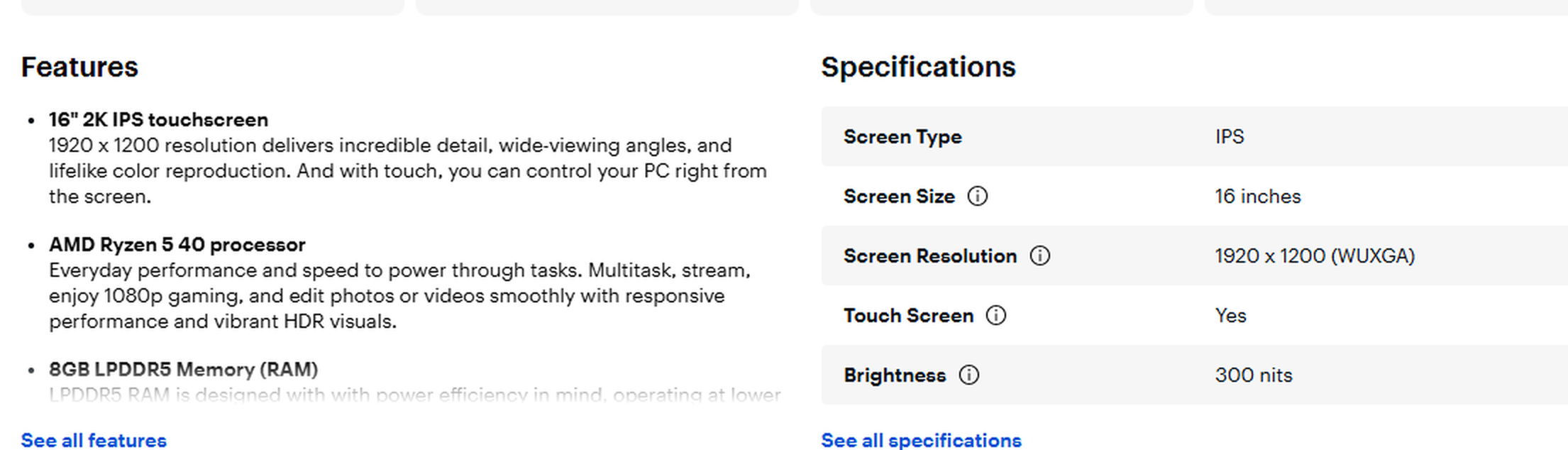
Brightness. This one is measured in nits and it is the specification most likely to make you unhappy, partly because stores are lit like operating rooms and every screen looks fine under those lights. Budget panels commonly fall in the 220 to 280 nit range. Notebookcheck measured one recent budget laptop at 238 nits and called it dull even indoors. Around 300 to 350 nits is where a screen stops fighting you near a window. Manufacturers self-report this number and round it generously, so treat it as a rough guide.
The rest of the tag
Everything else on that card is either fine to skip, or is there to move you up a price tier.
TOPS stands for trillions of operations per second, and it describes how fast the machine's AI chip is. For email and tabs and Zoom, it does not matter. What matters is that the number is being inflated. Microsoft's own requirement counts the AI chip alone, but some manufacturers advertise a much larger figure by adding the AI chip, the processor and the graphics together. A laptop marked "90 TOPS" can have an AI chip well under half that. If you care about the number at all, look for the one attached to the NPU specifically.
"AI PC" means nothing in particular. There is no standard behind it, and Microsoft has said every Windows 11 machine is one.
Wi-Fi 7 only helps if you own a Wi-Fi 7 router. Wi-Fi 6 is fine. Clock speeds and core counts are noise once you are at a Core 5 or Ryzen 5. A 120Hz screen is a pleasant thing that will never matter as much as the resolution and brightness of that same screen.
Copilot+ is an interesting one. The badge means the machine has an AI chip rated at 40 TOPS or better. You will not use it. It runs on-device features like Recall and local image generation, and regular Copilot works on any Windows 11 machine over the internet regardless.
But Microsoft does not hand out that badge on the AI chip alone. To carry it, a laptop must also have at least 16GB of memory and 256GB of SSD or UFS storage. Those are the exact numbers this article has been telling you to look for.
So the badge you would reasonably ignore turns out to be a shortcut. It cannot tell you the machine is good. It can tell you the machine is not starved, which on a crowded shelf is a good thing to know. Ignore what Copilot+ is selling and use it as a filter.
What the tag never prints
Those four specs get you a machine you like. What follows decides how long you get to keep it, and none of it is on the card.
How long it keeps getting security updates. Every machine has a date after which it stops being patched, and no store prints it.
- Windows 10: patched until October 12, 2027, and then it is done. Microsoft added that extra year in June with an edit to a support page rather than an announcement, so plenty of coverage still carries the old 2026 date.
- Windows 11: anything new on the shelf today is fine, and will be for years.
- Chromebooks: ten years of updates, counted from when that model was released rather than from when you bought it. A clearance Chromebook can have far less than ten years left. Check before you buy on Google's Auto Update policy page, or on the machine itself under 'Settings' > 'About ChromeOS' > 'Additional details'.
- Macs: Apple publishes no number. In practice a Mac has gotten somewhere around seven years of macOS updates, plus a couple more years of security-only patches after that.
This is the same problem we wrote about with routers and their expiration dates: a real deadline that never appears on the box.
S Mode. Some cheap Windows laptops arrive in "Windows 11 Home in S Mode," which blocks everything except apps from the Microsoft Store. No Chrome. No downloaded programs.
There is a real reason it exists. A computer that can only install from the Store is much harder to talk someone into infecting, which is why schools buy machines that way and why it is a defensible setting for a laptop that will only ever do email and video calls. It is also why budget laptops arrive in it, since the maker gets to call the machine secure.
Leaving S Mode is free and lives in 'Settings' > 'System' > 'Activation'. It is one-way, though, and it is a startling thing to run into on your first evening with a new computer. The listing rarely says.
Which model you are actually comparing. HP, Dell and Lenovo build store-exclusive model numbers, so the "same" laptop at Best Buy and at Costco can have a different processor or a different screen. This is also why price-matching so often fails at the counter: the policies want an exact model match, and there isn't one. Consumer Reports has documented the holiday variation on this for years, where a familiar brand and series gets a fresh model number and cheaper parts for the sale. A doorbuster price on a model number you cannot find anywhere else is a red flag.
The extended warranty. Consumer Reports looked at 36,919 laptops its members bought new. Among the PC owners who paid for extended coverage, 15 percent ever used it for a repair. Among Apple owners, 7 percent did. And for the PC owners who skipped the coverage and later needed work done, the median repair bill was $118, which is three dollars more than the median cost of the coverage itself. Put the money toward 16GB of RAM instead.
Two options the aisle will not show you
A Chromebook, if your whole day is a browser. Email, documents, video calls, banking, streaming. If that is genuinely all of it, a $350 Chromebook will feel faster than a $500 Windows laptop. ChromeOS asks for a fraction of what Windows does and there is far less running in the background. The dividing line is clear enough to decide on. If you need a Windows-only program, desktop tax software, a perpetual Office license, or a printer with fussy drivers, buy Windows. If you do not, the Chromebook is the better machine for less money.
A used business laptop. A three or four year old ThinkPad, Latitude or EliteBook with 16GB of memory and a 512GB SSD sells for roughly what a new bottom-tier consumer machine costs. You get a better keyboard, a sturdier body, and parts that come out with a screwdriver. What you give up is a shorter warranty (often 90 days), a battery with unknown miles on it, and no manufacturer support. Budget fifty to eighty dollars for a battery and check the processor's generation before you buy.
What this all costs
Checked in late August 2026, 16GB of memory with a 512GB SSD, a current processor and a 1080p or better IPS screen is turning up on sale between roughly $590 and $700. At full list rather than on sale, expect $800 and up. Under $500 you are usually choosing which of the four to give up. Under $300 you are buying 4GB of memory and a 768p screen, and that machine is disappointing on day one.
Look at the crossed-out number while you are there. That HP with the Ryzen 5 40 and 8GB was listed at $400, marked down from $780. The discount is real. The machine is still 8GB with a six-year-old design in it, and a bigger discount does not change either of those.
On the Apple side, the numbers moved this summer. The MacBook Air went from $1,099 to $1,299 in June and comes with 16GB. The MacBook Neo starts at $699 with 8GB, and the reviews say it is a good little computer.
If you were going to buy the cheap one anyway
There is a real argument on the other side and it deserves highlighting. Buying a $400 laptop every three years instead of an $800 laptop every six is a legitimate way to handle money, especially if the $800 is not sitting there this month. The five-year math assumes you have the cash today, which is an assumption that doesn't apply to everybody.
That argument works fine at $400. It falls apart at $259. A machine with 4GB of memory and eMMC storage is not the same laptop with fewer features. It is slow the first week, and no amount of patience will make it better.
Whatever you spend, spend it on the four specs instead of the badges. And if the machine you already have is the reason you are shopping, try the free fixes first. A tune-up costs nothing, and the store will still be there next month.
Sources
- Windows 11 Specs and System Requirements
- Windows 10 Consumer Extended Security Updates
- Switching out of S mode in Windows
- ChromeOS Auto Update policy
- AMD Ryzen 5 7520U product specifications
- RAM price tracking 2026, Tom's Hardware
- One year into the AI-induced RAM apocalypse, Tom's Hardware
- Microsoft quietly extends free Windows 10 ESU support to October 2027, BleepingComputer
- Apple announces significant price increases for MacBooks, iPads, more, 9to5Mac
- MacBook Neo guide: price, availability, specs, Macworld
- Windows fans say MacBook Neo's 8GB RAM is ridiculous, so I tested it, Tom's Guide
- Best laptop deals, PCWorld
- Extended warranty for a laptop: should you buy one? Consumer Reports