Share your Wi-Fi without ever spelling out the password
Your phone can turn your network into a QR code that any camera scans, iPhone or Android. Five minutes, and you never recite the password again.

It is the most predictable moment of any dinner party. Someone holds up their phone and asks for the Wi-Fi password, and you start reciting the string the router came with: capital R, lowercase q, was that a zero or the letter O. Three tries later they are finally online and you have aged a year.
Your phone can end that ritual. Both iPhones and Android phones can turn your home network into a QR code, the little square barcode. Your guest points their camera at it, taps the link that pops up, and they are connected. No spelling, no sticky note on the fridge, no handing your phone around the table. It works across the fence too: an iPhone can make a code an Android guest scans, and the other way around.
Think of the code as a little say-the-password-for-me card. You make it once. From then on you either hold up your screen, or you screenshot it and print it and stick it on the fridge for good.
On an iPhone
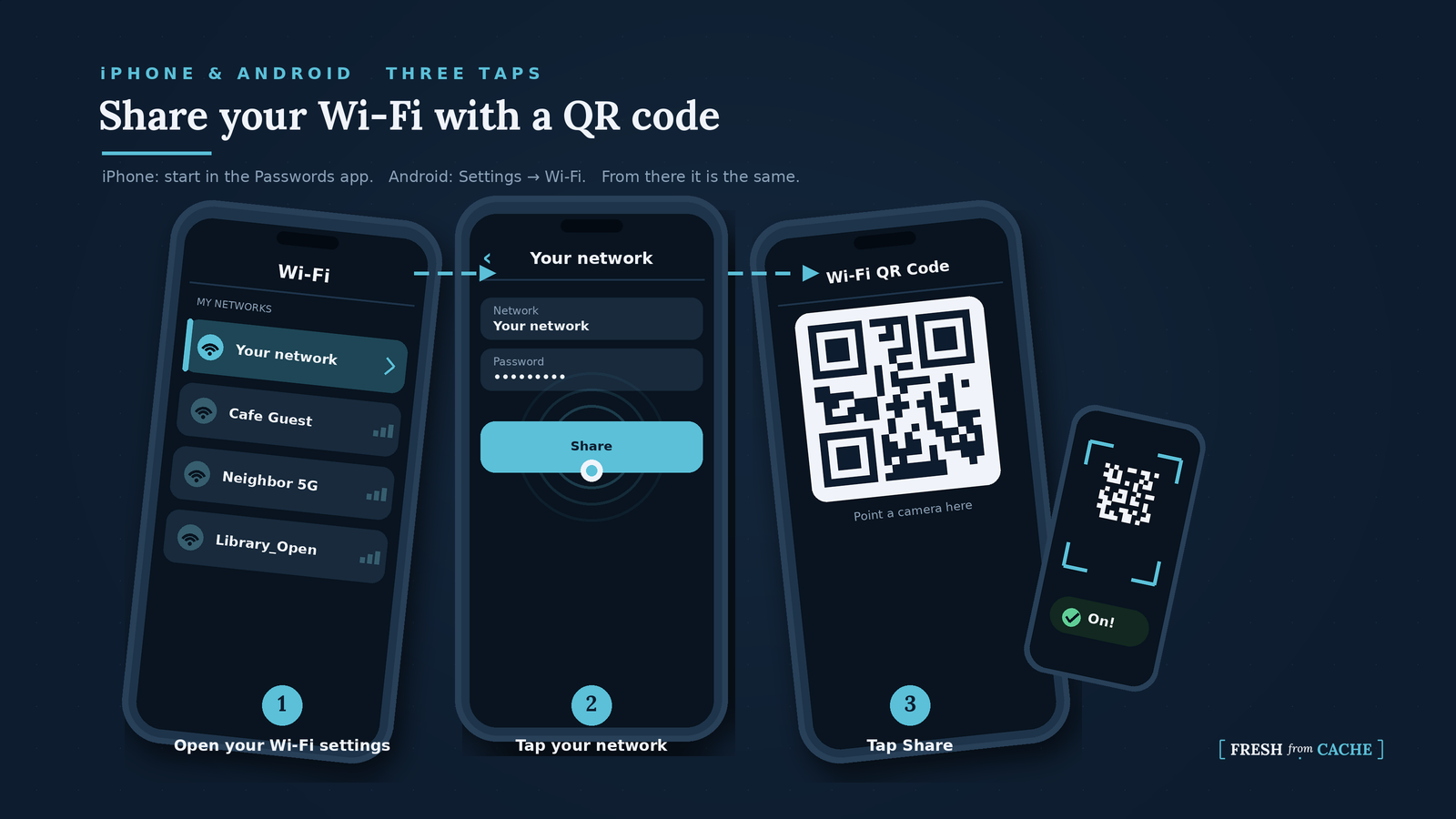
Open the Passwords app, the one with the key icon (it became its own app a couple of versions back). Tap Wi-Fi, tap the network you are on, then tap Share. Up comes the QR code. Hold the screen up and have your guest open their camera and point it at the code.
On an Android phone
Open Settings, then Network and internet, then Internet (some phones still call it Wi-Fi). Tap the gear icon next to the network you are connected to, then tap Share (on a Samsung it reads QR code instead). Your phone may ask for your PIN or fingerprint first. The QR code appears on screen for your guest to scan.
The wording wanders a little by brand. On a Samsung it is Settings, then Connections, then Wi-Fi, then the gear icon, then the small QR code at the bottom corner. On a Pixel you can also swipe down from the top of the screen, tap Internet, and hit Share Wi-Fi in the bottom corner. Same code waiting at the end of any of those paths.
Before you hand it out
That QR code has your real password baked inside it. Anyone who snaps a photo of it can get on your network, so show it to a guest you trust and keep it off anything public like an Instagram story. If people are in and out of your house a lot, the grown-up version is a guest network. That is a separate name and password your router broadcasts just for visitors, so you can hand the code to anyone and keep them off the laptops and cameras on your main network. That is a fifteen-minute job for another day.
So make yours right now, before you close this. Walk through the steps above until the QR code is sitting on your screen, then screenshot it so it is saved in your photos. The next time someone asks for your Wi-Fi, you do not say a word. You turn your phone around.
Tell me the worst Wi-Fi password you have ever had to read out loud to a guest. I have seen some hostile ones, and I want to know yours.