Outlook icon confusion
Windows 11 ships with Outlook (new) while Microsoft 365 installs Outlook Classic, so both sit in your Start menu. Which one to use, and what you give up by switching.

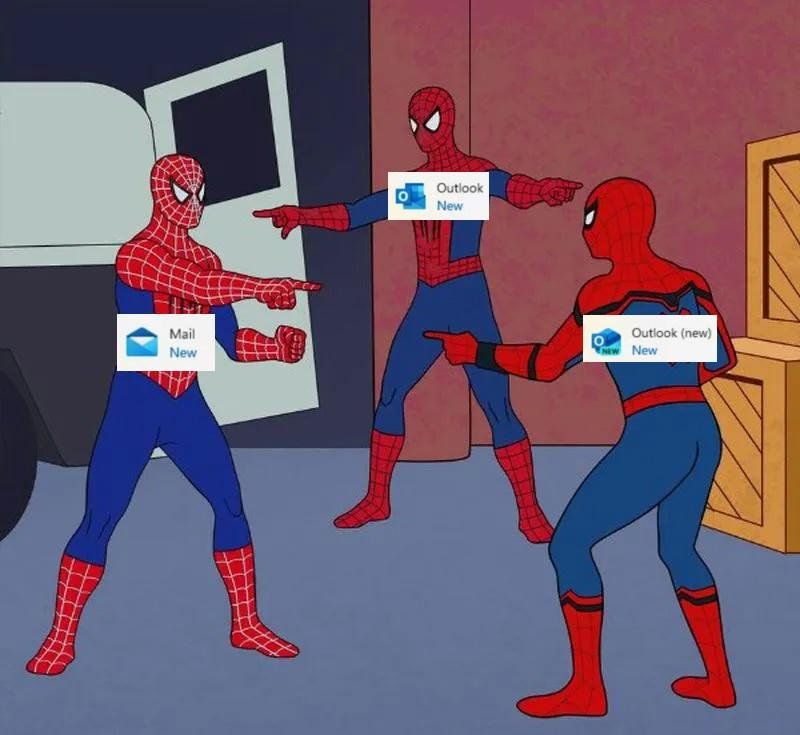
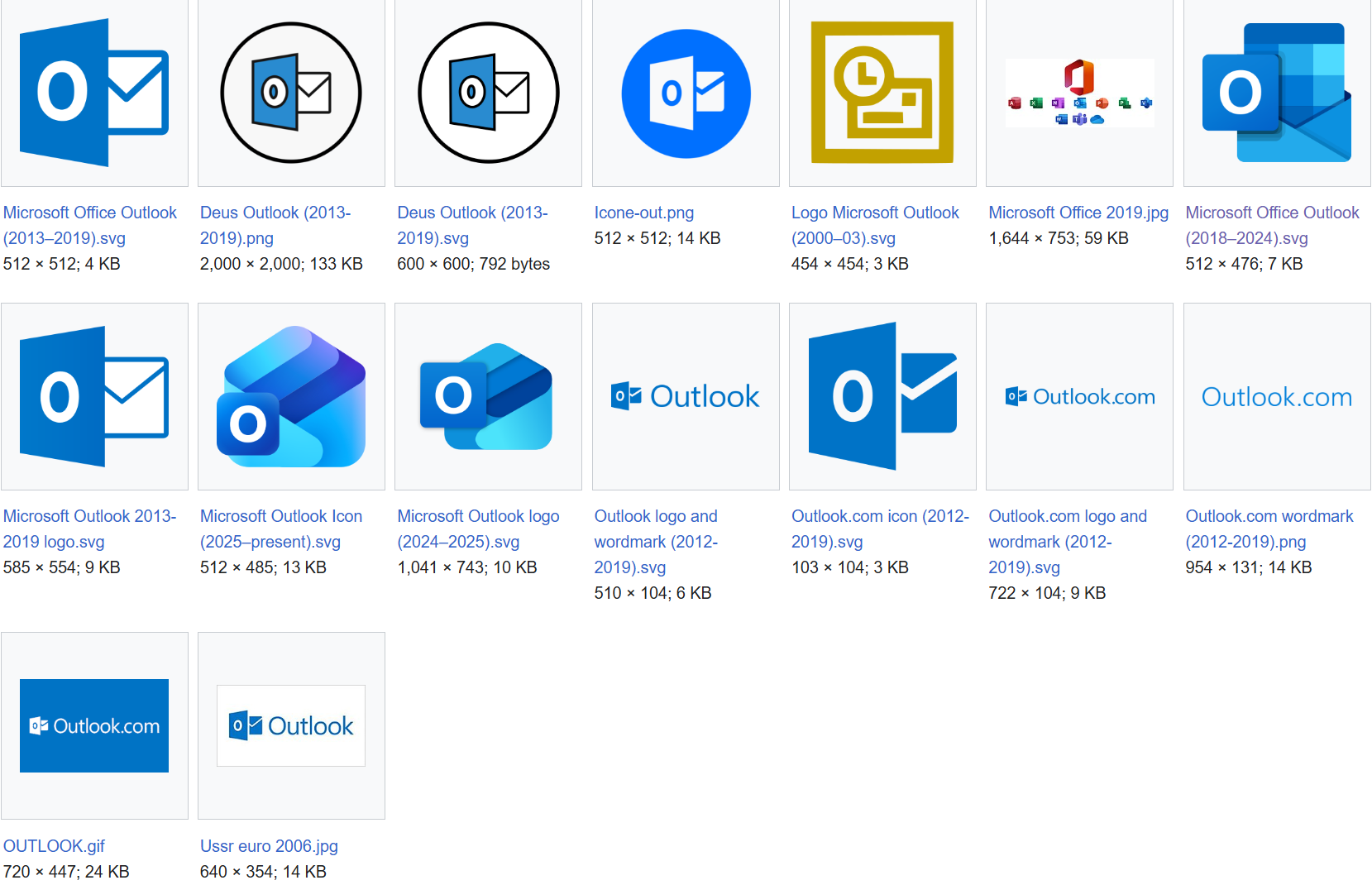
If you've opened the Start menu on Windows in the last few years and found yourself staring at two or three different Outlook icons, you're not losing your mind. There's a reason the meme above exists. It's confusing. What even is "Outlook (new)"?
Microsoft is in the middle of rolling out a brand new Outlook, and the rollout has been going for over two years. They keep pushing the deadline. Even after my years in IT, I still stop and think about which icon to click when I search "Outlook."
Why so many?
Windows 11 comes with Outlook (new) already installed on every PC. Microsoft did that on purpose, so the new app is there for everyone, including people who don't pay for Office. If you also pay for Microsoft 365 (the subscription with Word, Excel, and Outlook Classic), then Classic is installed too. Both apps pin themselves to your Start menu. More icons, more confusion.
Inside each app there's a little toggle in the upper-right corner. In Classic it says "Try the new Outlook." In new Outlook it says "New Outlook," and switching it off drops you back to Classic.
Same look, different foundation

They look almost the same at first. Same inbox, same calendar, same general layout. The differences are in the small things, and in what each one is allowed to do.
The first one you'll notice is ads. The free version of new Outlook shows ads in your message list, dressed up to look like real emails with a small "Ad" tag. The old Mail app never did that. You can pay your way out of it. An ad-free inbox starts at $1.99 a month through Microsoft 365 Basic. And plenty of people who already pay for full Microsoft 365 still see the ads anyway, because their main address is a Gmail or some other non-Microsoft address and the app doesn't count it as paid. So you're paying, and still getting sold to.
Then there's where your email actually lives. New Outlook is built on the web version, which changes something most people never see. When you add a Gmail, Yahoo, or your internet provider's email to it, the app doesn't connect your computer straight to that mailbox the way Classic did. It pulls a copy onto Microsoft's servers first. Your mail makes a stop at Microsoft on the way to you.
Microsoft says it doesn't read your messages to show you ads, and doesn't hand your name or email address to advertisers. Proton, a company that sells private email (so keep that in mind), dug into the European sign-up screen and found a list of hundreds of advertising partners written into the consent terms. You can argue about how much that matters. The plain fact underneath it doesn't change: your other mailboxes now route through Microsoft, where before they didn't.
The rest of the differences are about features, and those are what's holding up the whole rollout.
Deadline drift
Microsoft has been planning to retire Classic for years. The plan has three phases:
- You choose which one you want, and you can still go back.
- New Outlook becomes the default, and you can still go back.
- Eventually, the old one goes away.
Microsoft has missed every deadline it set for phase two. The latest miss was February 2026. Business users were supposed to start defaulting to new Outlook by April. It didn't happen. Microsoft pushed the date back a year, to March 2027, the third delay for this phase. The reason is always the same: businesses keep telling Microsoft, loudly, that new Outlook still doesn't do enough of what the old one does.
You can watch the indecision in real time. This past June, Microsoft was set to pull a contact-card feature out of Classic, then paused the removal a few days before it was supposed to land. They're trimming the old app and un-trimming it in the same month.
For most people reading this, none of that changes your day. If you use Outlook at home, Microsoft already moved you when it shut down the old Mail and Calendar apps at the end of 2024. If your business runs on Outlook, your IT team has until at least March 2027 to sort it out, and Classic is supported under contract through at least 2029.
So if you're someone who leans on the plug-ins and macros that are still missing, you don't need to panic. Yet.
Outlook, now with more Outlook
So far I've been talking about Outlook on a Windows desktop. Outside of that, the word "Outlook" covers four more products.
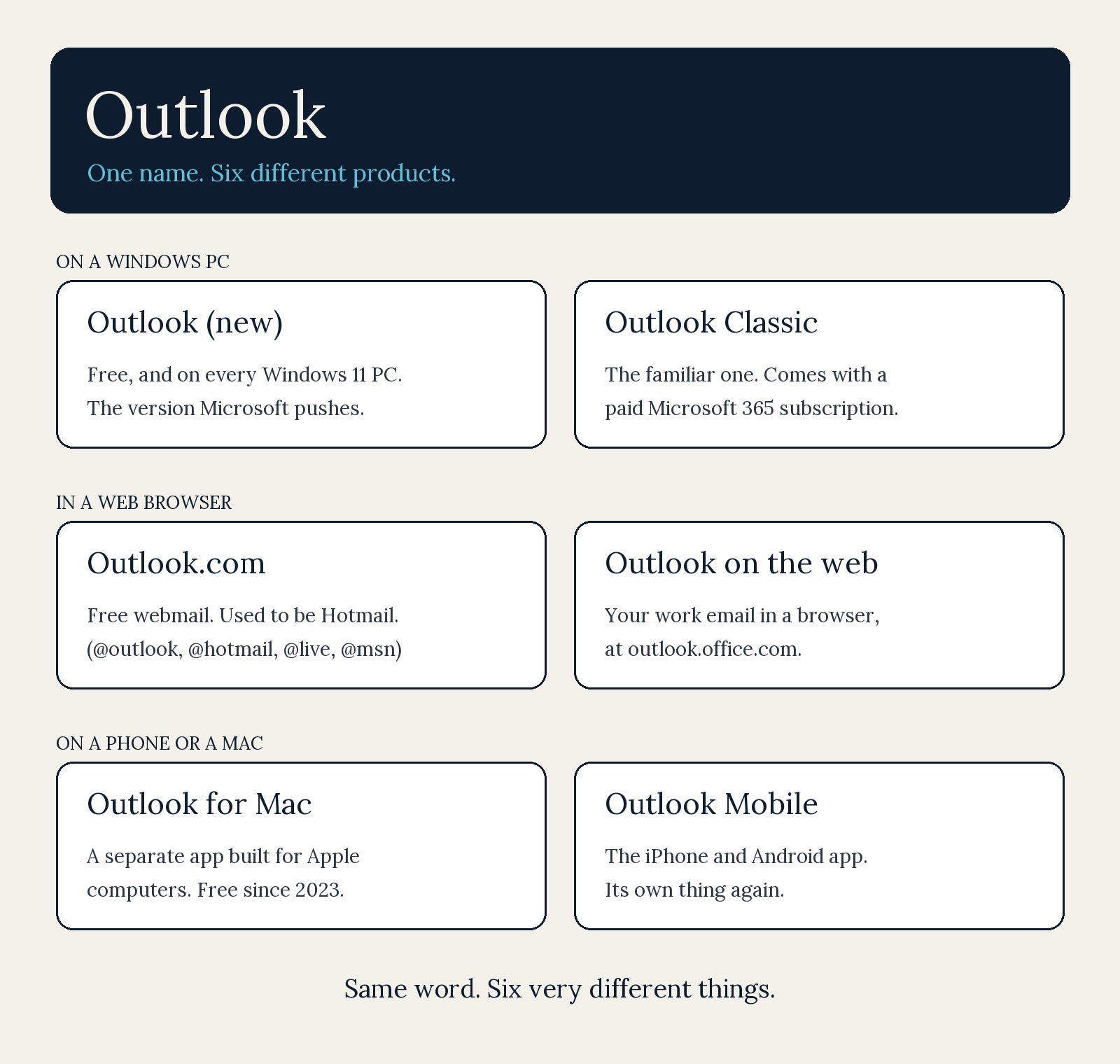
Outlook.com is free webmail. It used to be Hotmail. If your address ends in @hotmail.com, @outlook.com, @live.com, or @msn.com, that's the service running your account. It lives in a browser. Nothing to install.
Outlook on the web is the work version of the same idea. If your company uses Microsoft 365 for email, you sign in at outlook.office.com from any browser and there's your work mail. It's the same engine as new Outlook, in a tab.
Outlook for Mac is a separate app built for Apple computers. Different program from the Windows one, different code, different history. Since 2023 it's free, no Microsoft 365 needed.
Outlook Mobile is the iPhone and Android app. It has its own code too. For phones, this is the standard Microsoft mail app.
So depending on who's talking, "Outlook" might mean a free webmail service, a work webmail service, a Windows desktop app (two of those), a Mac app, or a phone app. Six products, one name. It's why a Microsoft Support article can feel like it's describing something you've never seen. It might be.
Watch for fake "upgrade" emails
Scammers have noticed the confusion, and they're using it.
Because nobody's quite sure what's happening with the Outlook transition, fake "upgrade or lose your email" messages have started going around. They tell you the classic version is being shut off, sometimes "tomorrow," and that you have to act now or lose access. Some come from an @aol.com address or another account that has nothing to do with Microsoft. Some carry a QR code that sends you to a fake sign-in page. (We've covered how these fake-verification pages work before.)
- Microsoft doesn't email you demanding that you "update" Outlook or lose your mail. The switch between versions happens inside the app, with that toggle, not through a link in an email.
- Check who actually sent it. Real Microsoft account email comes from accountprotection.microsoft.com. The display name can say "Microsoft" while the real address is something else entirely, so look at the actual address, not the name.
- Don't click the link or scan the code. If you want to change Outlook versions, use the toggle in the app, the one from earlier in this article.
- When in doubt, go straight to the app or to account.microsoft.com yourself. Don't take the email's word for it.
If a message about Outlook is rushing you, that's the tell. Microsoft has spent over two years not rushing this. The only one in a hurry is the person trying to scam you.
Cut down the confusion
A few practical things if the icons trip you up, or you're just trying to figure out which Outlook to use:
Pick one and pin only that one to your taskbar. When Outlook confusion first hit me, this is what I did. Open every Outlook you've got. Find the one you want. While it's open, right-click its icon on the taskbar. Choose "Pin to taskbar." Then right-click any other Outlook icons down there and choose "Unpin from taskbar." Now, any time you're not sure you're in the right one, close it and click the single icon on your taskbar.
If you pay for Microsoft 365 and you use plug-ins or macros, stay on Classic for now. It's supported through at least 2029 and it has the features you depend on. If you got moved to new Outlook automatically, use the toggle to switch back. Microsoft is rolling out "web add-ins" to replace the older "COM add-ins" that power things like CRM connectors, but not every vendor has one yet. If new Outlook interests you, check whether the add-ins you rely on have a web version before you commit.
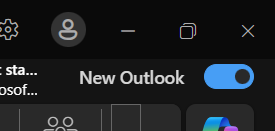
Test both before you commit. Each one has that toggle in the upper-right corner, and the switch goes both ways. Give the new one a week. If it does what you need, stay. If it doesn't, switch back.
If you just want email, give the new one a try. Most people who only read and send email will be fine on it. It's free, it loads fast, and it looks like the web version you might already use at work.
If you're still on Windows Mail or Calendar, get out. Those apps stopped working at the end of 2024. They still open, but they won't send or receive. Export anything you want to keep and pick a new home for it.
Thanks Microsoft
It's not you. Microsoft built a new product, decided it wasn't ready, and kept shipping it anyway. They renamed the old one to make room, then missed every deadline they set. What's left is a trail of icon devastation on everyone's computers. The fact that this article needs to exist tells you Microsoft dropped the ball.
If you remember one thing: there's no rush. Whatever Outlook you're using right now is supported, unless you're on Windows Mail or Calendar. The deadlines are still out in the future, and Microsoft has shown it isn't shy about moving them. Pick the one that works for you. Ignore the rest.
Joel
If you have a funny Outlook confusion story, or you're still confused, I'd love to hear from you. Reach me at joel@freshfromcache.com
Outlook icons via Wikimedia Commons.