Your phone can copy text out of any photo
The two-minute trick that ends retyping wifi passwords, codes, and recipes off a screen.

Someone hands you the wifi password. It's fifteen characters of random letters, numbers, and special characters printed in tiny type on a sticker on the back of the router. You crouch down, tilt your head, and start typing it into your phone one character at a time. Not anymore.
You don't have to do that. Your phone can read the sticker for you.
Any recent iPhone or Android can pull the text straight out of a photo, or straight off whatever your camera is pointed at. The words become selectable, like text on a web page. You copy them and paste them wherever you need them. No app to buy, nothing to set up. Most people have had this on their phone for years and never knew.
Think of it less like a picture and more like a page you can highlight. The phone looks at the photo, finds the letters, and hands them back to you as real text. A menu, a receipt, a business card, the serial number on the bottom of a device. If you can photograph it, you can copy it.
On an iPhone
Apple calls this Live Text. It has been built in since the iPhone XS.
- Open the Photos app and tap a photo that has text in it. (Or just open the Camera and point it at the text. You don't have to take the picture.)
- Look at the bottom-right corner for a small icon of a few lines inside brackets. Tap it. The text lights up.
- Touch and hold one word, then drag the dots to grab the rest. Or tap 'Select All'.
- Tap 'Copy'. Now paste it into a text, a note, or the search bar.
If nothing lights up, the feature may be turned off. Go to Settings, then General, then Language & Region, and turn on 'Live Text'. For the live camera version, it's Settings, then Camera, then 'Show Detected Text'.
On an Android phone
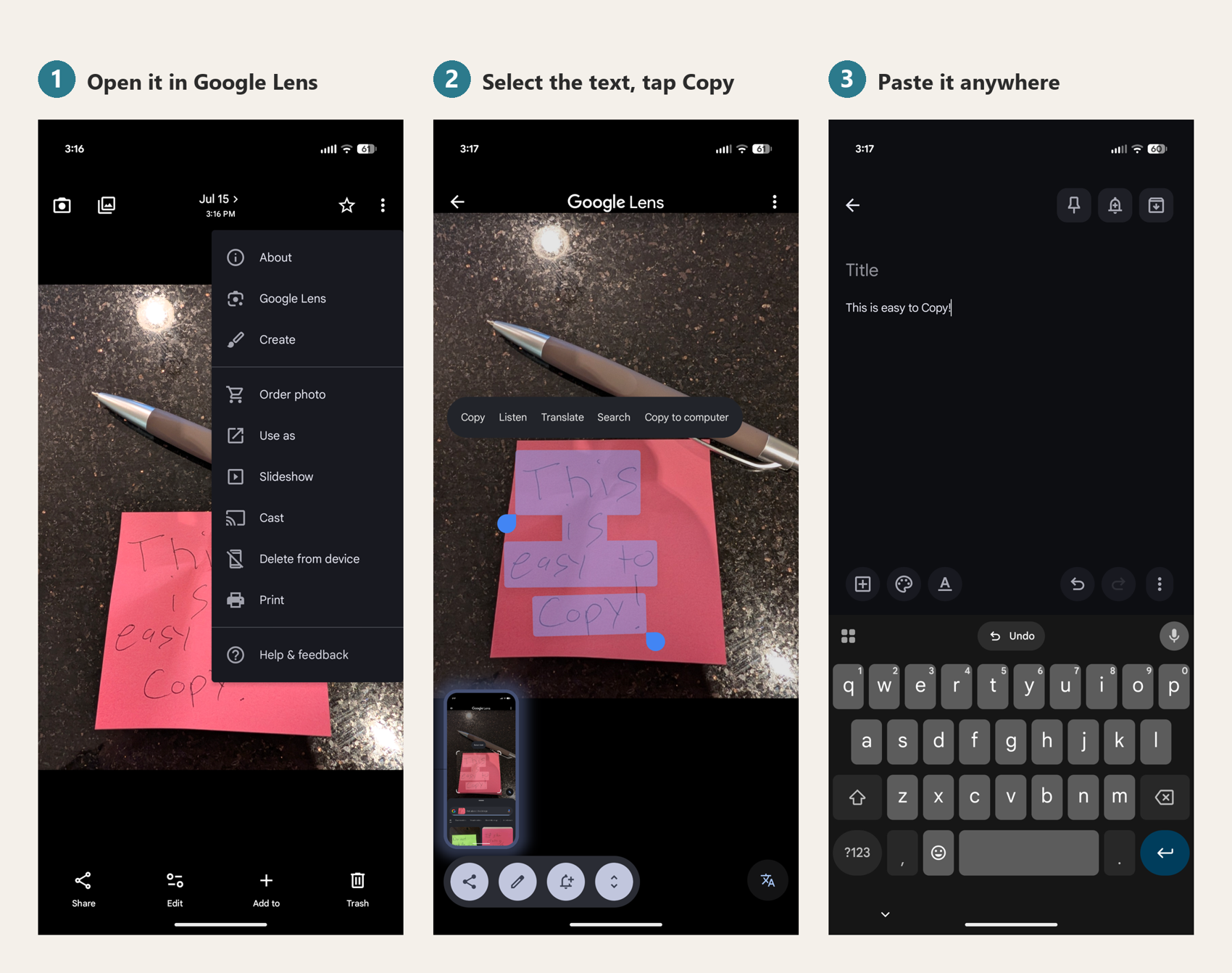
Here it runs through Google Lens, which is already on most Android phones.
- Open the photo in Google Photos.
- Tap the Lens icon at the bottom. (On some phones it's behind the three-dot menu, listed as 'Google Lens'.) The words get underlined.
- Tap a word and drag the handles to grab the rest. Tap 'Copy text'.
- Paste it wherever you need it.
To grab text live off your camera, open the Google app, tap the Lens icon in the search bar, point it at the text, and choose 'Copy text' once it highlights.
Your phone may have a shortcut of its own. Samsung phones show a 'T' in the corner of the Camera. Newer Pixels and Galaxies let you press and hold the home bar and grab text from there. Different names, same trick.
One more thing
Every photo already sitting in your camera roll works too. That screenshot of a confirmation number. The picture you took of a flyer. The receipt you photographed for your records. The text in all of them is grabbable right now. You don't need a fresh photo. You already have a pile of them full of text you can pull.
It won't be perfect. Messy handwriting and fancy fonts trip it up, and it works best in English and other common languages. But for printed text on a screen, a sticker, or a page, it just works.
Try it once on the wifi password taped to the back of your router. Point, grab, paste. After you've done it a single time, you'll never type one of those by hand again.
If you give it a shot, hit reply and tell me the first thing you grabbed.
Sources
- Apple Support: Copy and translate text from photos on your iPhone or iPad
- Apple Support: Change the language and region on iPhone (Live Text toggle: Settings > General > Language & Region)
- Google: Copy text from images with Google Lens (in Google Photos and the Google app)