Your browser can block trackers and scam sites. The strongest settings just aren't on by default.
Your browser can block trackers and warn you off scam sites. In Chrome the strongest settings are off by default; in Edge they are turned down. Five minutes fixes both.
Your browser can block a lot of the tracking and scam sites you worry about. But the strongest settings are switched off, or turned down by default.
Chrome does not block third-party cookies until you tell it to. It does not turn on its best scam protection either. Edge does more out of the box, but it holds the strict setting back by default. None of these cost anything or need an install. It takes about five minutes and a couple of menus.
Two things to do in whatever browser you use. Block the trackers that follow you from site to site. And switch on the built-in check that warns you off scam and malware pages before you click in.
In Chrome
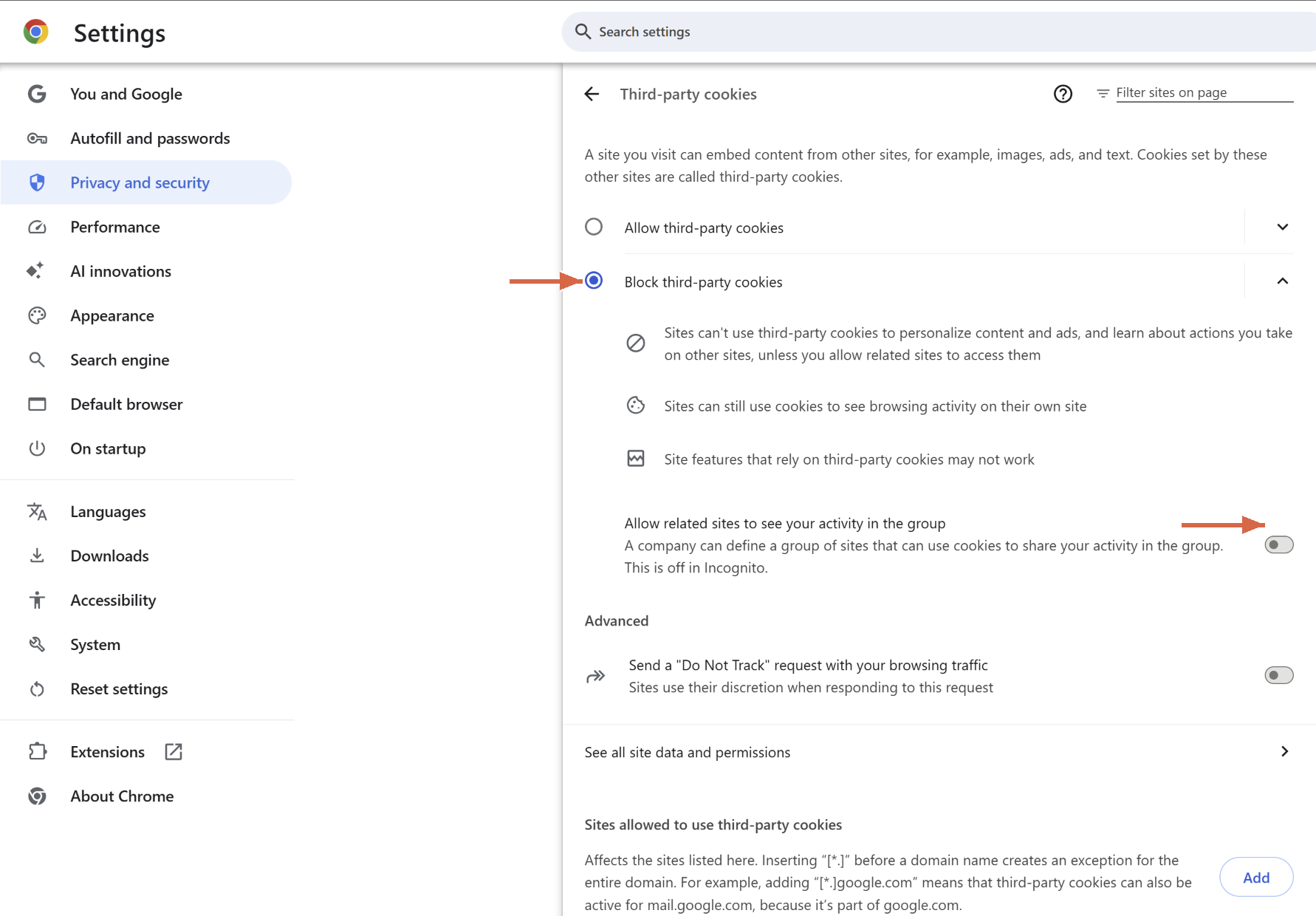
Block third-party cookies.
- Open Chrome. Top right, click the three dots, then 'Settings'.
- In the left menu, click 'Privacy and security'.
- Click 'Third-party cookies'. On some versions this reads 'Tracking Protection'. Same place.
- Choose 'Block third-party cookies'.
- Scroll down a little and turn off 'Allow related sites to see your activity in the group'. Blocking cookies leaves this one on. It lets a company's own cluster of sites keep sharing what you do across them, so switch it off.
Shortcut if the menu does not match: paste chrome://settings/cookies into the address bar and press Enter.
Turn on Enhanced protection.
- Back in 'Privacy and security', click 'Security'. (Or paste
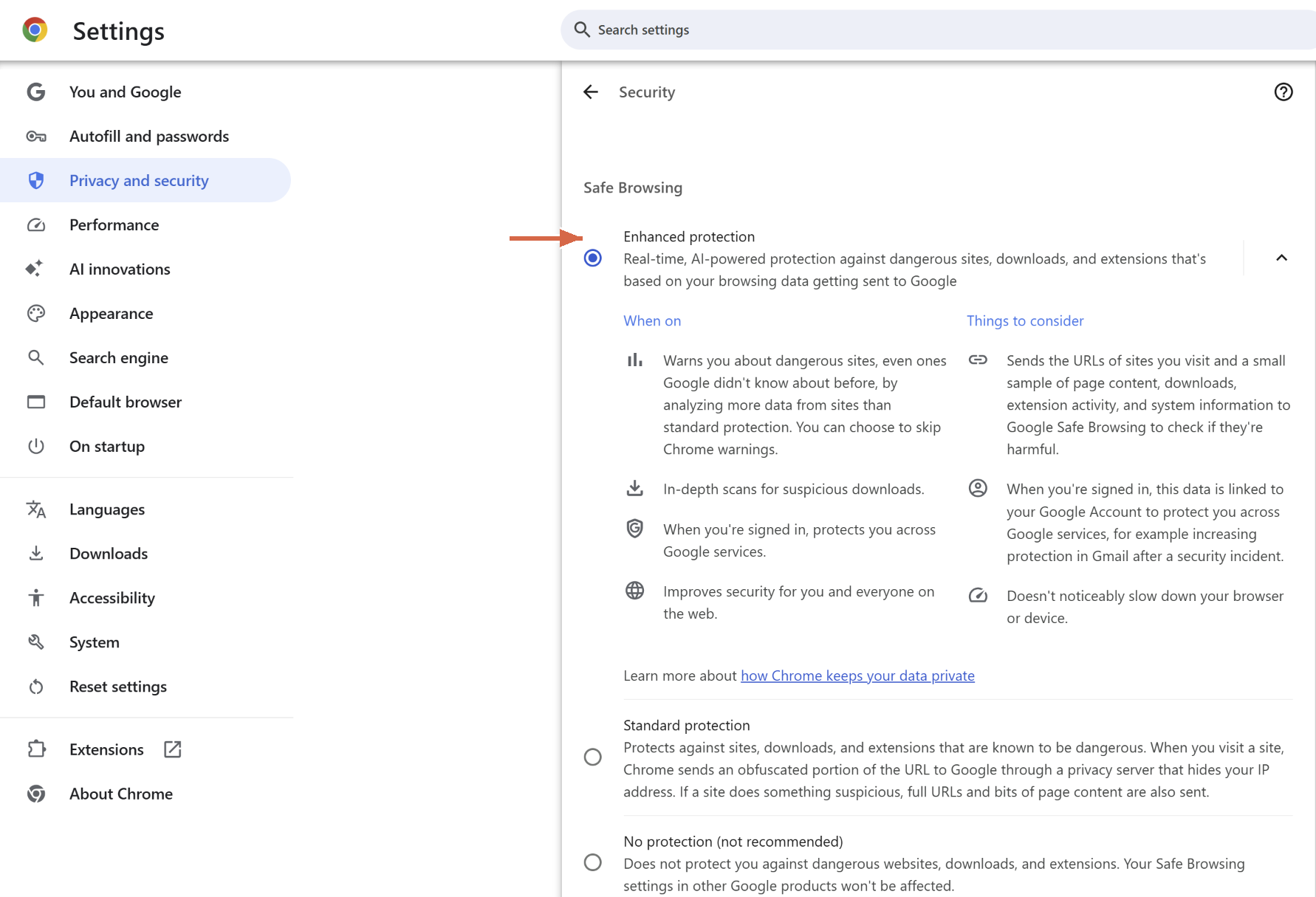
chrome://settings/security.) - Under 'Safe Browsing', choose 'Enhanced protection'.
Standard protection is already on by default. It blocks sites Google already knows are bad. Enhanced protection is the stronger setting. It checks pages in real time, so it can warn you off a scam site that went up an hour ago, before it lands on anyone's blocklist.
In Edge
Bump tracking prevention to Strict.
- Open Edge. Top right, click the three dots, then 'Settings'.
- Click 'Privacy, search, and services'.
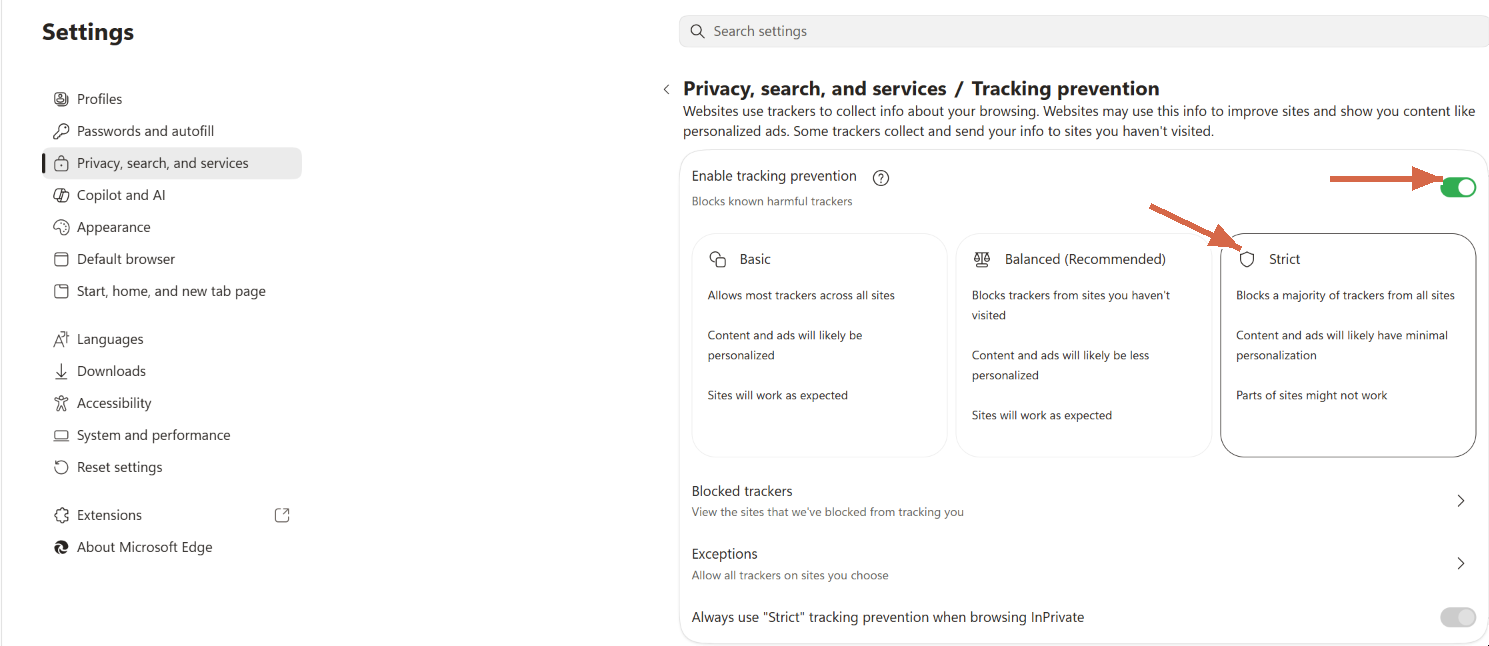
- Make sure 'Enable tracking prevention' is on, then choose the 'Strict' tile.
Edge already runs 'Balanced' by default, so this moves it up rather than turning it on. Strict blocks the most trackers. It also blocks cookies from sites you have never visited.
Confirm the scam protection, and turn on the app check.
- On that same 'Privacy, search, and services' page, scroll down to 'Security'.
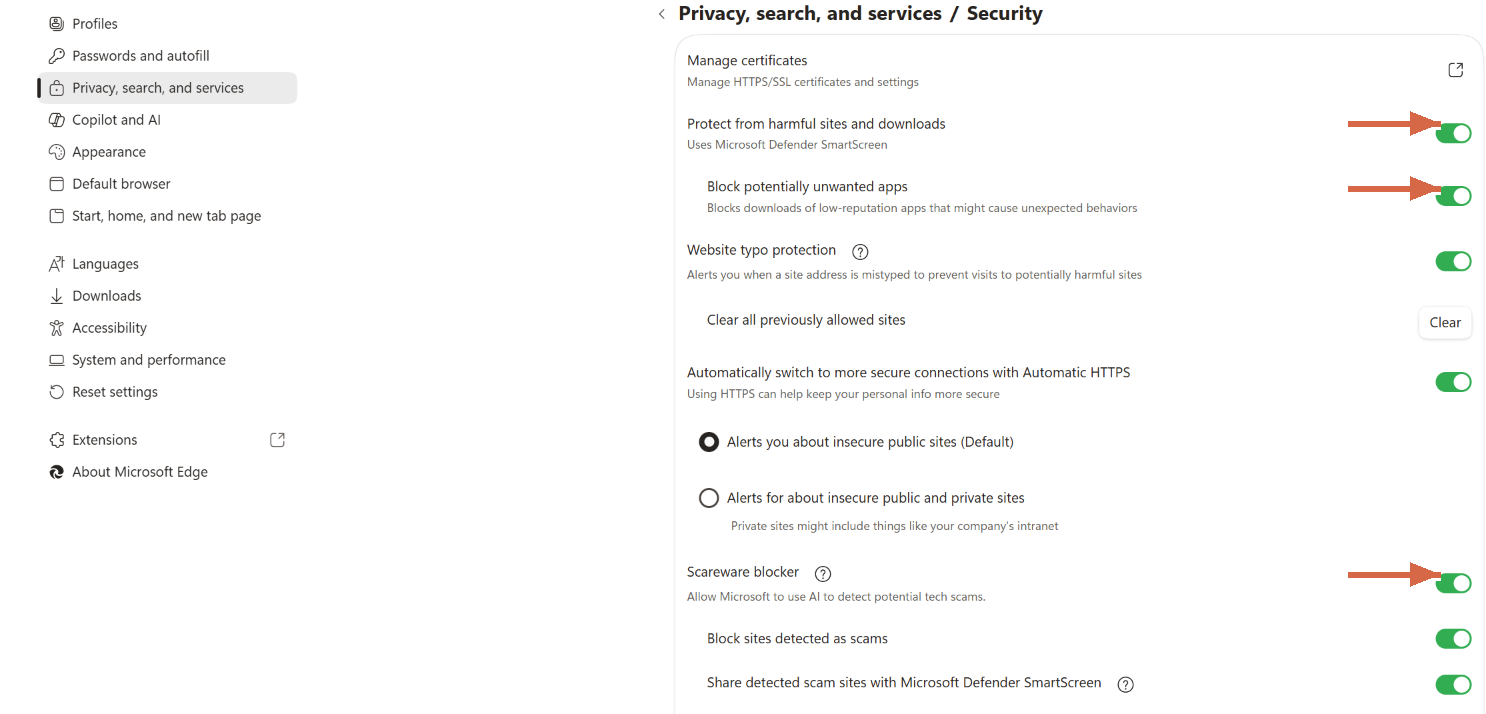
- Make sure 'Protect from harmful sites and downloads' is on. It is by default. This is Microsoft Defender SmartScreen, the piece that warns you off phishing and malware pages, the same job Enhanced protection does in Chrome.
- Right under it, turn on 'Block potentially unwanted apps'. This one is off by default. It stops the junk that rides along with a "free download," the extra toolbar or "cleaner" you never asked for.
- Check that 'Scareware blocker' is on. On most computers it already is. It kills the full-screen "your computer is infected, call this number" page, the fake alert aimed at people who panic. On an older or low-memory PC you may have to switch it on yourself, or it may not show up at all.
If you want the belt-and-suspenders version, Edge also has a plain 'Block third-party cookies' toggle under 'Cookies and site permissions'.
When a site acts up
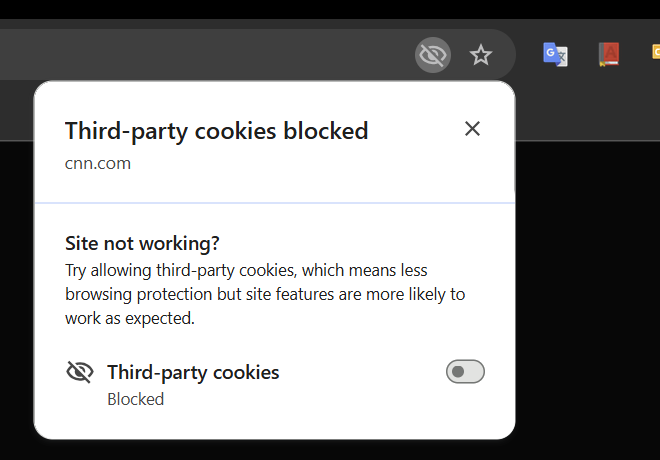
Expect this once in a while. Block trackers or third-party cookies, and some site you use starts misbehaving. A login will not take. A video will not play. A shopping cart forgets what was in it.
Do not switch the whole setting back off. Both browsers let you allow the one site that broke and keep everything else protected. In Chrome, click the eye icon at the right of the address bar (it shows up on sites that use third-party cookies) and allow cookies for that site. In Edge, click the eye icon next to the address and do the same. Allow the one site, then move on.
The short version
These settings will not make you invisible. Neither will a VPN. What they do is cut down the everyday tracking that follows you between sites. And they put a warning between you and the worst pages before you click, the phishing and fake-update pages built to catch you off guard.
Five minutes and a couple of menus. No charge. Open the browser you actually use and turn them on. Once they are on, they stay on.
If a setting is not where I said it would be, your browser probably updated and moved it. Reply and tell me which one, and I will point you to it.
Joel
Sources
- Google Chrome Help, "Choose your Safe Browsing protection level in Chrome," 2026. support.google.com/chrome/answer/9890866
- Google Chrome Help, "Delete, allow, and manage cookies in Chrome," 2026. support.google.com/chrome/answer/95647
- Microsoft Support, "Learn about tracking prevention in Microsoft Edge," 2026. support.microsoft.com
- Microsoft Support, "How can SmartScreen help protect me in Microsoft Edge?," 2026. support.microsoft.com
- Microsoft Support, "Prevent online scams with the scareware blocker in Microsoft Edge," 2026. support.microsoft.com