Five shortcuts I wish somebody had told me about
Five small things your phone and computer have always done. I learned most of them late, and I use every one of them almost daily.

I work with technology for a living. I still learned three of these in the last couple of years, and every time I've had the same reaction. Not "that's clever." More like "how long has that been there!?"
The answer is usually years. None of these are new. Nobody hands you a manual with a phone or a laptop. You poke around until something works, and then you quit poking.
Here are five. Two on your phone, three on your computer. Only one of them has to be turned on first.
What they have in common is small. Each one replaces a fiddly thing you decided to just live with. Poking at the screen trying to get the cursor between two letters. Swiping forty times to get back to the top of a feed. Aiming your mouse at the tiny X on a browser tab and missing.
On your phone
Your spacebar is a trackpad
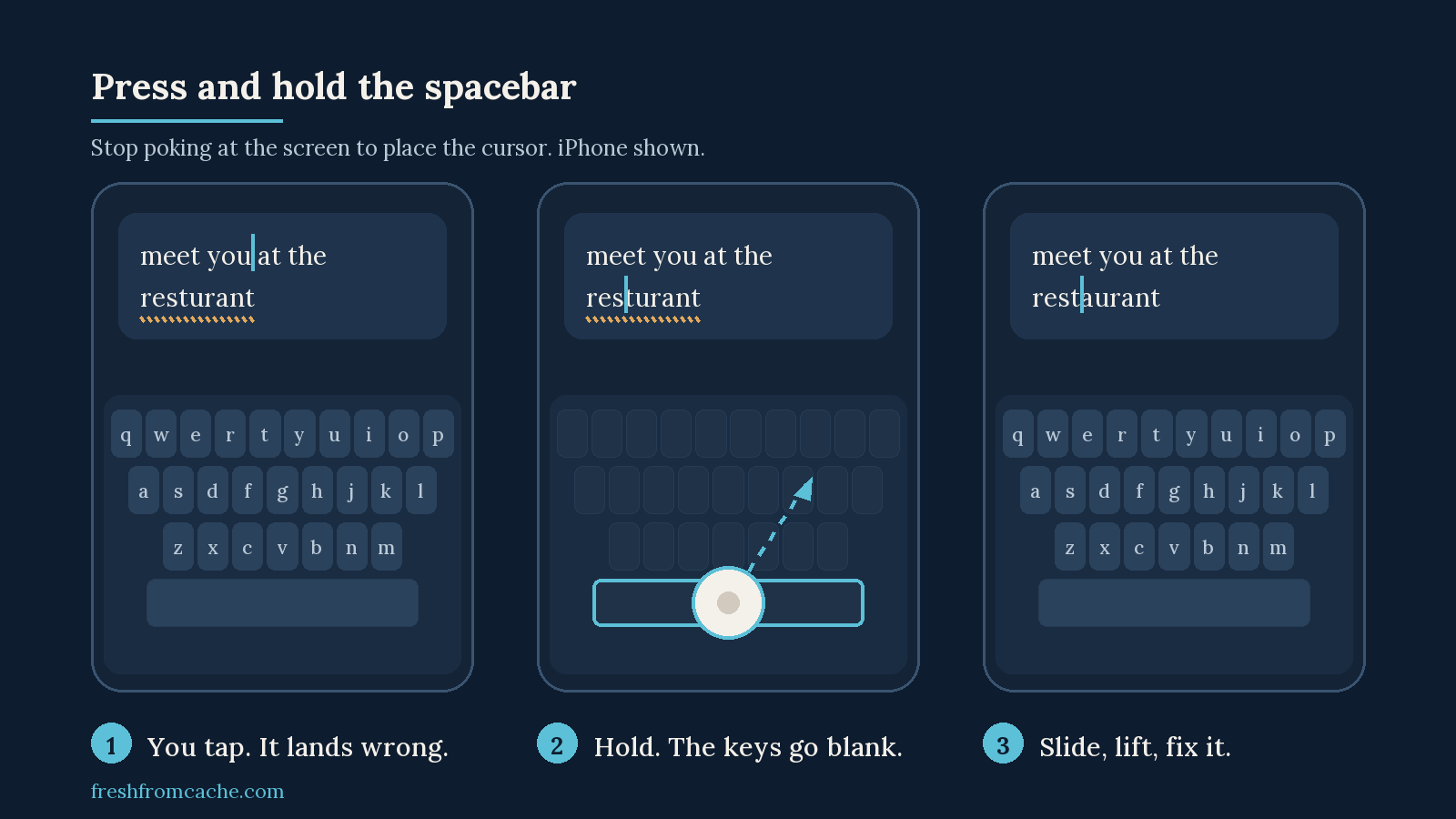
You are typing a message and there is a typo six words back. So you tap at it. The cursor lands in the wrong spot. You tap again. Wrong again.
Stop tapping. Press and hold the spacebar instead. The letters on the keyboard go blank and the whole keyboard turns into a trackpad. Slide your thumb around and the cursor follows, one character at a time, as precise as you want. Lift your finger when it is where you want it.
That is the iPhone behavior, and it works in any app with a text box.
Android depends on your keyboard. On a Samsung phone, press and hold the spacebar and you get the same thing. On Gboard, which is what most other Android phones use, you hold the spacebar and slide left or right along it, and the cursor moves along the line. Same idea, smaller range. Google has a full trackpad mode in testing, so this one may get better.
Tap the clock to fly back to the top
iPhone only. You scrolled a long way down a webpage, or a photo album, or somebody's feed. Do not swipe your way back.
Tap the very top edge of the screen, right where the clock is. You go straight to the top.
It works in most apps, including the ones Apple did not write. In Safari you usually need two taps, because the first one brings the address bar back down and the second one does the scrolling.
Android does not have this. There is no built-in equivalent, and the apps that add it want accessibility access, which is more than I would hand over for a scrolling trick. Skip this one and take the other four.
At your computer
Your scroll wheel is also a button
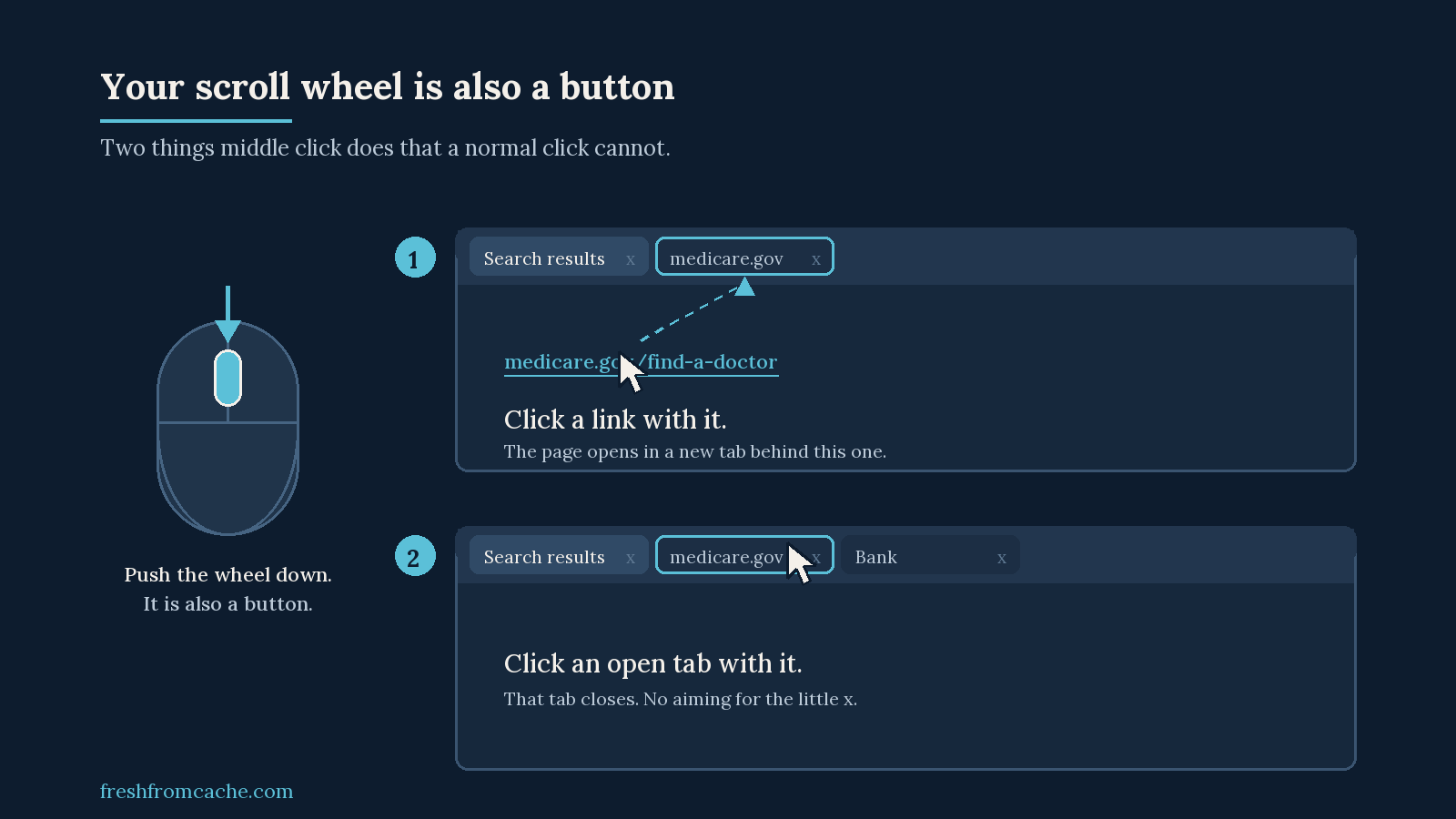
Push down on the scroll wheel. It clicks.
Click a link with it and the page opens in a new tab behind the one you are reading. You do not lose your place and you do not have to right-click and go hunting through a menu. Open six of them off a search results page and read them when you are done.
Clicking an open tab with it closes that tab. No aiming for the X.
If you are on a laptop trackpad there is no wheel to click. Holding Ctrl and clicking a link does the same background-tab trick (Command and click on a Mac). There is no trackpad equivalent for closing a tab, so that one belongs to the mouse.
Bring back the tab you just closed
Ctrl + Shift + T. On a Mac, Command + Shift + T.
The tab comes back, with its history, so the Back button still works. Press it again and the one before that comes back. Chrome keeps the last ten. If the last thing you closed was a whole window instead of a tab, it brings the window back and everything that was in it.
Chrome, Edge, and Firefox all use the same keys.
Windows remembers more than just the last thing you copied
Press the Windows key and V.
The first time you do it, Windows asks if you want to turn on clipboard history. Say yes. From then on, that same key combination opens a list of the last 25 things you copied, and you can paste any of them.
Copying three things out of one document and into another stops being three trips back and forth. Copy, copy, copy, then go paste them in whatever order you want.
This one is Windows. Macs need a separate app for it.
One thing to know about that clipboard
The list of 25 does not care what you copied. If you copy a password out of an email, or an account number off a statement, it sits in that list until you restart the computer or clear it out yourself.
Password managers know this and deliberately keep themselves out of it. Everything else does not.
So two habits. Press the Windows key and V and pick 'Clear all' before you share your screen on a Teams or Zoom call. And copy passwords out of a password manager rather than out of an email, which is the best way anyway.

Which one to try first
The spacebar. Open a text message right now, press and hold it, and slide your thumb. It takes about four seconds and you'll thank yourself.
The rest will stick the same way, which is to say slowly. You will keep tapping at the screen for a while before you remember there is a better way. That is normal. I still aim for the little X sometimes.
Did somebody teach you one of these, or did you find it by accident like the rest of us? Tell me which one, and which one you had never heard of. joel@freshfromcache.com
Sources
- Apple, Type with the onscreen keyboard on iPhone (spacebar trackpad): https://support.apple.com/guide/iphone/type-with-the-onscreen-keyboard-iph3c50f96e/ios
- Microsoft, Using the clipboard (Windows key + V, turning it on, the 25-item limit): https://support.microsoft.com/en-us/windows/apps/using-the-clipboard
- Google, How to restore a browser window you just closed by accident: https://blog.google/products-and-platforms/products/chrome/restore-browser-tabs/
Paths verified August 6, 2026.